Customize the building blocks for a topic workflow template
Inspire provides a template for developing content. If you want a custom workflow, you can update the workflow template. The template is used to create an active workflow and tell Inspire how to automate the process you need.
 Required permissions
You must have permission to the Projects Module to work with projects and workflows. Other than that, you do not need special permissions to create, edit, or delete workflow templates.
 However, keep in mind that administrators and other users can set permissions on components and folders.
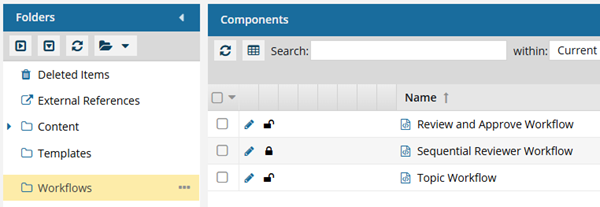
- You must have permission to edit the workflow template component.
- You must have folder permissions where the template is stored.
- For details on how to check and set permissions, refer to: Set permissions
 For a complete list of permissions, including starting a workflow from a template, read: Workflow permissions.

 Tips and tricks
- You can create an entirely new workflow template component that has no default Activities and Transitions.
- Use the Topic workflow template explained in this topic as an example of what you can create.
- To create a new template, follow the steps in: Create a workflow template component.
- If you aren't sure what specific options you might need before creating a workflow, you can add new ones at any time.
- For Activity configurations, you should build the options you need for Status, Project Activity, and Workgroup.
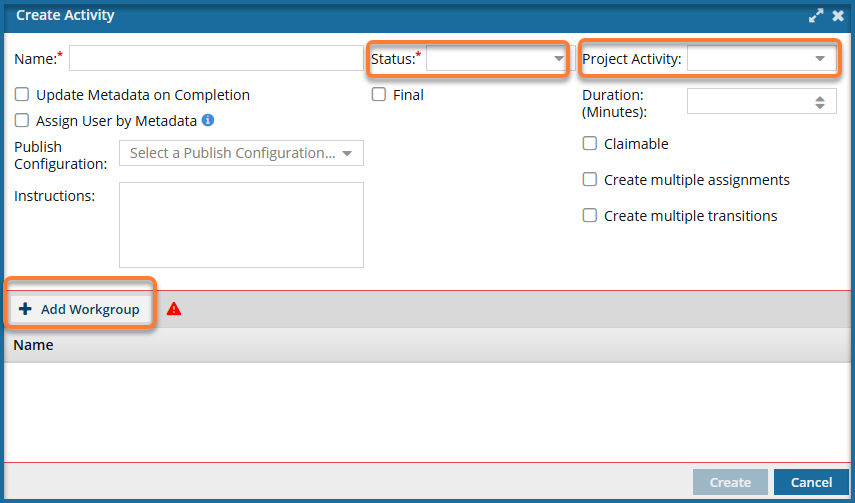
- Status. You track the progress of a content development Activity by assigning it a Status. By default, Inspire includes the following statuses: Writing, Reviewing, and Publishing. You can customize this list.
- After you use the workflow editor to create a new Status or update an existing one, that status is unique to the template you're working in. If you want to use the new or updated Status in another template, you have to re-create it in that specific template.
- To create or update a Status in a template or for an Activity, follow the steps in:
- Project Activities. Every project assignment and workflow activity must be associated with a category that defines the work. By default, Inspire includes the following categories for Project Activity: Approve Content, Edit Content, Publish Content, Review Content, Review Image, and Write Content.Project Activity is a required field and cannot be left blank. Although this field is not marked with a red asterisk, and you can create a new Activity without selecting a Project Activity, if you leave it blank, you will see an error when trying to Save or Submit the workflow template.
- If there is an error in the configuration of the Activity, you see the Activity name in red.
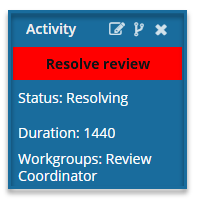
- Project Activities are configured by Administrators outside the workflow editor.
- After a project activity is created or updated, it can be used across all templates.
- If you are an administrator, follow the steps in: Manage project activity configurations.
- If there is an error in the configuration of the Activity, you see the Activity name in red.
- Workgroups. You must have a list of users who can complete the work for a project Activity. For example, if the activity is a legal review, you would create a workgroup that includes your company's lawyers.
- After you use the workflow editor to create a new Workgroup or update an existing one, that group is unique to the template you're working in.
- If you want to use the new or updated Workgroup in another template, you have to re-create it in that specific template.
- To add or remove users in the Workgroups or create new groups, follow the steps in:
- Status. You track the progress of a content development Activity by assigning it a Status. By default, Inspire includes the following statuses: Writing, Reviewing, and Publishing. You can customize this list.
- For Transition configurations, you should build the options you need for an Action.
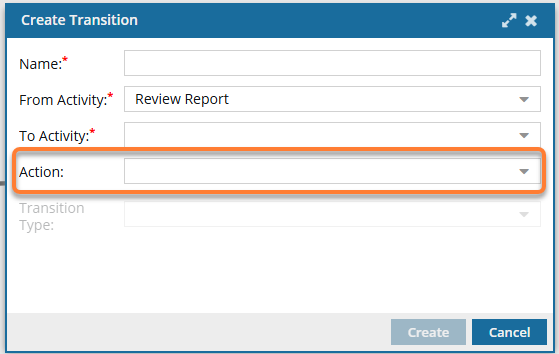
- You create a Transition in the following ways:
- Use an Activity's title bar and select
 the Create Transition option
 - Copy and paste an existing one and then edit it
- Use an Activity's title bar and select
- You use Transitions to identify what should happen when a workflow Activity is completed. For example, after a technical review, you can create a transition that specifies the files should go to an editor for review.
- You can create a Transition from an Activity or by copying and pasting an existing one and then editing it.
- If the activity chosen in From Activity is configured for multiple transitions, you must select a Transition Type. Otherwise, this option is grayed out and unavailable.
- If there is also an Action that needs to be done, such as Take a snapshot, you can create the Action and then add it to the appropriate Transition.
- Actions are normally completed by the user who is advancing the workflow by marking a task as Completed.
- After you open a template and create a new Action or update an existing one, that Action is unique to the template you're working in.
- If you want to use the new or updated Action in another template, you have to re-create it in that specific template.
- There are various system actions you can add that Inspire recognizes, however they must be created in a Topic workflow or in a completely new workflow component. They cannot be used in a sequential reviewer template.
- These actions change what the user sees when they complete an Activity.
- The action can be completed only by Inspire, such as automatically approving components associated with the workflow Activity.
- The action can also be started by Inspire and completed by the user. For example, Inspire can open the Create Review screen for the user and prepopulate it with any known information. The user must add any missing information and click Create.
- You can automate the process of assigning work to a user in an active workflow. Follow the steps in: Automate the assignment of a workflow activity
- Currently, there is a limited list of automated Actions that can be performed by Inspire.
InspireCreateReview
By default, the Transition from the Developing topics Activity to the Reviewing content Activity is completed manually by the user in the Writer Workgroup.
To automate the process, you can add an Action to have Inspire open a new Create Review screen automatically and populate any known details so that the workflow user can quickly create the review and advance the workflow to the next stage (Reviewing).
- This Action is only available in the Topic Workflow template.
- You must configure it exactly as described in: Add a Create Review Action to a topic workflow template. Otherwise, Inspire won't understand the Action as an automated process.
InspireCreateApproval
This action is meant to be used on an inbound transition (From).
When a workflow is advanced to a new task that has this action, the user is prompted to specify if referenced components should be included.
- Inspire uses that information during the approval process.
- No approval actions occur during this automation. Approval can occur manually or in the InspireApprove action.
- You must configure it exactly as described in: Add a Create Approval Action to a topic workflow template. Otherwise, Inspire won't understand the Action as an automated process.
- InspireApprove
- This action is meant to be used on an outbound transition (To).
- When a task is completed with this action, the components are approved.
- If Electronic Signature is turned on, the user is asked to add their signature.
- You must configure it exactly as described in: Add an Inspire Approve Action to a topic workflow template. Otherwise, Inspire won't understand the Action as an automated process.
- InspireUnapprove
- This action is meant to be used on an outbound transition (To).
- When a task is completed with this action, the components are unapproved and returned to the Draft state.
- You must configure it exactly as described in: Automate unapprovals in a workflow. Otherwise, Inspire won't understand the Action as an automated process.
- InspireCreateTranslation
- This action is meant to be used on an outbound transition (To).
When a workflow is advanced from a task to a transition that has this action:
If a workflow has more than one component, the user can select what to translate. For example, the workflow might contain maps, topics, images, and PDFs, and the user wants to translate only the map.
- If a workflow has more than one component, the user can choose if they want to create a single job or multiple jobs.
The user is shown the Translate component screen.
Inspire uses the Activity workflow details to populate the following information: Name (uses the Component name) and Components.
- The user can add, edit, or simply verify these details and click Queue or Translate.
- Inspire then creates the translation job and either puts it on hold in the queue or prepares the files to send to an integrated vendor or method.
- Inspire advances the workflow to the next task (such as Translating).
- You must configure it exactly as described in: Automate translation in a workflow template. Otherwise, Inspire won't understand the Action as an automated process.
- InspirePublish
- In an active workflow, this action tells Inspire to check how many components are included in the previous Activity and take one of the following actions:
- If there is one component, Inspire opens the Publish Component screen. The publishing job Name is prepopulated with the component name. If a Publish configuration was set for this Activity in the Workflow editor, that data is used to populate the fields. If not, the user must manually enter data in the required fields and click Publish. You see a notification that the publishing job has been created.
- If there is more than one component, Inspire opens the Select Project Components pane. The user can select the checkbox for each component they want to publish. When they click OK, Inspire opens the Publish Component screen. The user must fill out the required fields and click Publish. You see a notification that the publishing job has been created.
- If there are no components, Inspire gives you an error message. The publishing job is not created, and the workflow does not advance to the next step.
- You must configure it exactly as described in: Automate publication in a workflow template. Otherwise, Inspire won't understand the Action as an automated process.
- In an active workflow, this action tells Inspire to check how many components are included in the previous Activity and take one of the following actions:
- InspireCompletenessReport
- In an active workflow, the InspireCompletenessReport action tells Inspire to check how many components are included in the previous Activity and take one of the following actions:
- If there is one component, Inspire opens the Check component completeness screen so that you can select the items you want to see in the report.
- If there is more than one component, you can choose which components to run the report on first, and then select the items you want to see in the report.
- If there are no components, Inspire gives you an error message. The report is not created, and the workflow does not advance to the next step.
- You must configure it exactly as described in: Automate completeness reporting in a workflow template. Otherwise, Inspire won't understand the Action as an automated process.
- In an active workflow, the InspireCompletenessReport action tells Inspire to check how many components are included in the previous Activity and take one of the following actions:
- InspireTranslationCompletenessReport
- In an active workflow, the InspireTranslationCompletenessReport action tells Inspire to check how many components are included in the previous Activity and take one of the following actions:
- If there is one component, Inspire opens the Translation Completeness Report screen so that you can select the languages and options you want to see in the report.
- If there is more than one component, you can choose which components to run the report on first, and then select the items you want to see in the report.
- If there are no components, Inspire gives you an error message. The report is not created, and the workflow does not advance to the next step.
- You must configure it exactly as described in: Automate translation completeness reporting in a workflow template. Otherwise, Inspire won't understand the Action as an automated process.
- In an active workflow, the InspireTranslationCompletenessReport action tells Inspire to check how many components are included in the previous Activity and take one of the following actions:
- You can also manage actions in the following ways:
- You create a Transition in the following ways: