Workflow permissions
To create, view, update, and delete workflows you must either be an Administrator, the project Owner, or have special permissions.
 Required permissions
- To create, edit, and delete workflow templates
- To start and manage workflows
- To create a translation job in a workflow
- To participate in review workflows
- To use components in a workflow

Permissions for workflow templates
You must have permission to the Projects Module to work with projects and workflows.
 Keep in mind that administrators and other users can set permissions on components and folders.
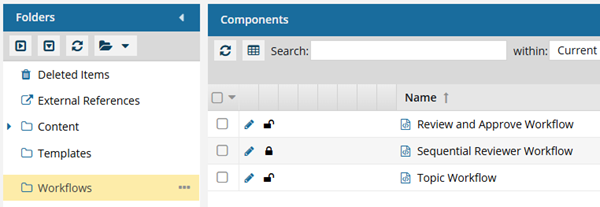
- You must have permission to edit the workflow template component.
- You must have folder permissions where the template is stored.
- For details on how to check and set permissions, refer to: Set permissions.
Permissions to start and manage workflows
To create, view, update, and delete workflows you must either be an Administrator, the project Owner, or have the following permissions:
- Create, read, update, and delete permissions to the
 Projects module.
 - Users must be project Participants to start a project workflow.
- For the Projects module, your user account must be listed under the following Property: can_initiate_assignment.
- If you are an administrator, refer to Allow users to create project assignments and workflows.
Permissions for workflows that create translation jobs
In a workflow template, you can include an action that tells Inspire to open the Translate component screen with any known details and associated components. This allows a translation coordinator to quickly send workflow content to translation and advance the workflow to the translation stage.
 In an active workflow:
- When a user advances a project workflow task and the Transition has an Action of InspireCreateTranslation, Inspire opens the Translate Component screen for the current user.
- The user in the Workgroup assigned to the Activity that triggers this automated action must be a Translation Coordinator.
Permissions for review workflows
To work with review workflows, you also need:
- Create, read, update, and delete permissions to the
 Reviews module.
 - The Create Review activity must be assigned to a workgroup of users that are review coordinators.
- The Reviewing activity must be assigned to a workgroup of users that have reviewing permissions.
 If you try to assign work to a participant who doesn't have access to the component, you will see a warning.
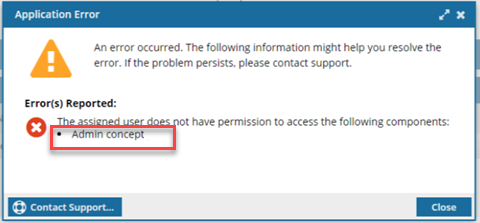
- The warning tells you the name of the restricted component.
- The Workflow is still started. You can change the permission, participant, or the component to resolve the conflict.
- For details on how to set permissions, refer to: Set permissions.
Permissions to work with components in a workflow
If you try to assign work to a participant who doesn't have access to the component, you will see the following error:
"This workflow has one or more permission problems. It is recommended to cancel the workflow, correct the permissions, and then restart it. The assigned user "Jane.Doe@MyCompany.com" does not have permission to access the following components: PrivateConcept."
- The error tells you the name of a user included in the workflow. It may not be user who needs the permissions, so you have to check each participant's permissions to the restricted component.
- The warning tells you the name of the restricted component.
- The Workflow is still started. You can change the permission, participant, or the component to resolve the conflict.
- For details on how to set permissions, refer to: Set permissions.