Add an Inspire Approve Action to a topic workflow template
The Topic Workflow template Inspire provides includes an Activity for approving content. In this template, the Transition from the Review Activity to the Approve Activity is completed manually by the user in the Reviewer Workgroup. To automate the approval process, you can add an Action called InspireApprove.
 Required permissions
You must have permission to the Projects Module to work with projects and workflows. Other than that, you do not need special permissions to create, edit, or delete workflow templates.
 However, keep in mind that administrators and other users can set permissions on components and folders.
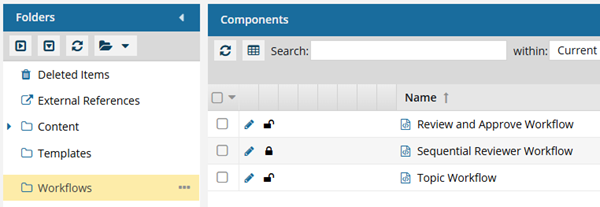
- You must have permission to edit the workflow template component.
- You must have folder permissions where the template is stored.
- For details on how to check and set permissions, refer to: Set permissions
 For a complete list of permissions, including starting a workflow from a template, read: Workflow permissions.

 Tips and tricks
- The InspireApprove automated Action is helpful because you can get all the components from the previous Activity approved without user intervention.
- When using the InspireApprove action in an active workflow:
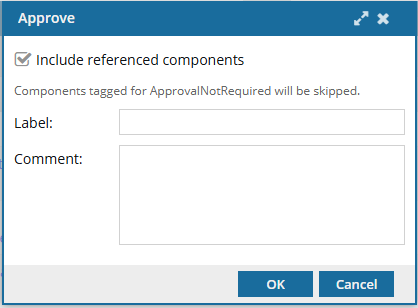
- Users are prompted with a screen to include referenced components and enter an optional label and comment.
 Important notes
You cannot select from a list of referenced components; either they are all approved, or none are approved along with the source component.
- The Label and Comment are shown on the History tab for the record with an Action of Update and a Type of Approve.
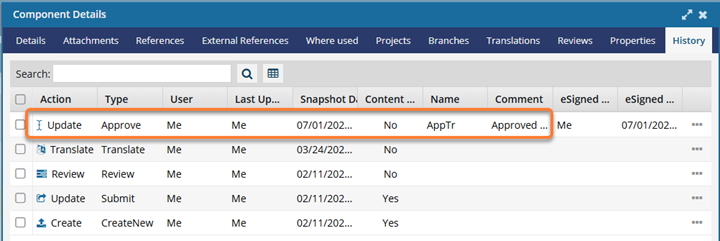
 The contents of Label are shown in the Name column, directly before the Comment column.
- Users are prompted with a screen to include referenced components and enter an optional label and comment.
- An Action is unique to the template it's included in. If you want to use the new or updated Action in a different template, you have to re-create it in that specific template.
- After you add this new Action (InspireApprove) to the provided template or a custom template you've created, you can use it in a workflow transition.

- If you want the workflow to advance and let users in the previous Activity's Workgroup select referenced components to include in the Approval process, you can use the Inspire Create Approval Action (InspireCreateApproval) instead. Follow the steps in: Add a Create Approval Action to a topic workflow template.
 Before you begin
This automated Action is only available in a topic workflow template (not a sequential reviewer template), or a completely new workflow template component.
- A component cannot be included in the approval process if the ApprovalNotRequired tag has been attached to the component. For more details, read Exclude a file from approval using a tag.
To add the Inspire Approve action to a topic workflow template:
- Create a new Action for InspireApprove.
- Add the Action to a Transition.
