Add the Inspire Approve Action
To automate the approval process, you can add an Action called InspireApprove to have Inspire automatically approve the components in the review (or previous activity).
 Required permissions
You must have permission to the Projects Module to work with projects and workflows. Other than that, you do not need special permissions to create, edit, or delete workflow templates.
 However, keep in mind that administrators and other users can set permissions on components and folders.
- You must have permission to edit the workflow template component.
- You must have folder permissions where the template is stored.
- For details on how to check and set permissions, refer to: Set permissions
 For a complete list of permissions, including starting a workflow from a template, read: Workflow permissions.

 Tips and tricks
- When using the InspireApprove action in an active workflow:
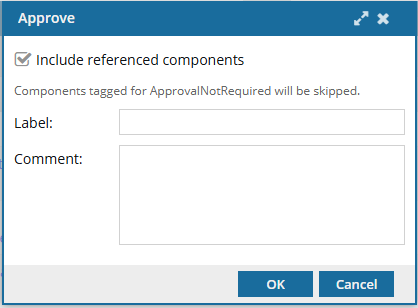
- Users are prompted with a screen to include referenced components and enter an optional label and comment.
 Important notes
You cannot select from a list of referenced components; either they are all approved, or none are approved along with the source component.
- The Label and Comment are shown on the History tab for the record with an Action of Update and a Type of Approve.
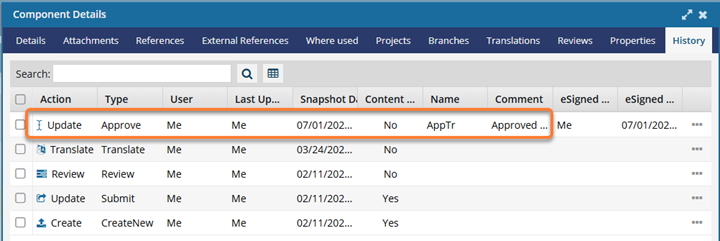
 The contents of Label are shown in the Name column, directly before the Comment column.
- Users are prompted with a screen to include referenced components and enter an optional label and comment.
- This automated Action is only available in a topic workflow template (not a sequential reviewer template), or a completely new workflow template component.
- An Action is unique to the template it's included in. If you want to use the new or updated Action in a different template, you have to re-create it in that specific template.
- After you add this new Action to the provided template or a custom template you've created, you can use it in a workflow transition.

 Before you begin
A component cannot be included in the approval process if the ApprovalNotRequired tag has been attached to the component. For more details, read Exclude a file from approval using a tag.
To add an Inspire Approve action to a topic workflow template:
-
Click
 Components.
-
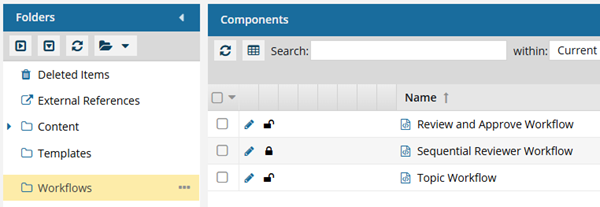
In the Folders pane, select Workflows.
You can save a workflow template to another folder. If you did this, open that folder instead of the Workflows folder.
-
In the Components pane, select a workflow.
The InspireApprove action is only available in Topic workflows or a completely new workflow template component.
-
In the workflow editor toolbar, click
 Actions.
-
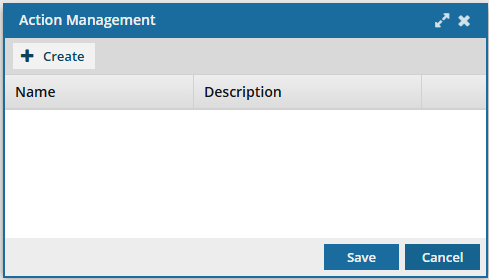
On the Action Management screen, click
 Create.
-
On the Create Action screen, in Name, enter the following string of characters exactly: InspireApprove.
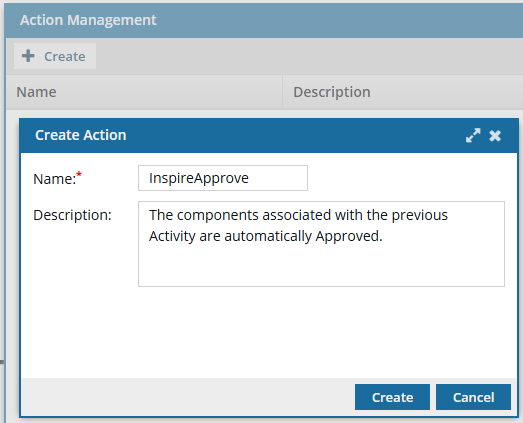 Important notes:
- Do not use any spaces
- Make sure to use capital letters for Inspire, and Approve
- If the string is not entered exactly as shown, Inspire will not be called to automatically approved components
-
To save your changes on the Create Action screen, click Create.
 Results:
- You can see your new action on the Action Management screen.
-
To save the list of actions, on the Action Management screen, click Save.
This Action has been added as an option but is not in use until you add it to a transition. Follow the steps in: Add the action to a transition.