Add an action to a transition
You use transitions to tell Inspire what to do when an Activity in a workflow is completed. For example, after the first review, you can create a transition to tell the user to send the files for approval. If there is also an Action to be done, such as taking a snapshot, you can create it and add it to the Transition.
 Tips and tricks
- Inspire does not provide any default Actions that are manually completed by a user. If you haven't created any yet, follow the steps in: Create an action in a template.
- You must create an Action first and then select it when creating a Transition.
- You can create a Transition without an Action and add it later.
- A Transition can only include one Action.
- An Action is unique to the template it's included in. If you want to use the new or updated Action in a different template, you have to re-create it in that specific template.
- You can also use an Action to tell Inspire to perform an automated task.
 Automated actions can only be created in a Topic workflow template or a new workflow component. Automated actions do not work in a sequential reviewer workflow.
- Currently, there is a limited list of automated Actions that can be performed by Inspire.
InspireCreateReview
By default, the Transition from the Developing topics Activity to the Reviewing content Activity is completed manually by the user in the Writer Workgroup.
To automate the process, you can add an Action to have Inspire open a new Create Review screen automatically and populate any known details so that the workflow user can quickly create the review and advance the workflow to the next stage (Reviewing).
- This Action is only available in the Topic Workflow template.
- You must configure it exactly as described in: Add a Create Review Action to a topic workflow template. Otherwise, Inspire won't understand the Action as an automated process.
InspireCreateApproval
This action is meant to be used on an inbound transition (From).
When a workflow is advanced to a new task that has this action, the user is prompted to include referenced components.
After that prompt, a notification is sent to all users in the workgroup for the task and then the workflow advances to the next task.
- You must configure it exactly as described in: Add a Create Approval Action to a topic workflow template. Otherwise, Inspire won't understand the Action as an automated process.
- InspireApprove
- This action is meant to be used on an outbound transition (To).
- When a task is completed with this action, the components are approved.
- If Electronic Signature is turned on, the user is asked to add their signature.
- You must configure it exactly as described in: Add an Inspire Approve Action to a topic workflow template. Otherwise, Inspire won't understand the Action as an automated process.
- InspireCreateTranslation
- This action is meant to be used on an outbound transition (To).
When a workflow is advanced from a task to a transition that has this action:
If a workflow has more than one component, the user can select what to translate. For example, the workflow might contain maps, topics, images, and PDFs, and the user wants to translate only the map.
- If a workflow has more than one component, the user can choose whether they want to create a single job or multiple jobs.
The user is shown the Translate component screen.
Inspire uses the Activity workflow details to populate the following information: Name (uses the Component name), and Components.
- The user can add, edit, or simply verify these details and click Queue or Translate.
- Inspire then creates the translation job and either puts it on hold in the queue or prepares the files to send to an integrated vendor or method.
- Inspire advances the workflow to the next task (such as Translating).
- You must configure it exactly as described in: Automate translation in a workflow template. Otherwise, Inspire won't understand the Action as an automated process
- InspirePublish
- In an active workflow, this action tells Inspire to check how many components are included in the previous Activity (such as Approve components) and take one of the following actions:
- If there is one XML component, Inspire opens the Publish Component screen. The publishing job Name is prepopulated with the component name. If a Publish configuration was set for this Activity in the Workflow editor, that data is used to populate the fields. If not, the user must manually enter data in the required fields and click Publish. You see a notification that the publishing job has been created.
- If there is more than one XML component, Inspire opens the Select Project Components pane. The user can select the checkbox for each component they want to publish. When they click OK, Inspire opens the Publish Component screen. The user must fill out the required fields and click Publish. You see a notification that the publishing job has been created.
- If there are no XML components, Inspire gives you an error message. The publishing job is not created, and the workflow does not advance to the next step.
- You must configure it exactly as described in: Automate publication in a workflow template. Otherwise, Inspire won't understand the Action as an automated process.
- In an active workflow, this action tells Inspire to check how many components are included in the previous Activity (such as Approve components) and take one of the following actions:
- InspireCompletenessReport
- In an active workflow, the InspireCompletenessReport action tells Inspire to check how many components are included in the previous Activity (such as Approve components) and take one of the following actions:
- If there is one XML component, Inspire opens the Check component completeness screen so that you can select the items you want to see in the report.
- If there is more than one XML component, you can choose which components to run the report on first, and then select the items you want to see in the report.
- If there are no XML components, Inspire gives you an error message. The report is not created, and the workflow does not advance to the next step.
- You must configure it exactly as described in: Automate completeness reporting in a workflow template. Otherwise, Inspire won't understand the Action as an automated process.
- In an active workflow, the InspireCompletenessReport action tells Inspire to check how many components are included in the previous Activity (such as Approve components) and take one of the following actions:
- InspireTranslationCompletenessReport
- In an active workflow, the InspireTranslationCompletenessReport action tells Inspire to check how many components are included in the previous Activity (such as Approve components) and take one of the following actions:
- If there is one component, Inspire opens the Translation Completeness Report screen so that you can select the languages and options you want to see in the report.
- If there is more than one component, you can choose which components to run the report on first, and then select the items you want to see in the report.
- If there are no components, Inspire gives you an error message. The report is not created, and the workflow does not advance to the next step.
- You must configure it exactly as described in: Automate translation completeness reporting in a workflow template. Otherwise, Inspire won't understand the Action as an automated process.
- In an active workflow, the InspireTranslationCompletenessReport action tells Inspire to check how many components are included in the previous Activity (such as Approve components) and take one of the following actions:
- Currently, there is a limited list of automated Actions that can be performed by Inspire.
- If you want to just manage the available Actions, follow the steps in: Manage actions in a template.

 Before you begin
- The changes to a Transition will be applied to all new workflows that are started using this template.
- For workflows that use this template and are in progress:
- If the Transition you are updating has not occurred yet, the changes will be applied when the workflow moves to the updated Transition.
- If the Transition you are updating has already been completed, the changes will not be applied.
To add an action to a transition:
-
Click
 Components.
-
In the Folders pane, select Workflows.
You can save a workflow template to another folder. If you did this, open that folder instead of the Workflows folder.
-
In the Components pane, select a workflow template.
Automated actions are available only in Topic workflows or in a completely new workflow template component.
-
To open the template, do one of the following:
- Double-click the file
- Right-click the file, and then select Edit...
- Click
 the Options menu, and then select Edit...
 Results: You see the workflow activities and transitions in the editor.
 -
In the workflow editor, select the Transition you want to update.
Result: The box you select has an orange highlight.

-
In the Transition's title bar, click
 Update Transition.
Result: The Update Transition screen opens.
Update Transition.
Result: The Update Transition screen opens.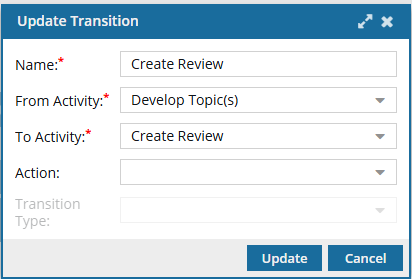
-
In Action, do one of the following:
 Actions must be pre-configured. If you don't see the option you need, Cancel out of this screen and follow the steps in: Create an action in a template.
 - Select the manual action you want completed at the time of this transition, such as Take a snapshot.
- Optionally, select one of the following choices that tells Inspire to complete an automatic action:
- InspireCreateReview (Open a new Create Review screen automatically.)
- InspireCreateApproval (Used on an inbound transition to open an Approval screen)
- InspireApprove (Used on an outbound transition to approve components)
- InspireCreateTranslation (Open a new Translate component screen automatically.)
-
To save your changes to the Transition, click Update.
Results:
- The transition now includes the Action information.
- When Inspire sends a notification about the transition, the Action information is included.
-
To save your changes to the template, do one of the following:
- If you are done updating the workflow, to close the workflow editor, click
 Save and Submit.
 - If you want to keep working but save your changes locally, click
 Save Progress.
Results: - The changes to a Transition will be applied to all new workflows that are started using this template.
- For workflows that use this template and are in progress:
- If the Transition you are updating has not occurred yet, the changes will be applied when the workflow moves to the updated Transition.
- If the Transition you are updating has already been completed, the changes will not be applied.
- If you are done updating the workflow, to close the workflow editor, click