Use the workflow editor
Writers and content developers can easily create and modify the tasks they want to include in the workflow editor. Components with a Type of Workflow automatically open in the workflow editor. The workflow editor provides a visual overview of the steps the workflow uses to guide content development.
- Workflow window. Use the Workflow window to create and edit the workflow structure and apply activities and actions to its elements.
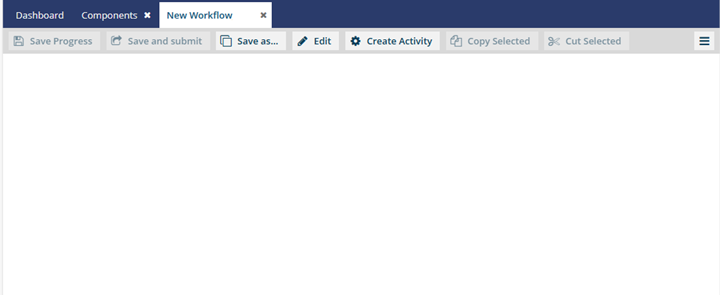
- Workflow toolbar

 Save Progress. Keeps a copy of your changes locally and keeps the editor open.
 This option is not available if there are any errors in the workflow. You see errors highlighted in red.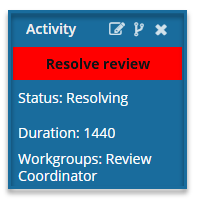
 Save and submit. Uploads your changes to the Inspire database and closes the workflow editor. This option is not available if there are any errors in the workflow. You see errors highlighted in red.
 Save as... Opens the Save Workflow as screen so that you can enter a new name, select a folder to store it in, and change the Language if necessary.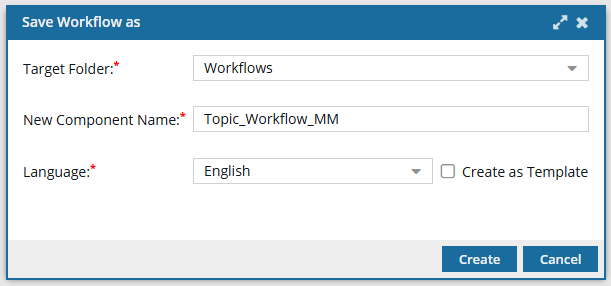
 Edit. Opens the Edit screen so that you can change the template's details such as the Name, an optional Description, and the Type.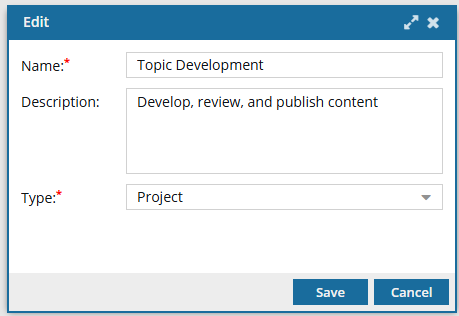
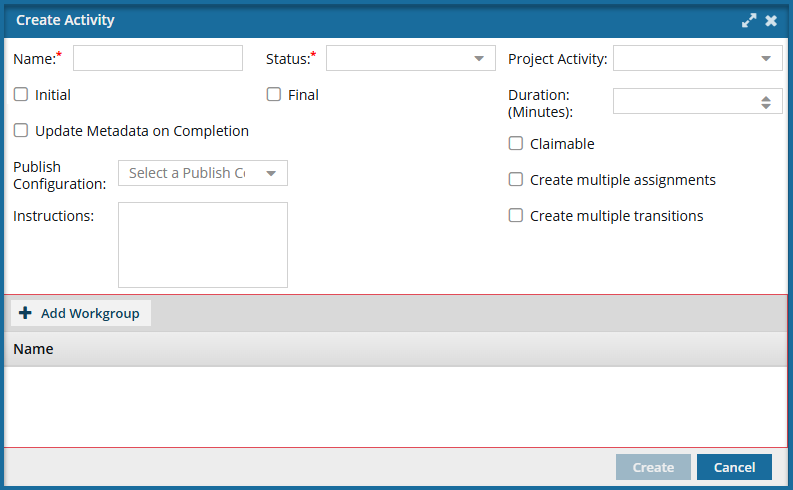
- Create Activity. An activity performs a task, such as requesting approval. An activity can succeed or fail, thereby determining additional actions in the workflow.
- Transition. A transition is a one-way link between two activities that determines the action performed in the workflow.
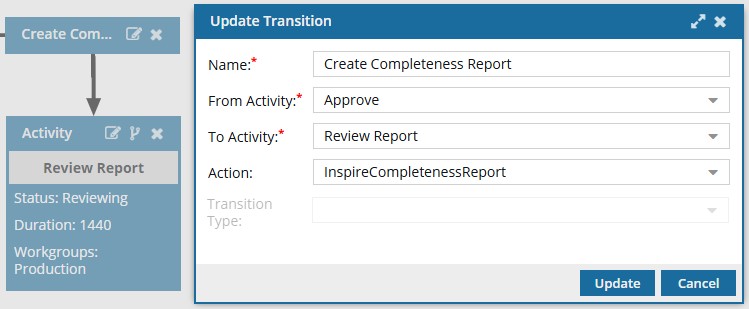
- Two transitions must be created if you need to move back and forth between activities.
- The action assigned to the transition can trigger a process or let a user know what task is queued next in the workflow process.
- If the activity that triggers the transition is configured for multiple transitions, you must select a Transition Type. Otherwise, this option is grayed out and unavailable.
- Status. A status represents the current state of an activity as a user moves through the workflow process.
- Workgroup. A workgroup is a collection of assigned users and participants. One or more unique workgroups can be assigned to an activity.
