Edit a template action
All transitions can include an Action if an additional step needs to be done before the next Activity. For example, you can add an action for a process completed outside Inspire, such as Hire a copy editor. You can also use an action to specify what a user should do after the activity is completed, such as Take a snapshot. Inspire does not provide any default Actions that are manually completed by a user, but after you create one, you can update it at any time.

 Tips and tricks
- Inspire does not provide any default Actions that are manually completed by a user. If you haven't created any yet, follow the steps in: Create an action in a template.
- A Transition can only include one Action.
- An Action is unique to the template it's included in.
- If you want to use the new or updated Action in a different template, you have to re-create it in that specific template
- You can also use an Action to tell Inspire to perform an automated task.
 These Actions are available only in the Topic Workflow template.Currently, there is a limited list of automated Actions that can be performed by Inspire:
InspireCreateReview (Add a Create Review Action to a topic workflow template)
InspireCreateApproval (Add a Create Approval Action to a topic workflow template)
- InspireApprove (Add an Inspire Approve Action to a topic workflow template)
- InspireUnapprove (Automate unapprovals in a workflow)
- InspireCreateTranslation (Automate translation in a workflow template)
- InspirePublish (Automate publication in a workflow template)
- InspireCompletenessReport (Automate completeness reporting in a workflow template)
- InspireTranslationCompletenessReport (Automate translation completeness reporting in a workflow template)
- You also can manage actions in the following ways:
To edit an existing action:
-
Click
 Components.
-
In the Folders pane, select Workflows.
If you have moved the template to another folder, go to that location instead.
-
In the Components pane, select a workflow.
To open the template, do one of the following:
- Double-click the file
- Right-click the file, and then select Edit...
- Click
 the Options menu, and then select Edit...
 Results: You see the workflow activities and transitions in the editor.
 -
In the toolbar at the top of the editor, click
 Actions.
Results: The Action Management screen opens.
Actions.
Results: The Action Management screen opens.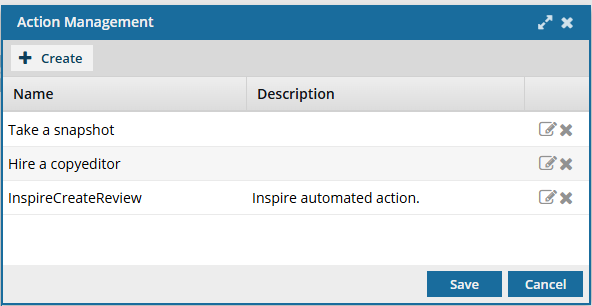
-
On the Action Management screen, select the Action you want to update, and then click
 Update.
Results: The Update Action screen opens.
Update.
Results: The Update Action screen opens.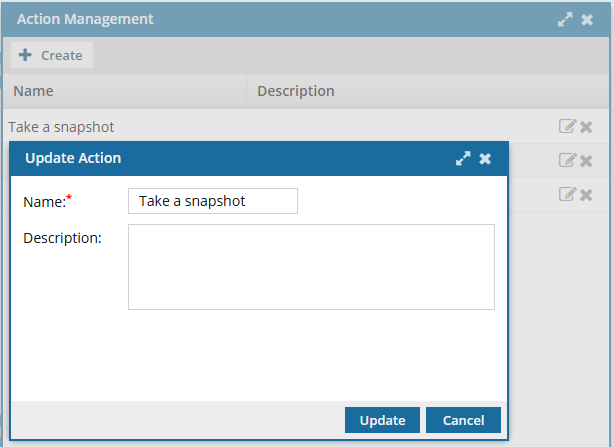
-
To save your changes, click Update.
Results:
- You can see your updated action listed on the Action Management screen.
- You can select your updated action when creating or updating a Transition.
You can now:- If you are done updating the workflow, to close the workflow editor, click
 Save and Submit.
 - If you want to keep working but save your changes locally, click
 Save Progress.