Understand workflows
Inspire workflows automate processes by using pre-defined rules and system triggers to complete tasks.
 Learn about Required permissions

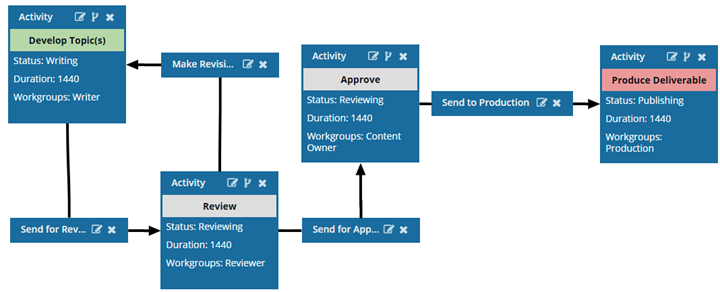
Inspire provides you with a few sample workflow templates in the Workflows folder. One of these samples is a Topic workflow template that you can use to guide the tasks of writing content, sending it for review, approving it, and publishing the deliverable.
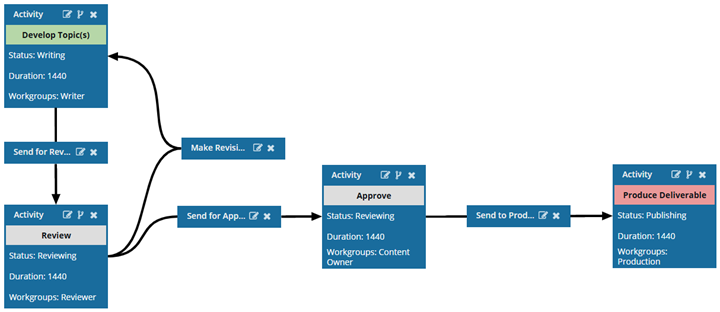
All Inspire workflow templates use Activities (tasks), Workgroups (users), and Transitions (connections between Activities) to organize development work. You can use and customize the sample templates or create your own.
Topics in this article:
Parts of a workflow
To create a workflow, you must use a template and the contents of a project.
 Design templates
You use a template to configure the flow of tasks to be completed. The template also includes workgroups, which are lists of users who can complete the work.
 Create workflows
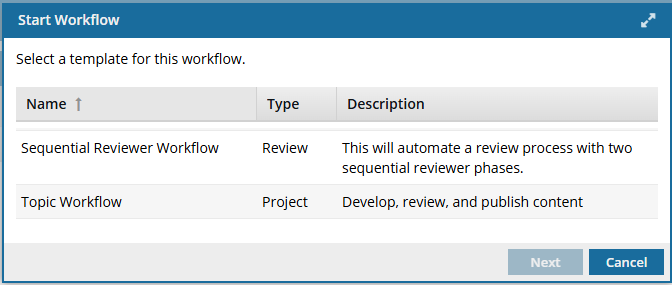
Next, you need to start a new workflow based on a generic template design.
You also need to assign the initial task. Optionally, you can also change the Workflow Name, which defaults to the template's name. For example, when creating a topic workflow, you must complete the following screen:
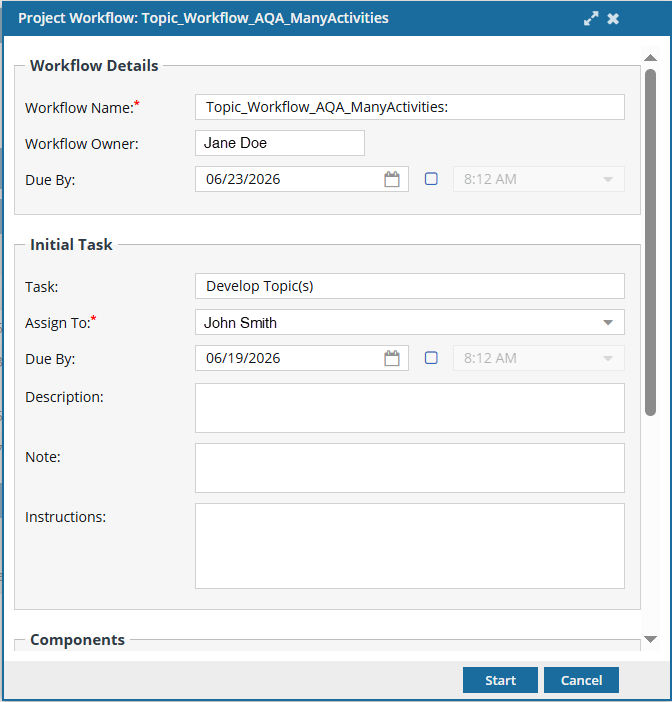
 After you start the workflow:
- Inspire manages the transitions you configured in the workflow template until the last task is completed, or the workflow is canceled.
Inspire captures a snapshot of all components included in an assignment each time a workflow activity is completed.
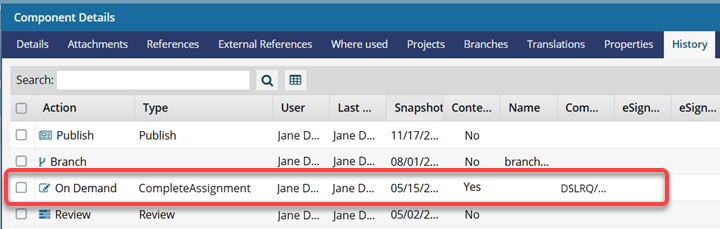
This snapshot is labeled with the following information:
Action = On Demand
(Process) Type = CompleteAssignment
Comment = Project Name/Workflow Name/Assignment Name
Example of a sequential review workflow
For example, you want to send a newly written Task component to review, but it needs to be sent to specific users in a specific order. First, the review needs to go to a technical developer, then an editor, and then a legal representative. You can use a workflow to automatically send the content to each reviewer in order. This means that when a user marks their review as Complete, they don't need to know who the next reviewer is or manually send it to them. Inspire completes the workflow transitions automatically.
- Inspire provides a Sequential Reviewer template to automate this kind of review. You can customize the template in an editor to fit your business processes.
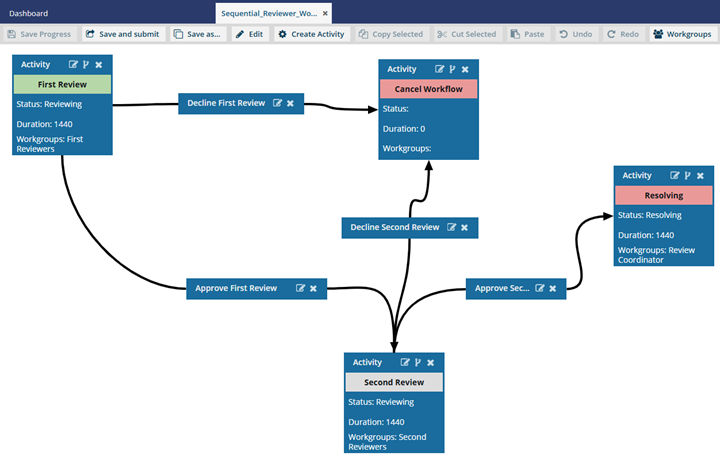
- In the template editor, you specify the Activity that needs to be done, such as completing a technical review, an editorial review, or a legal review.
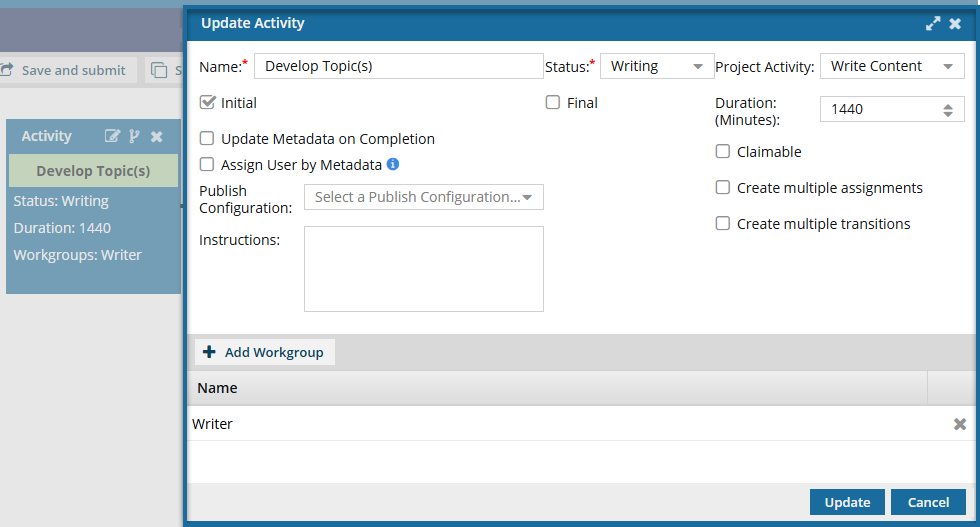 Each Activity has rules you can define, including:
 - Name. Identifies the Activity and, in an active workflow, identifies the task or assignment.
- Status. Identifies the task's progress (for example, Writing, Reviewing, Publishing).
- Project Activity. Identifies the larger goal in a project (for example, Write Content, Review Content, Approve Content, Edit Content).
 Project Activity is a required field and cannot be left blank. Although this field is not marked with a red asterisk, and you can create a new Activity without selecting a Project Activity, if you leave it blank, the Save and Submit options are not available until you correct the errors in the workflow template. Activities are created and configured in the Administration module on the Project Activity Configuration screen. Admins can follow the steps in: Manage project activity configurations.
- If there is an error in the configuration of the Activity, you see the Activity name in red.
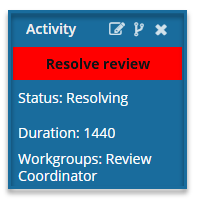
You must correct any errors before you can Save or Submit the workflow template.
- If there is an error in the configuration of the Activity, you see the Activity name in red.
- Initial / Final. These checkboxes tell Inspire where the workflow starts and stops. When a user starts an active workflow:
- The Initial assignment will always be the Activity with the Initial option selected.
- The workflow cannot be marked as completed until the Activity with the Final option selected is completed.
- You can only select the Initial checkbox for one Activity. The same is true for the Final option.
- These checkboxes may be unavailable if another Activity is already using them.
- Duration. Sets a deadline for the activity to be completed (in minutes from 0 to 525600, which is 1 year).
- Update Metadata on Completion. Tells Inspire to populate or clear an XML element or attribute value across one or more components participating in the workflow. You use an XPath value to update metadata.
- Claimable. Specifies that this activity can be set to the State of Ready to Claim. In this case, the activity is not assigned to a single user but to a list of users who are notified when the activity can be claimed. The first user to claim the assignment completes the work.
 Claimable is unavailable when you select any of the following options:
- Assign User by Metadata
- Create Multiple Assignments
- Assign User by Metadata. This option lets you pull in a component's element or attribute that contains an email address. Inspire automatically assigns the Activity to that user, rather than requiring a user in an active workflow to make the assignment. Important notes:
- If it does not already exist, you must Add metadata to a component that contains the email address of an Inspire user who is a member of the Activity's Workgroup.
- You must add an XPath statement to the Activity to pull in the metadata from that component. Follow the steps in: Assign a workflow activity using metadata.
- If you use this option, you cannot select either the Claimable or Create Multiple Assignments options.
- Inspire inspects the first component in the assignment and evaluates the XPath statement.
- If it encounters any errors, the Activity is assigned within the Workgroup.
- When the next activity has metadata, the Activity is assigned to the user in the Fallback User field that appears on the Next Activity screen instead of the Assign To field.
- For more information about errors, read: Automate the assignment of a workflow activity.
- Create Multiple Assignments. When an active workflow advances to this activity, Inspire creates an assignment for each user in the Workgroup, rather than a single assignment for the selected user. All users MUST complete the assignment (or all assignments must be canceled) before the Activity can be marked complete, and the workflow can be advanced. Important notes:
- This option is not available if you select any of the following options:
- Claimable
- Assign User by Metadata
- All users MUST complete the assignment (or all assignments must be canceled) before the Activity can be marked complete, and the workflow can be advanced.
- If you select Create Multiple Assignments, when you start a workflow based on this template, you will not be able to Change the current activity in a workflow.
- This option is not available if you select any of the following options:
- Create Multiple Transitions. Refine the options on the Next Workflow Task screen based on how the Activity is completed.
- This option lets you create as many transitions as you need from this Activity. However, each transition must have a Type of Accept or Reject. In an active workflow, Inspire asks the user to select the transition they want to use to advance it.
- For example, if the user selects Accept, you can configure the workflow to advance to the next step that should occur if the content is ready to move forward to the next stage, such as approval, publishing, or translation.
- For example, if the user selects Reject, you can configure the workflow to return to a step where the content can be revised, republished, or retranslated.
- Currently, you can only add a Transition Type of Accept or Reject. You cannot create your own Transition Type or leave this option unselected.
- For more information, workflow coordinators can read: Customize an activity to have multiple transitions.
- This option lets you create as many transitions as you need from this Activity. However, each transition must have a Type of Accept or Reject. In an active workflow, Inspire asks the user to select the transition they want to use to advance it.
- Publish Configuration. If the Activity is related to publishing, in Publish Configuration, select the option that includes the publishing settings you want to use. A Publish Configuration is created by an administrator and may include settings such as a default Publish Name, whether to skip or validate XML in the components, and profiling filters.
- Instructions. In the workflow editor, when creating an Activity, a text box is provided to add guidelines for the next user upon completion of this Activity. When creating an active workflow, the user can also add Instructions. When the workflow advances, Inspire displays these instructions in a read-only area at the bottom of the Next Workflow Task screen.
- Workgroups. A list of users who can do the work.
- The template is also the place where you define the Transitions for moving the workflow to the next step, such as marking the technical review as complete.
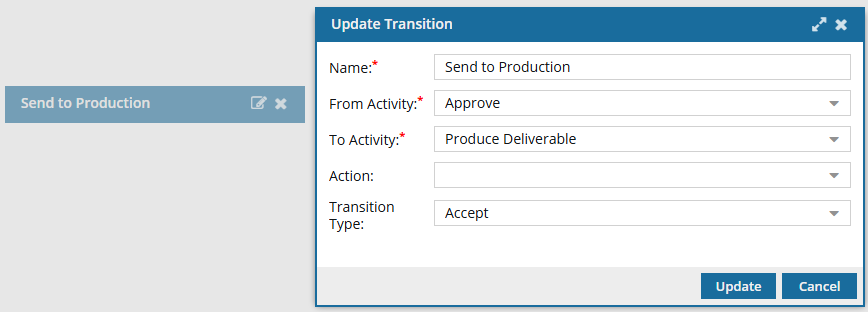 Transitions are especially important if something needs to be done before the next Activity can begin.
 - For example, after a technical review, you can create a transition with a Name that specifies the files should go to an editor for review.
- If there is also an Action that needs to be done, such as Take a snapshot, you can select from a list of Actions that have been created for this template.
- If the activity chosen in From Activity is configured for multiple transitions, you must select a Transition Type. Otherwise, this option is grayed out and unavailable.
After you design the basic task flow in a generic template, start a new workflow based on the template and add the specific details for the work to be done.
- Specify the template that outlines the actions and conditions for the workflow.
- Add the specific files, set the appropriate due dates, and assign the initial task.
Starting a workflow
- From inside a project. This includes using the Workflow panel to access the Create Workflow option and the Assignment panel to convert an assignment to a workflow. You can also start a workflow from the Selected Components panel. When using the Selected Components panel option to Start Workflow, you can only select templates for Topic workflows. You cannot start a sequential review workflow from the Selected Components panel.
- From the Components browser. You can select the components you need, then choose an option in the Selected Components panel to start a workflow. When using the Selected Components panel option to Start Workflow, you can only select templates for Topic workflows. You cannot start a sequential review workflow from the Selected Components panel.
Components in a workflow must be included in the project. If you create a Topic workflow by selecting components and then using the Selected Components panel, any components not in the project are automatically added to it.
Tips and tricks
- A user must exist in the workflow template's Workgroup to be assigned to a task in a workflow. If the user is part of the template Workgroup but not a project participant, they are automatically added to the project.
- If you try to assign work to a participant who doesn't have access to the component, you will see the following error.
This workflow has one or more permission problems. It is recommended to cancel the workflow, correct the permissions, and then restart it. The assigned user "Jane.Doe@MyCompany.com" does not have permission to access the following components: PrivateConcept.
- The error tells you the name of a user included in the workflow. It may not be the user who needs the permissions; you have to check each participant's permissions for the restricted component.
- The warning tells you the name of the restricted component.
- The Workflow is still started. You can change the permission, participant, or component to resolve the conflict.
- For details on how to set permissions, refer to: Set permissions.
- A component should only be used in one workflow at a time. This is a best practice to ensure changes being made during one workflow are not overridden by changes in another.
- If you try to add a component that is being used in a second workflow, you see a warning that the component is in an active assignment or workflow.
- You can choose to create the workflow anyway or cancel.
- You can customize a topic workflow with Actions that Inspire completes. Currently, there is a limited list of automated Actions that can be performed by Inspire:
InspireCreateReview (Add a Create Review Action to a topic workflow template)
InspireCreateApproval (Add a Create Approval Action to a topic workflow template)
- InspireApprove (Add an Inspire Approve Action to a topic workflow template)
- InspireUnapprove (Automate unapprovals in a workflow)
- InspireCreateTranslation (Automate translation in a workflow template)
- InspirePublish (Automate publication in a workflow template)
- InspireCompletenessReport (Automate completeness reporting in a workflow template)
- InspireTranslationCompletenessReport (Automate translation completeness reporting in a workflow template)
- If an assignment is part of a workflow:
- You can automate the process of assigning work to a user in an active workflow. Follow the steps in: Automate the assignment of a workflow activity.
- When the assignment is completed, the workflow can be configured to ask the user to select how the workflow should advance.
- For example, if the user selects Accept, you can configure the workflow to advance to the next step that should occur if the content is ready to move forward to the next stage, such as approval, publishing, or translation.
- For example, if the user selects Reject, you can configure the workflow to return to a step where the content can be revised, republished, or retranslated.
- For more information, workflow coordinators can read: Customize an activity to have multiple transitions.