Work with translation completeness reports
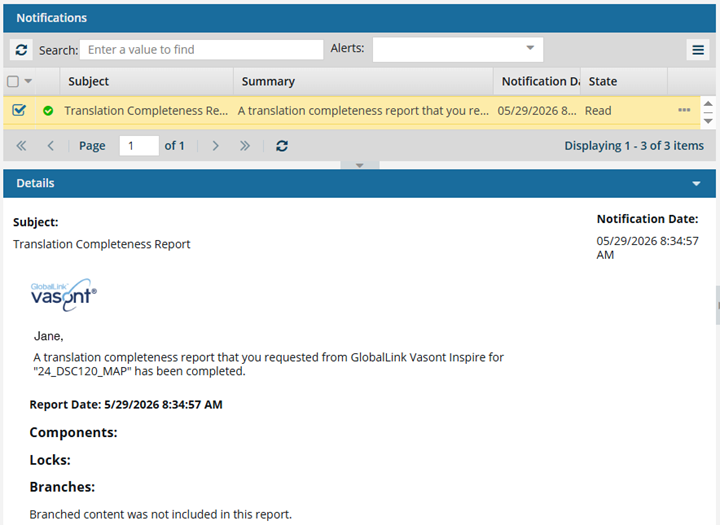
You can get a written account of a component's translation status by creating a Translation Completeness report. The report tells you which languages the component has been translated into, whether the translated components in the language subfolders are locked, and whether it has branches.

 Tips and tricks
- Keep in mind that there are other similar reports you can run:
- Component completeness report. This report will tell you whether a component has been sent for translation, whether the job is in progress, or whether the component still needs to be translated. However, this report is designed to give you more details about the component as a whole. It can include details about filtering of conditional text, approval state, electronic signatures, invalid states, invalid XML, comments, track changes, and tags. If you want to see this additional information, follow the steps in: Work with Completeness reports.
- Translation report. This report is run from the Translations Management tab after selecting a translation job (rather than a component). This report is designed to give you more details about the translation job as a whole. It provides details on the job's status and lists the included components by language. However, it does not provide much detail about the individual components themselves. If you are more interested in the details of a translation job, follow the steps in: Create a report for a translation job.
- When creating the Translation Completeness report, you can choose:
- Which languages to include
- Whether images should be ignored
- If you want to see branch details
- The Translation completeness report is sent as a notification, and no CSV file is created.
- If the component has never been translated, the report is empty.
You can run a translation completeness report in the following ways: