Work with Completeness reports
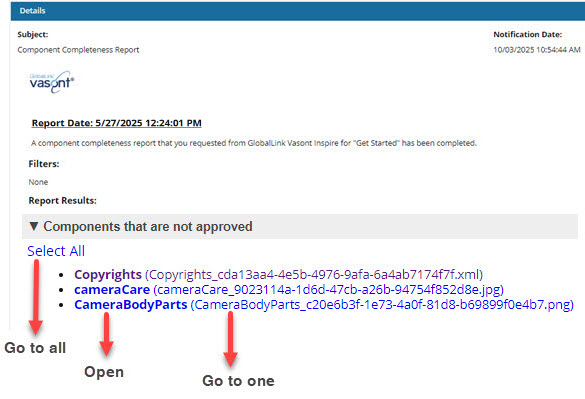
Before you send components for publishing or translation, you can submit a request for Inspire to provide details about the components. This report provides comprehensive details about a component and the content it references. It can include details about translation, filtering of conditional text, approval state, electronic signatures, invalid states, invalid XML according to a specific set of rules, comments, track changes, out-of-scope references, and tags.
 Tips and tricks
- Inspire provides a completeness report that checks for:
- Filtering of conditional text
- Approval state (with an option to ignore images)
- Electronic signature
- Lock state (by the system, another user, you, translation job)
 Additionally, if a component has been sent to translation, Inspire can check to see if the translation has been completed or if it still needs to be translated (the job is in progress)
 - Invalid state
- Invalid references
- Invalid XML (with options to include errors and select a validation configuration)
 If your organization uses different rules to validate content, an admin can create Validation Configurations to let you choose which set of standards to use. Also, Validation Configurations are the only way to validate content using Schematron rules. Admins can follow the steps in: Create a validation configuration.
 - Comments
- Track changes
- References outside the scope of the report (For example, when the report is run on a map, this option alerts you to components that are referenced by components in the map but are not included in the map itself.)
- Tags
You can run a report on just one component.
You can use the right-click menu on the component (or use
 the Options menu)
Select Reports, and then select Completeness report...
- You can run a report on multiple components.
- Use the Components browser to select the checkbox for each component you want a report on
- In the Selected Components panel, select
 the Reports menu, and then select Completeness report...
 You see a separate notification for each component you select.
You see a notification when you send the request and when the verification checks you select are complete.
You get a separate report for each component you select.
All reports include the same filter and verification tests you select on the Check component completeness screen.
You can't select different verification tests for each component. If you need to do that, you must create the reports one at a time.


 Keep in mind that there are other reports you can run for more translation details:
 Translation Completeness Report. After a component is translated, you can check the translation status of all its referenced components by creating a Translation Completeness Report.
- This report tells you which languages the component has been translated into, whether the translated components in the language subfolders are locked, and whether it has branches.
- Follow the steps in: Create a completeness report on a translated component
Translation report. This report is run from the Translations Management tab after selecting a translation job (rather than a component). This report is designed to give you more details about the translation job as a whole.
- It provides details on the job's status and lists the included components by language.
- However, it does not provide much detail about the individual components themselves.
- If you are more interested in the details of a translation job, follow the steps in: Create a report for a translation job.