Understand workflow notes and statuses
After you create a workflow, you can track its status and see if there are any reported issues or comments. You can read the notes users have the option to leave when completing a task. You can also see the workflow diagram with status highlights. The Notes and Status options are only available for Topic workflows.
 Required permissions
You must have permission to the Projects Module to work with projects and workflows. Other than that, you do not need special permissions to create, edit, or delete workflow templates.
 However, keep in mind that administrators and other users can set permissions on components and folders.
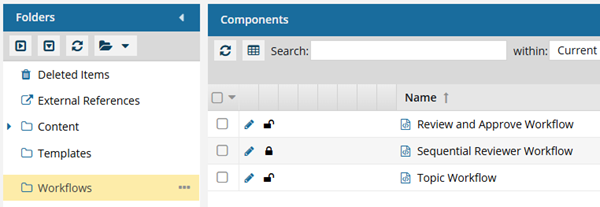
- You must have permission to edit the workflow template component.
- You must have folder permissions where the template is stored.
- For details on how to check and set permissions, refer to: Set permissions
 For a complete list of permissions, including starting a workflow from a template, read: Workflow permissions.

After you create a Topic workflow, you see more tracking details in the following ways:
- Notes. When you create a workflow you can enter a Description of the work that needs to be done and a Note to the user who is completing the first task.
Each time a task in the workflow is completed, the user has the option to add a new Note to help guide the next user in completing their task.
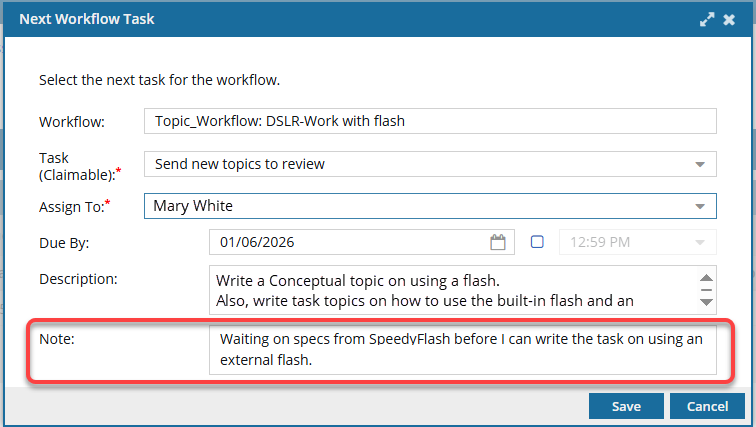
 The user also has the ability to edit the Description. Unlike a Note, any changes to the Description overwrite the previous version.
For any active workflow, you use
 the Options menu to select View workflow notes. This lets you see all Notes added during the workflow's progress.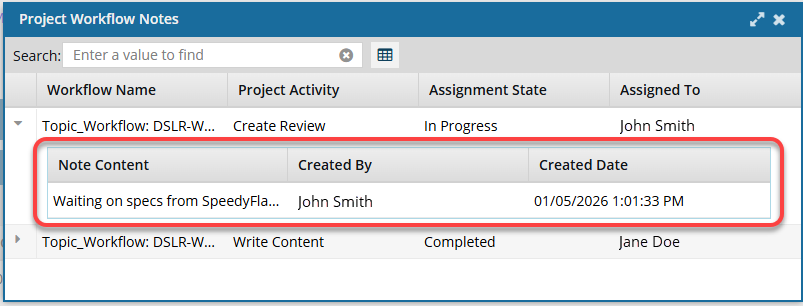
- Status option. For any active workflow, you use the Options menu to see a visual representation of the workflow and its progress.
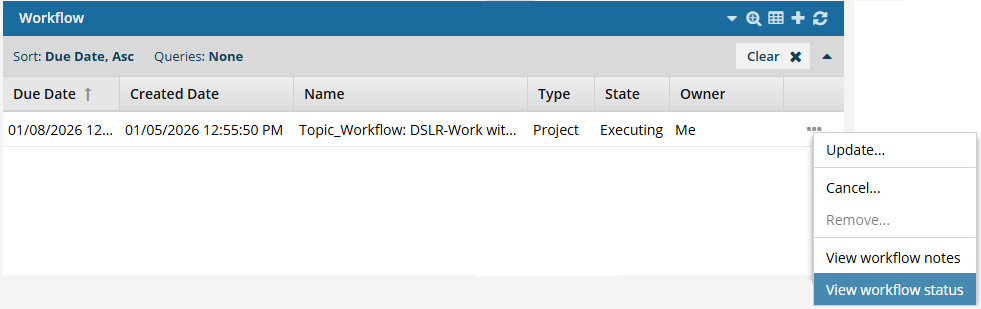
You select View workflow status to open a read-only version of the template used to create the workflow.
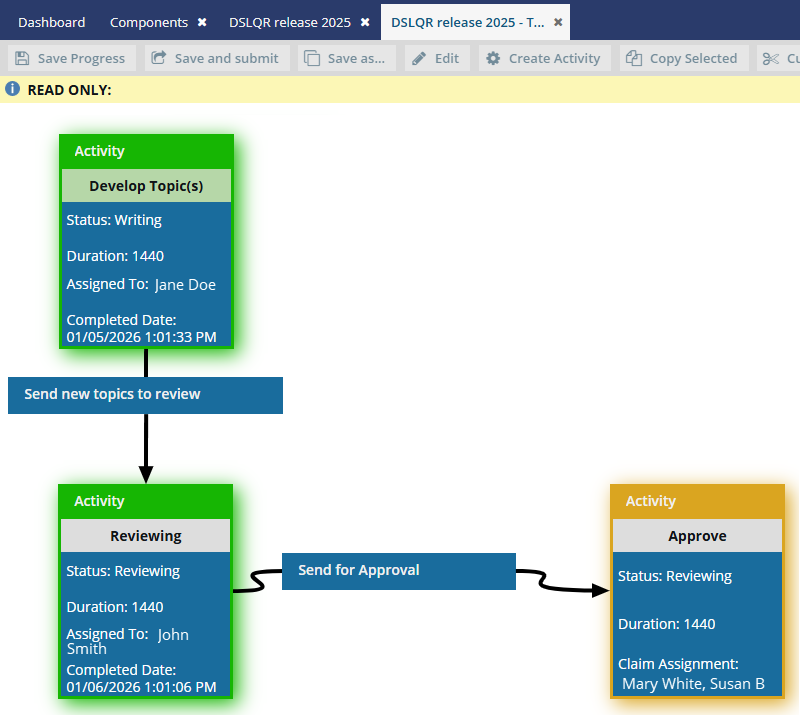
A new tab opens and displays the Activities and Transitions used in the workflow template.
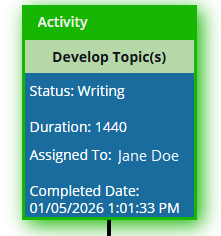 Completed activities are shown with a green highlight.
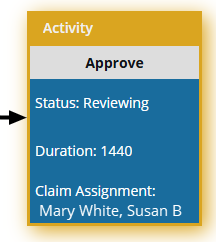 The current activity is shown with a yellow highlight.
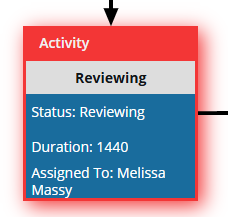 An overdue activity is shown with a red highlight.
The Notes and Status options are only available for Topic workflows.