Pause and resume a workflow
Sometimes it's necessary to temporarily stop the activity in a workflow. If a workflow is in the Executing state, you can pause it so that the current project assignment cannot be completed, accepted, or rejected. When you are ready, you can Resume the workflow.
 Required permissions
To create, view, update, and delete workflows you must either be an Administrator, the project Owner, or have the following permissions:
- Create, read, update, and delete permissions to the
 Projects module.
 - For the Projects module, your user account must be listed under the following Property: can_initiate_assignment.
- If you are an administrator, refer to Allow users to create project assignments and workflows.

Topics in this article:
Pausing a workflow
- Workflows provide an option called Pause.
- You can find a workflow and access the Pause option in the following places:
- The
 Workflows module on the Projects tab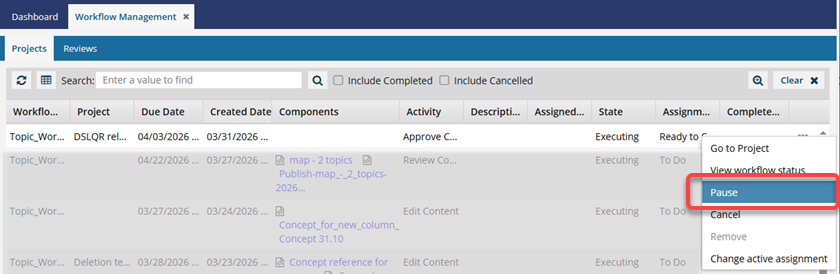
- The Projects module in the Workflows panel
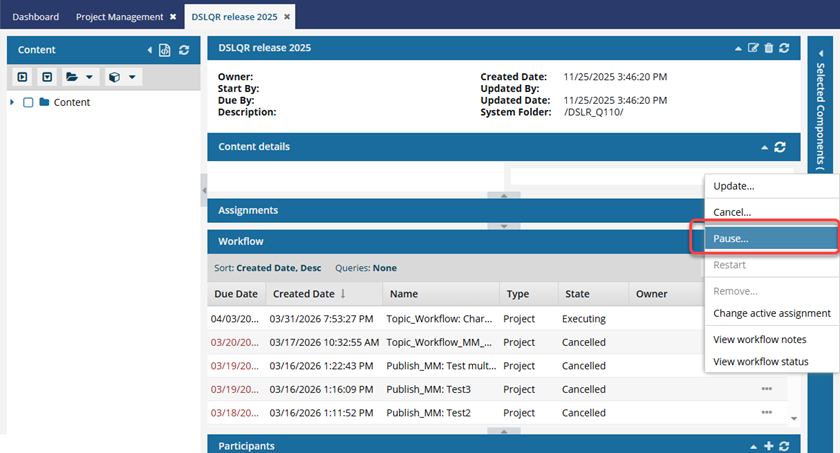
- The
- The Pause option is only available for workflows that have a State of Executing.
Selecting Pause has the following consequences:
The State of the workflow is set to Paused.
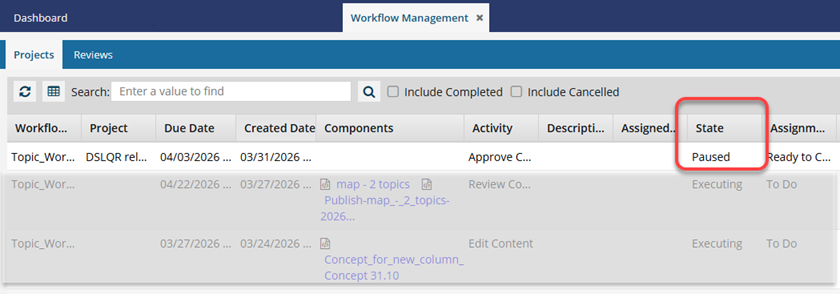
- The user who is assigned to current active assignment sees an in-app notification.

- The current project assignment cannot be completed, accepted, or rejected.
- To take any of these actions, you must first Resume the workflow.
If the assigned user tries to complete their assignment while the workflow has a State of Paused, the user sees the following error: You cannot complete this task because the workflow is paused.
Resuming a workflow
 Resume vs. Restart. Workflows provide a rich set of management options. Two options that are available may seem similar because they both set the workflow State back to Executing. However, these two options differ in the following ways:
- Resume. When a workflow is active and has a State of Executing, it can be Paused. To start working where you left off when the workflow was Paused, you can use the Resume option to change the State from Paused back to Executing.
- Restart. When a workflow is done and has a State of Completed, you can start the workflow over again from the very first task.
Using the Resume option:
- To continue working on a workflow activity after the workflow has been paused, you use an option called Resume.
- You can find a workflow and access the Resume option in the following places:
- The Workflows module on the Projects tab
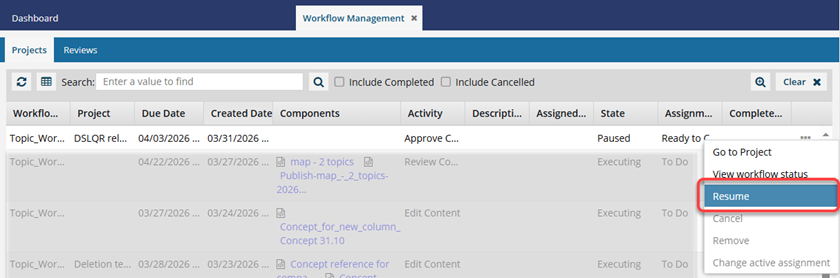
- The Projects module in the Workflows panel
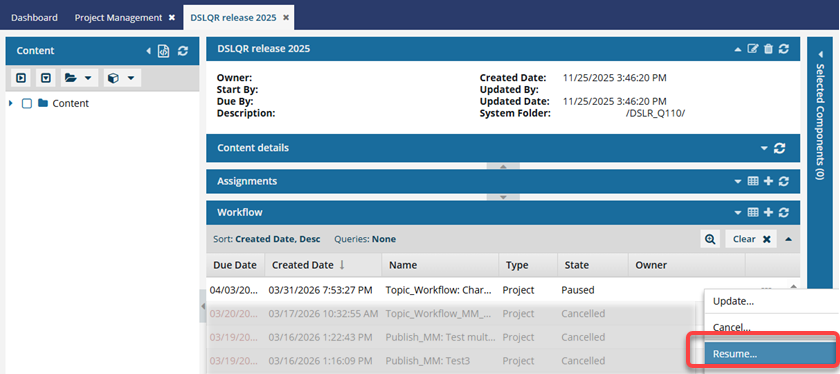
- The
- The Resume option is only available for workflows that have a State of Paused.
Selecting Resume has the following consequences:
The State of the workflow is set to Executing.
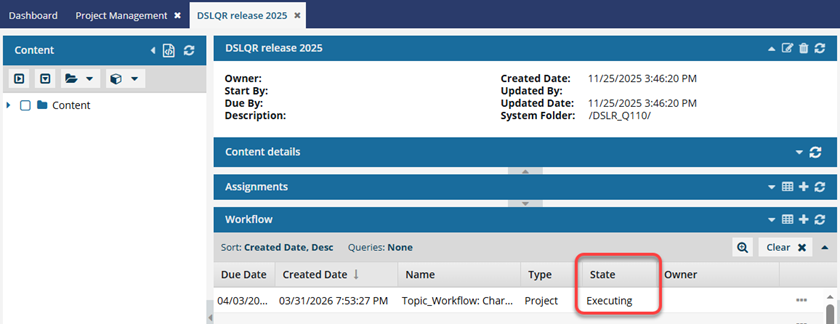
- The user who is assigned to current active assignment sees an in-app notification.

Inspire sends a notification to the user assigned to workflow task that was current when the workflow was paused.
- The notification says: The workflow
{workflowname}has been resumed. If the project assignment is Ready To Claim, Inspire sends a notification to all users in the workflow template's Workgroup.
- The notification says: The workflow