Use the Workflow module to pause a workflow
Sometimes it's necessary to temporarily stop the activity in a workflow. If a workflow is in the Executing state, you can pause it so that the current project assignment cannot be completed, accepted, or rejected. When you are ready, you can Resume the workflow.
 Required permissions
To create, view, update, and delete workflows you must either be an Administrator, the project Owner, or have the following permissions:
- Create, read, update, and delete permissions to the
 Projects module.
 - For the Projects module, your user account must be listed under the following Property: can_initiate_assignment.
- If you are an administrator, refer to Allow users to create project assignments and workflows.

 Tips and tricks
- If you want to permanently stop a workflow, you can cancel it. Follow the steps in: Cancel a workflow.
- You can also access the Pause option in the Projects module in the Workflows panel. Follow the steps in: Use the Projects module to pause a workflow.
- The Pause option is only available for workflows that have a State of Executing.
To use the Workflow module to pause a workflow:
-
From the top menu, select
 Workflows.
-
Find the workflow that you want to temporarily put on hold.
 Important notes:
- For help searching, follow the steps in: Find a workflow on the Projects tab.
- The workflow must have a State of Executing.
-
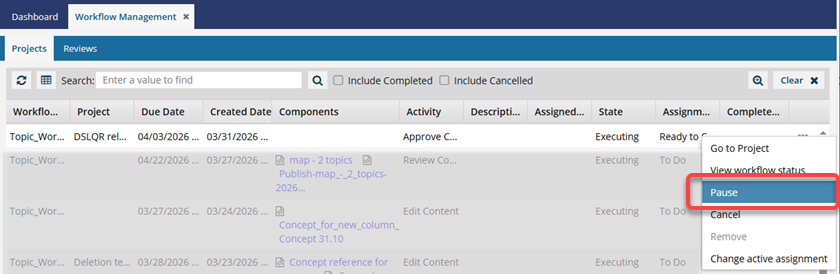
In the workflow's row, click
 the Options menu and select Pause.
 Results:
 - The user who is assigned to current active assignment sees an in-app notification.

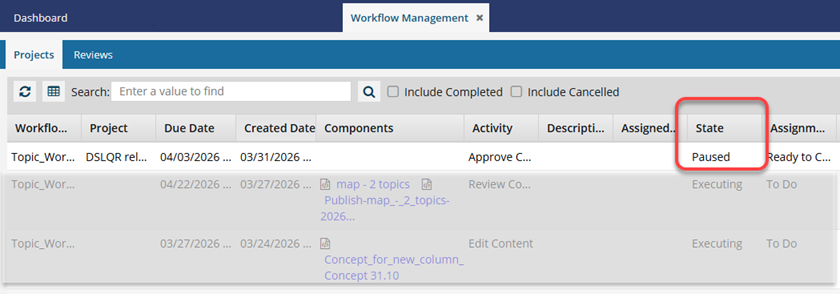
- The State of the workflow changes to Paused.
- The State of the current assignment is unchanged.
- If the assigned user tries to complete their assignment while the workflow has a State of Paused, the user sees the following error: You cannot complete this task because the workflowis paused.
- The current project assignment cannot be completed, accepted, or rejected.
- To take any of these actions, you must first Resume the workflow.
- Follow the steps in either of the following topics:
- The user who is assigned to current active assignment sees an in-app notification.