Customize a sequential reviewer workflow template
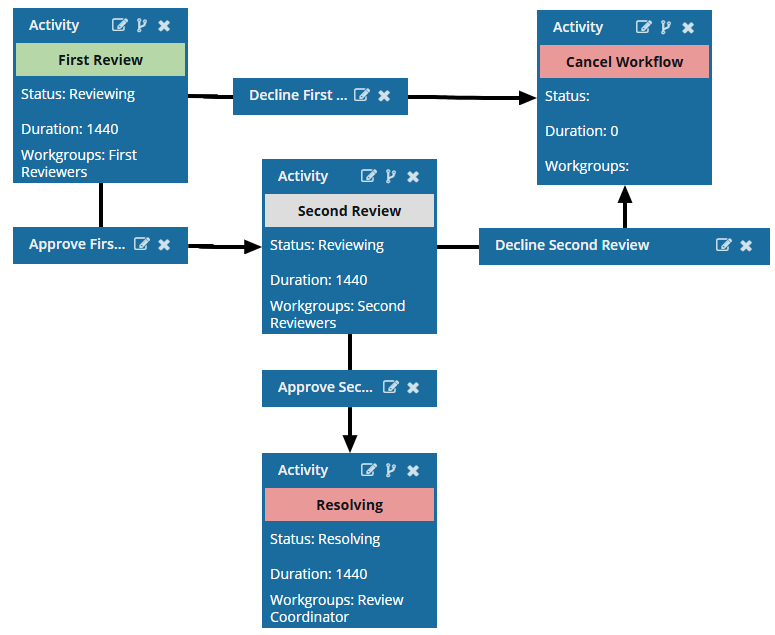
Inspire provides a template for a two-user content review process. If you want a workflow with a different number of reviewers, more actions, different transitions between activities, or assignments to different workgroups, you can update the workflow template. The template is used to create a workflow and tell Inspire how to automate the workflow you need.
 Required permissions
You must have permission to the Projects Module to work with projects and workflows. Other than that, you do not need special permissions to create, edit, or delete workflow templates.
 However, keep in mind that administrators and other users can set permissions on components and folders.
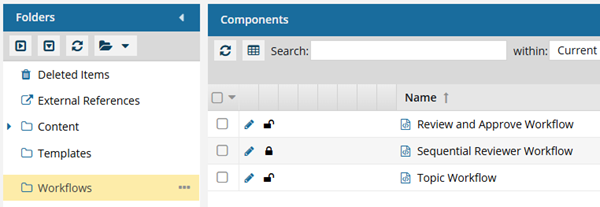
- You must have permission to edit the workflow template component.
- You must have folder permissions where the template is stored.
- For details on how to check and set permissions, refer to: Set permissions
 For a complete list of permissions, including starting a workflow from a template, read: Workflow permissions.

There are three main parts to a template:
 The details. This includes the Name of the template, an optional Description, and its Type.
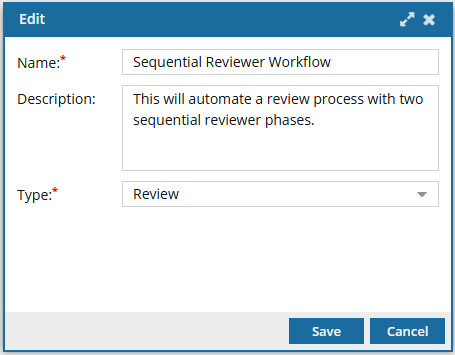
 The building blocks. This includes the options you must select when creating workflow tasks (Activities and Transitions). Inspire provides a few default options, but you can edit them or create your own.
- If you aren't sure what specific options you might need before creating a workflow, you can add new ones at any time.
For Activity configurations, you should build the options you need for Status, Project Activity, and Workgroup.
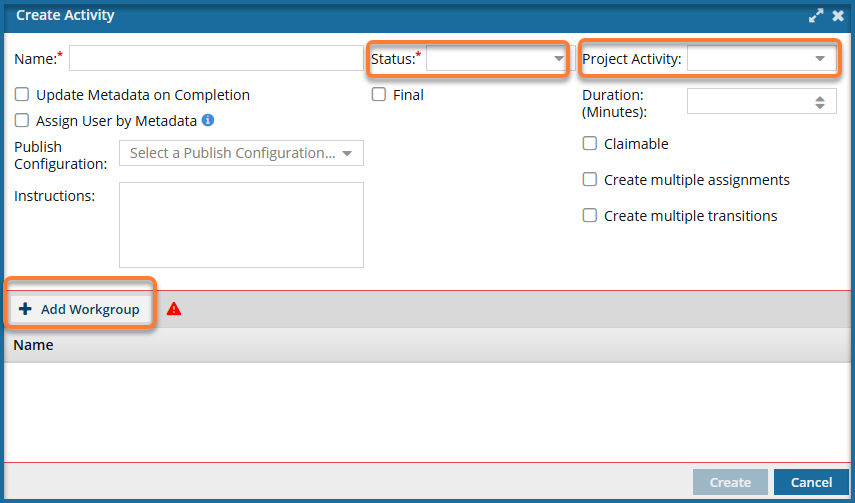
For Transition configurations, you should build the options you need for an Action.
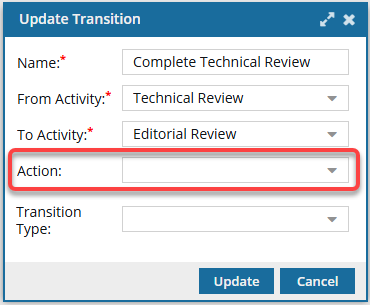
 The workflow. This includes the order of Activities and how the process moves from one Activity to the next using Transitions.
 Before you begin
- You can create an entirely new workflow template component that has no default Activities and Transitions.
- Use the Topic workflow template explained in this topic as an example of what you can create.
- To create a new template, follow the steps in: Create a workflow template component.
- The changes to a template will be applied to all new workflows that are started using this template.
- For workflows that use this template and are in progress:
- If the Activity or Transition you are updating has not occurred yet, the changes will be applied when the workflow moves to the updated Activity or Transition.
- If the Activity or Transition you are updating has already been completed, the changes will not be applied.
To update a review workflow template: