Organizing folders
You can create a folder structure in the Components browser to organize components to meet the needs of your documentation development process. You can also create a folder structure for a project that differs from the one in the Components browser and is more focused on the project's specific work.
 Tips and Tricks
- A component is stored in only one folder. It can be referenced in a project, but it is ultimately stored in the folder as shown in the Components browser.
- You can manage access to components by setting permissions at the folder level.
- Sub-folders can inherit permissions from the parent folder.
- You can design the folder structure in some of the following ways:
- By product or product group.
- By division or department in your organization.
- To model a taxonomy for your content.
- You can add a folder to your Favorite list to quickly open it from the
 Dashboard.
 - You can move folders to a different location in the folder structure.
- You can move a sub-folder to be a root folder.
- You can move multiple folders at once in the Components browser using an option in the Folders title bar.
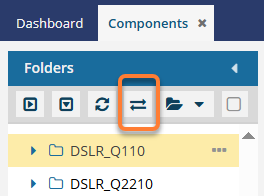
 Restrictions:
- You cannot move a folder to the root level using the Move Folder screen. To do this, you must right-click a single folder, select Move... and then select Move to root.
- In the Components browser, the Move Folder
 option is not available from the right-click or Options menus.
 The Move Folder
option is not available when managing content in a project.
- There are two ways to refresh the folder list:
- Refresh all folders—To update the entire folder hierarchy, go to the Folders toolbar and select
 the Refresh (all) option.
 - Refresh one folder—To refresh the data for one folder only, select the folder, click
 the Options menu, and select Refresh. Inspire only refreshes the selected folder and shows only the first level of sub-folders and components it contains.
- Refresh all folders—To update the entire folder hierarchy, go to the Folders toolbar and select
- Hide translation folders
 . Refreshes the folder list to show all folders except those that use the format for translation target folders (xx-XX). If you rename a translation folder, for example, fr-FR to French translation, the renamed folder will not be hidden even though it contains translated content. Follow the steps in: Hide translation folders.
 - When deleting a folder:
- You also delete all the components in the folder.
- You can't delete a folder if any components in the folder are locked or referenced by other components

 Folder Reports
You can use the right-click or Options menu to run a report on a folder and gather information about:
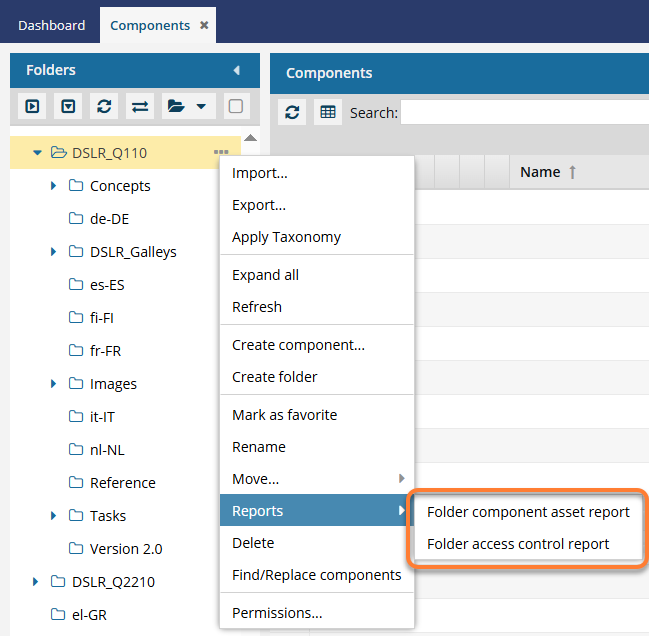
- Components in the folder. Select the Folder component asset report option to create a report with details about selected source types of components stored in the selected folder. You can choose to include subfolders and ignore translations.
- Users accessing the folder. Select the Folder access control report option to create a report that lists the account names of users who have accessed the selected folder. The details tell you the last date and time when the user logged in and their permission level for the selected folder.