Move multiple folders at once
You can move folders in the Components browser to organize content. Moving a folder also moves all of its sub-folders and components. When you need to move multiple folders at once, you can use an option in the Folders toolbar to open the Move Folder screen. You can also use this option to move a single folder.
 Restrictions:
- You cannot move a folder to the root level using the Move Folders screen. To do this, you must right-click a single folder, select Move... and then select Move to root.
- In the Components browser, the Move Folder
 option is not available from the right-click or Options menus.
 The Move Folder
option is not available when managing content in a project.

 Tips and tricks
- After moving a folder into another folder, it becomes a subfolder with a parent.
- The folder's permissions can change in the following ways:
- If the folder you're moving has the Inherit permissions from Parent Folder option selected, the folder's permissions are reset to match the permissions of the new parent folder.
- If the folder you're moving does not have the Inherit permissions from Parent Folder option selected, the folder's permissions aren't modified.
- If you want to hide the new folder from users who are not administrators, you can set a permission level of None on the folder.
- To change folder permissions, follow the steps in Set folder permissions.
- For more information on how folder permissions work, read Work with folder permissions
- Subfolders are not shown when you collapse the folder list. You can expand the parent folder to see subfolders.
- If you want to move a folder so that it does NOT have a parent folder, follow the steps in: Move a folder to be a root folder.
To move multiple folders at once:
-
Click
 Components.
-
In the Folders panel, in the toolbar directly beneath the title bar, select Move Folder.

-
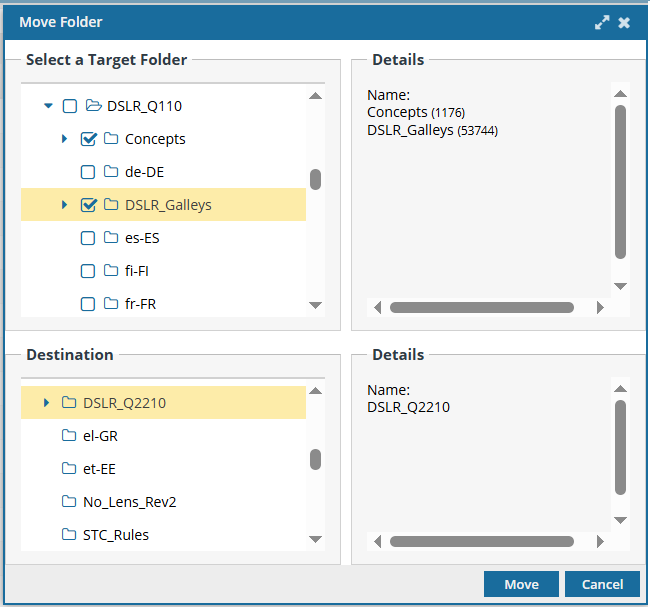
On the Move Folder screen:
-
In Select a Target Folder, select the checkbox for each folder you want to move.
 Tips:
Tips:- If a folder has
 a blue arrow before it, that means it contains subfolders. If you don't want to move all the subfolders, expand the parent folder to select the subfolder(s) you want to move.
 - You can select a single folder to move.
- The selected folders are listed to the right in the Details pane.
- If a folder has
-
In Destination, select the one folder where all target folders will be moved to.
Tips:
- You cannot move the selected folder(s) to the root level.
- The selected folder is listed to the right in the Details pane.
-
In Select a Target Folder, select the checkbox for each folder you want to move.
-
On the Move Folder confirmation screen, select Yes.

 Results: The folders are moved to the selected Destination folder and are listed in alphabetical order.