Manage project content
As work progresses on Inspire projects, you can update the components used in the project, manage folders, set permissions, as well as create assignments and workflows.
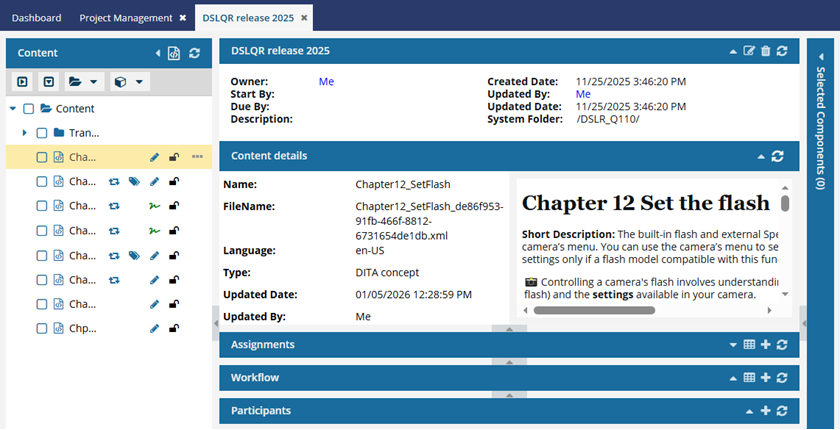
 A content owner or administrator can set permissions to deny access to components or folders. If your permissions to content has been blocked, and you are not an administrator, you cannot use the actions in the
  Option menu in a project's Content pane.

 Tips and tricks
- By default, files in a project that are being reviewed or translated are locked with
 a system lock. However, administrators can customize Inspire to allow for the following behavior:
- If a user is an administrator or has been added to the can_unlock_system module property, they can unlock a component with a red system lock after it's been included in a review.
- The component being reviewed or translated is unlocked and remains in the review or translation job.
- Any changes made before the component is unlocked are lost.
- Users can then edit the content while it's in a review or being translated, and this may cause issues when the review or translation is completed.
- Administrators can update the Content Browser module property can_unlock_system to change this behavior. Follow the steps in Control who can unlock system locks
- The Content pane shows you icons about a component's properties:
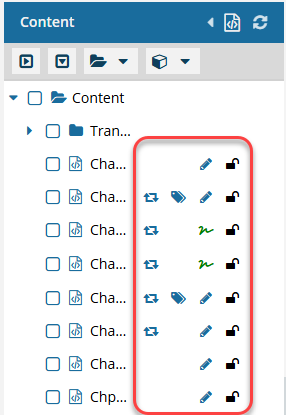
- Shared (
 ). The first column tells you the number of references in Inspire. To see the number, hover your cursor over the icon. All references are counted, even if one component references this component multiple times.
 - Tags (
 ). The second column tells you if at least one component tag has been added to a component's Inspire-based metadata. To see a list of all tags applied, hover your cursor over the tag icon.
 - State (
 ,
, 
 ,
,  ,
,  ). The third column lets you quickly identify appropriate actions you can take on a file.
 - Draft. The component can be edited and isn't ready for publishing or translation yet.
- Invalid. The component has one or more links that can't be resolved.
- Approved (No signature required). An Inspire user has approved the component for publishing or translation and it shouldn't be changed. Approved components can be locked with a green system lock.
- Approved and signed. (Signature required). You are required to enter your full name to attach an electronic signature for approval. The component is ready for publishing or translation and it shouldn't be changed. Approved components can be locked with a green system lock.
- In translation. The component is included in a translation job and it is still being translated. An administrator can decide if the component is unlocked for editing or not while in translation
- Lock (
 ,
,  ,
,  ,
,  ,
,  ). The fourth column tells you if anyone else is using the file currently and if you can edit it.
- Unlocked. The component isn't being edited by another user or in use by Inspire.
- Locked by another user. Another user has opened this component and made changes that may have been saved but not submitted yet.
- Locked by you. You have opened this component and made changes that may have been saved but not submitted yet.
- Locked by Inspire. Inspire prevents other users from editing the component while it's being processed. This can include the process of reviewing, for example.
- Locked after approval. A component has been approved and an administrator has configured components to be locked upon approval.
- Shared (
- If you need to see more of the component name so that you can select the ones you want, you can open the
 Select Project Components screen.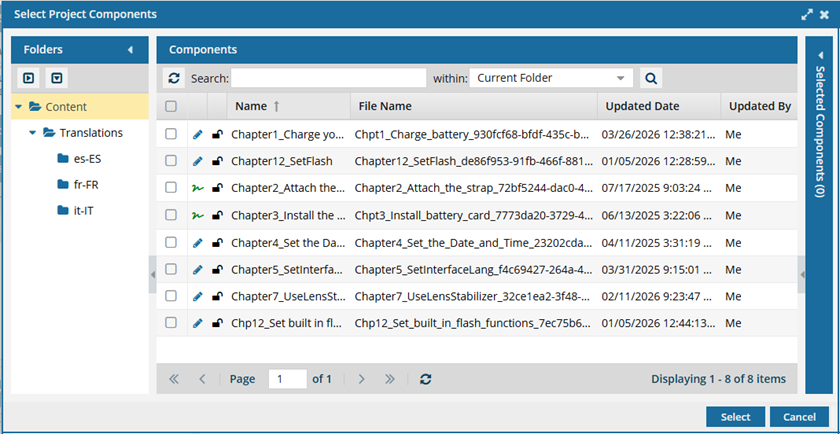
Selecting components adds them to the Selected Components panel. Follow the steps in: Select project components.
You can use
 the Refresh button in each panel to make sure you aren't seeing stale data.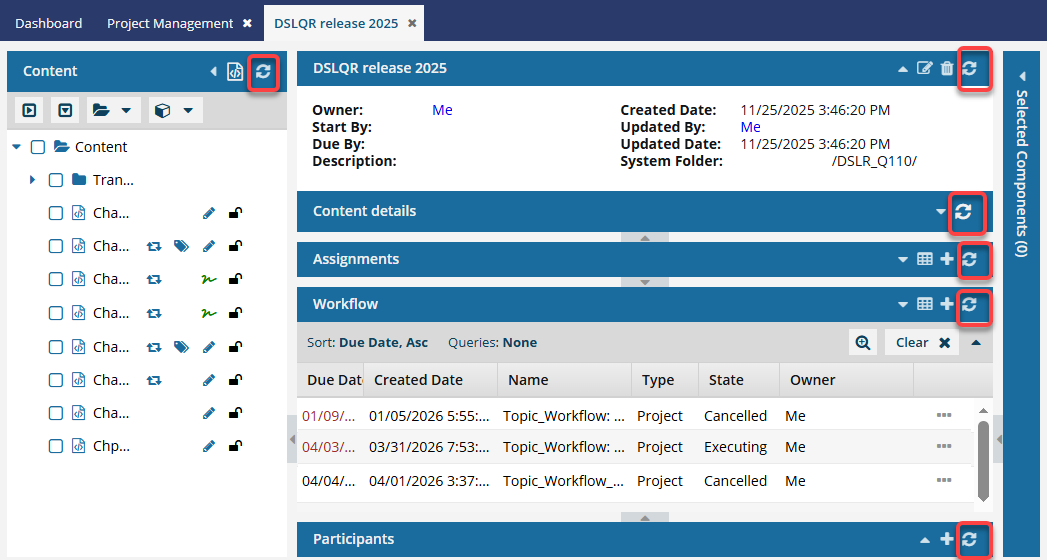
- Content panel.
- If you refresh the project Content panel, Inspire remembers which Folders were expanded
- If you refresh the project Content panel, Inspire also refreshes the Selected Components panel
- When you create a project assignment, before you see the Create Assignment screen, Inspire refreshes the Content panel.
- When you create a project workflow, before you see the Start workflow screen, Inspire refreshes the Content panel.
- When a user moves the project workflow to the next task, before you see the Next workflow task screen, Inspire refreshes the Content panel.
- Project details.
- If you cancel a project workflow, Inspire refreshes the project details.
- Content details panel.
- Assignments.
- When you create a project assignment, before you see the Create Assignment screen, Inspire refreshes the Content panel.
- Workflow.
- When you create a project workflow, before you see the Start workflow screen, Inspire refreshes the Content panel.
- When a user moves the project workflow to the next task, before you see the Next workflow task screen, Inspire refreshes the Content panel.
- Participants. The team members who will do the work on the project are shown in this panel.
- Content panel.
- To remove or update project content, the project must be active. If you cannot access an option in the steps, make sure the project is active. Follow the steps in: Make a completed project active.