Export content from the Components browser
You can download a copy of content stored in Inspire to back up important content, move it to another application that Inspire doesn't communicate with, or move it to another instance of Inspire.
 Tips and tricks
The Components browser is the window that opens when you go to the top menu and click  Components.
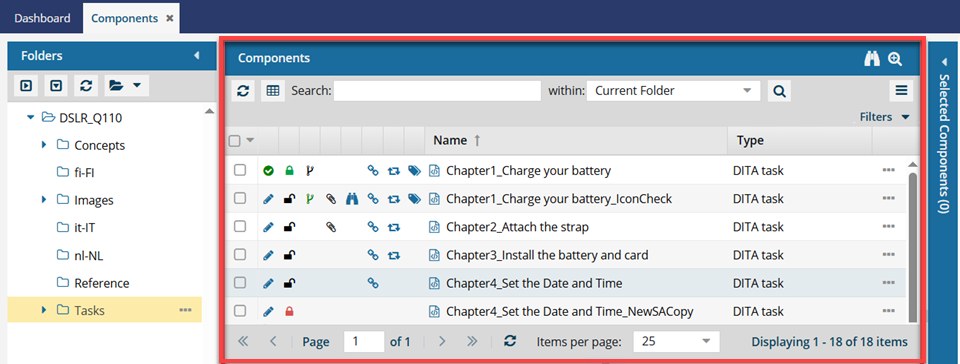

 Topics in this article explain more about:
Export file names
 You can export one or more binary files and have the GUID stripped from the filename.
- A GUID is a globally unique identifier (_7773da20-3729-437b-baf9-669677efebf4). Inspire appends the component name with a GUID to create the filename.
The option called Remove GUID from Binary Filename is only displayed if an Administrator has set the Export Type in the Export Configuration to Standard. Administrators can follow the steps in: Update an export configuration.
- You can select this option for binary files only (Images, PDF files, WORD docs, and Excel docs). If one or more of the exported components are not binary files, the export fails. You can check the notification for more details.
- If configured, you can see this option when exporting a single or multiple binary components, in both the Components browser and in a project.
- Even if configured, this option is not available when exporting a folder.
 Exporting one file scenarios:
If you export one component only and no references, the component isn't packaged in a ZIP file. Exporting a single component without references uses the following naming format:
{ComponentFileName}.xml
- For example, Cloud_Computing_fd22225c-846f-4ed1-be0c-20a10e4e7f67.xml.
If you export only one component and include references, the components are packaged in a ZIP file. Exporting a single component with references uses the following naming format:
Export-{ComponentName}-DateTime.zip
- For example, Export-Cloud_Computing-2024-12-27-051608.zip.
 Exporting multiple file scenarios:
If you export more than one component, regardless of whether you include references, the files are packaged in a ZIP file. Exporting multiple components uses the following ZIP name:
Exports-DateTime.zip
- For example, Exports-2024-12-27-050426.zip.
- No Component Name is included.
 If you have Administrator permissions, you can export the folder structure and its components. Follow the steps in Export content as an Admin.
Export notifications
When you complete a task that triggers a notification, such as exporting content, the Slack and email message bodies contain:
- The notification with ten or fewer Issues, Errors, and Warnings.
- A link at the bottom of the message [See Full Version]
- You can click the [See Full Version] link to expand a section under the link with the full details.
 If there are any components you don't have permission to access, they are listed in an export warning notification. The components named in the warning are not exported.
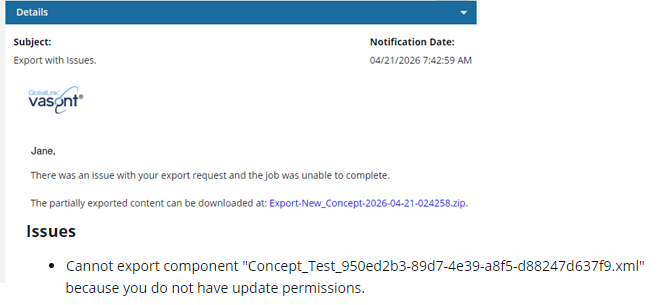
Export and create subfolders
When you export content from Inspire, the Create Subfolders option is only available from a component folder in the browser on the Components tab.
When exporting, the Create Subfolders option is available in the following places in the browser on the Components tab:
- Content folder
- Templates folder
- Any component folders with subfolders
If this option is available, you will first be asked to confirm that you want to export subfolders.
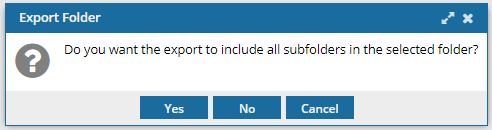
If you select Yes, the option will be available on the Export Components screen.
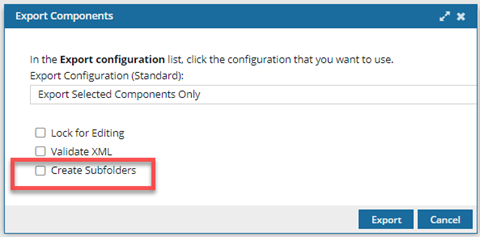
The Create Subfolders option is limited because it is designed only to export content from Inspire and import it back into another instance of Inspire.
Relationships are not updated for the exported folder structure when you import it into another instance of Inspire, and many of them will be invalid. For help with this issue, read Repair component relationships.
When you export content from outside a component folder in the browser on the Components tab, the Create Subfolders option is not displayed.
When exporting, the Create Subfolders option is not available in the following places:
- Deleted Items folder
- Snapshots
- Projects
- Assignments
Export issues
- Missing option for exporting to your organization's SFTP server. Before you can export files from Inspire to an SFTP server, your administrator has to provide Vasont with the details needed to connect to your SFTP server. Then your administrator must create an SFTP export configuration. Admins can follow the steps in: Create an SFTP export configuration.
- Export failures. If your export fails or doesn't work as expected, there may be steps you can take.
For example, if a folder includes a component with a slash in its name, then the export may fail.
 This issue has now been corrected.
- You can export a folder without issues if there is a component with a slash in its name among the other components.
For more solutions, read: Troubleshoot export issues.