Troubleshoot export issues
To use Inspire to access your content in a secure web browser environment, you must be able to add content by importing files. To send files for translation or use content you've created in Inspire in another app, you must be able to export content. If you run into issues during import or export, you can find ideas for working around or fixing them.
Topics in this article:
- Permissions issues
- Folder names with a slash
- Work with long file names
- Export and create subfolders
- Export to SFTP issues

Permissions issues
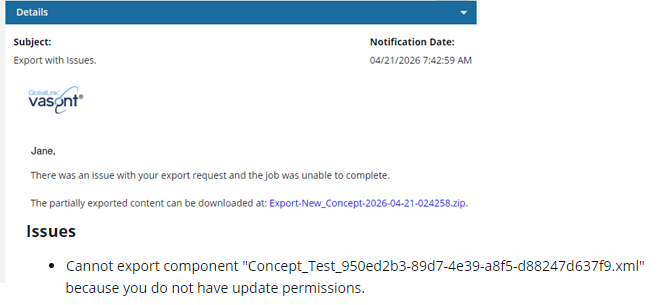
 When exporting content, any components you don't have permission to access are listed in an export warning notification. The components named in the warning are not exported.
Folder names with a slash
Previously, if you exported a folder that included a component with a slash in its name, then the export may have failed. You can now export a folder without issues if a component with a slash in its name is in the folder.
Work with long file names
XML files cross-reference each other by file name. If a file name changes after export, you can still import it back into Inspire, but the references will be invalid.
 When you export files from Inspire, they are downloaded to your desktop.
- If you unzip this file into a very long path, the file names are changed by Microsoft Windows.
- In Windows, a long file name is one that exceeds the short MS-DOS (also called 8.3) style naming convention.
- During export, if you create a long file name, Windows may:
- Create a short 8.3 form of the name. This is a maximum of 8 characters for the base file name and 3 characters for the extension, for a total of 12 characters including the dot separator.
- On many file systems, a file name will contain a tilde (~) within each component of the name that is too long to comply with 8.3 naming rules.
- This 8.3 aliasing can be turned off for performance reasons either system-wide or for a specified volume, depending on the particular file system.
- For more details, read the Microsoft support documentation on Naming Files, Paths, and Namespaces.

Export and create subfolders
 Limitations
- The Create Subfolders option is limited because it is designed only to export content from Inspire and import it back into another instance of Inspire.
- The option to export one or more binary files and have the GUID stripped from the filename is not available when exporting a folder
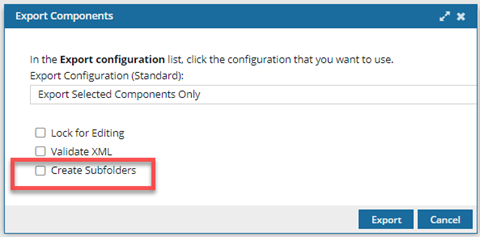
When exporting, the Create Subfolders option is available in the following places in the browser on the Components tab:
- Content folder
- Templates folder
- Any component folders with subfolders
If this option is available, you will first be asked to confirm that you want to export subfolders.
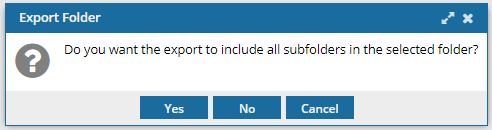
If you select Yes, the option is available for you to select on the Export Components screen.
Relationships are not updated for the exported folder structure when you import it into another instance of Inspire, and many of them will be invalid. For help with this issue, read Repair component relationships.
When you export content from outside a component folder in the browser on the Components tab, the Create Subfolders option is not displayed.
When exporting, the Create Subfolders option is not available in the following places:
- Deleted Items folder
- Snapshots
- Projects
- Assignments
Export to SFTP issues
Missing option for exporting to your organization's SFTP server.
Before you can export files from Inspire to an SFTP server, your administrator has to provide Vasont with the details needed to connect to your SFTP server. Then your administrator must create an SFTP export configuration. Admins can follow the steps in: Create an SFTP export configuration