Create workflows to automate a process
You can design and implement a workflow to automate the hand-off process between tasks that you need to complete for a project.
 Required permissions
To create, view, update, and delete workflows you must either be an Administrator, the project Owner, or have the following permissions:
- Create, read, update, and delete permissions to the
 Projects module.
 - For the Projects module, your user account must be listed under the following Property: can_initiate_assignment.
- If you are an administrator, refer to Allow users to create project assignments and workflows.
To work with Review workflows, you also need:
- Create, read, update, and delete permissions to the
 Reviews module.
 If you try to assign work to a participant who doesn't have access to the component, you will see a warning.
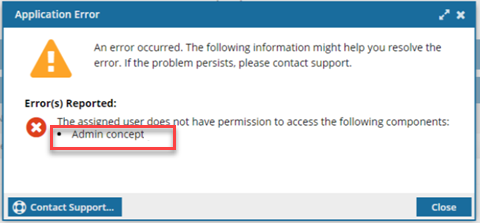
- The warning tells you the name of the restricted component.
- The Workflow is still started. You can change the permission, participant, or the component to resolve the conflict.
- For details on how to set permissions, refer to: Set permissions.

To create a workflow, you must use a template and the contents of a project.
 Design templates
You use a template to design the flow of tasks that need to be completed. The template also includes workgroups, or a list of users who can possibly complete the work.
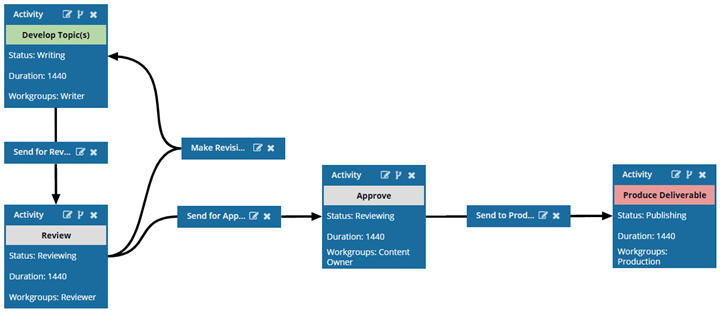
 Create workflows
Next you need to start a new workflow based on a generic template design.
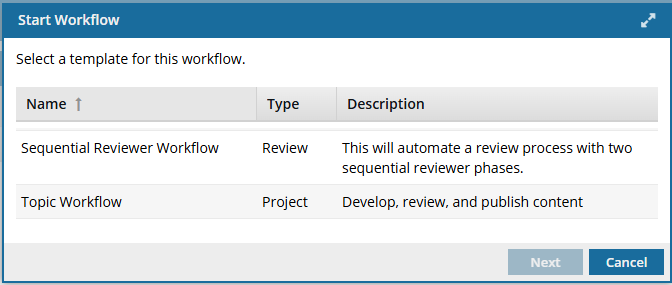
You also need to set the due dates, assign the initial task, and add the project files specific to the workflow tasks. Optionally you can also change the Workflow Name, which defaults to the template's name. For example, when creating a topic workflow, you must complete the following screen:
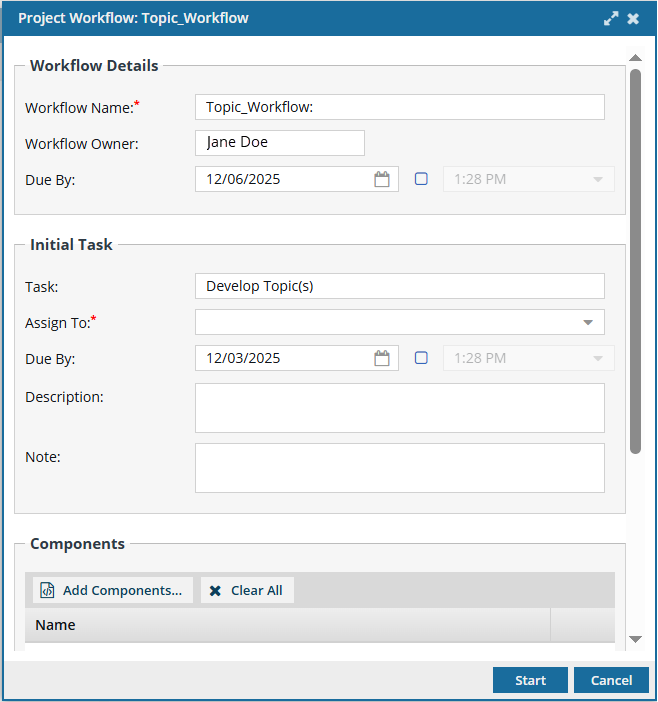
 After you start the workflow:
- Inspire manages the transitions you configured in the workflow template until the last task is completed or the workflow is cancelled.
Inspire captures a snapshot of all components included in an assignment each time a workflow activity is completed.
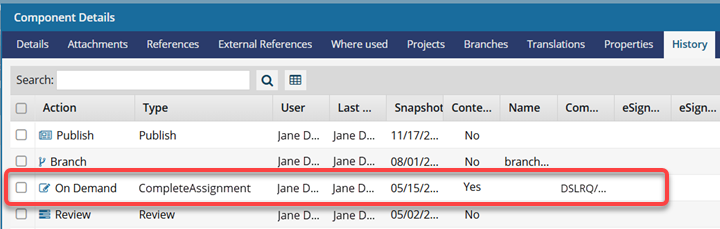
This snapshot is labeled with the following information:
Action = On Demand
(Process) Type = CompleteAssignment
Comment = Project Name/Workflow Name/Assignment Name
 Before you begin
- A workflow can be started in the following ways:
- From inside a project. This includes using the Workflow panel to access the Create Workflow option, and the Assignment panel to convert an assignment to a workflow. You can also start a workflow from the Selected Components panel. When using the Selected Components panel option to Start Workflow, you can only select templates for Topic workflows. You cannot start a review workflow from the Selected Components panel.
- From the Components browser. You can select the components you need and then select an option in the Selected Components panel to start a workflow. When using the Selected Components panel option to Start Workflow, you can only select templates for Topic workflows. You cannot start a review workflow from the Selected Components panel.
- From inside a project. This includes using the Workflow panel to access the Create Workflow option, and the Assignment panel to convert an assignment to a workflow. You can also start a workflow from the Selected Components panel.
- Components in a workflow must be included in the project. If you create a Topic workflow by selecting the components and then using the Selected Components panel, any components not in the project are added to it automatically.
- A user must exist in the workflow template's Workgroup to be assigned to a task in a workflow. If the user is part of the template Workgroup but not a project participant, they are added to the project automatically.
- If you try to assign work to a participant who doesn't have access to the component, you will see the following error.
This workflow has one or more permission problems. It is recommended to cancel the workflow, correct the permissions, and then restart it. The assigned user "Jane.Doe@MyCompany.com" does not have permission to access the following components: PrivateConcept.
- The error tells you the name of a user included in the workflow. It may not be user who needs the permissions, so you have to check each participant's permissions to the restricted component.
- The warning tells you the name of the restricted component.
- The Workflow is still started. You can change the permission, participant, or the component to resolve the conflict.
- For details on how to set permissions, refer to: Set permissions.
- A component should only be used in one workflow at a time. This is a best practice to ensure changes being made during one workflow are not overridden by changes in another.
- If you try to add a component that is being used in a second workflow, you see a warning that the component is in an active assignment or workflow.
- You can choose to create the workflow anyway or cancel.