Understand workflows
You can design and implement a workflow to automate the hand-off process between tasks that you need to complete for a project.
 Required permissions
To create, view, update, and delete workflows you must either be an Administrator, the project Owner, or have the following permissions:
- Create, read, update, and delete permissions to the
 Projects module.
 - For the Projects module, your user account must be listed under the following Property: can_initiate_assignment.
- If you are an administrator, refer to Allow users to create project assignments and workflows.
To work with Review workflows, you also need:
- Create, read, update, and delete permissions to the
 Reviews module.
 If you try to assign work to a participant who doesn't have access to the component, you will see the following error.
This workflow has one or more permission problems. It is recommended to cancel the workflow, correct the permissions, and then restart it. The assigned user "Jane.Doe@MyCompany.com" does not have permission to access the following components: PrivateConcept.
- The error tells you the name of a user included in the workflow. It may not be user who needs the permissions, so you have to check each participant's permissions to the restricted component.
- The warning tells you the name of the restricted component.
- The Workflow is still started. You can change the permission, participant, or the component to resolve the conflict.
- For details on how to set permissions, refer to: Set permissions.

Inspire workflows automate processes by using pre-defined rules and triggers to complete tasks.
- Workflows can reduce the need for manual intervention and make operations more efficient.
- Inspire workflows are based on if/then logic, where Inspire performs a specific action when a certain condition is met.
For example, you want to send a newly written Task component to review, but it needs to be sent to specific users in a specific order. First the review needs to go to a technical developer, then an editor, and then a legal representative. You can use a workflow to automatically send the content to each reviewer in order. This means that when a user marks their review as Complete, that user doesn't have to know who the next reviewer is or manually send it to them. Inspire completes the workflow transitions automatically.
- Inspire provides a Sequential Reviewer template to automate this kind of review. You can customize the template in an editor to fit your business processes.
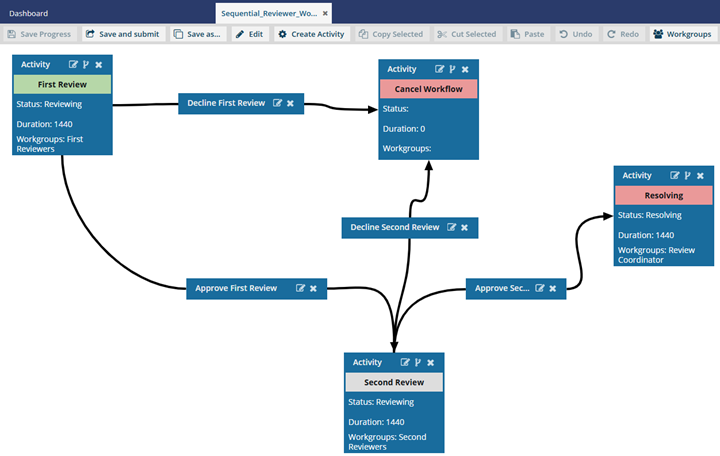
- In the template editor, you specify the Activity that needs to be done, such as completing a technical review, an editorial review, or a legal review.
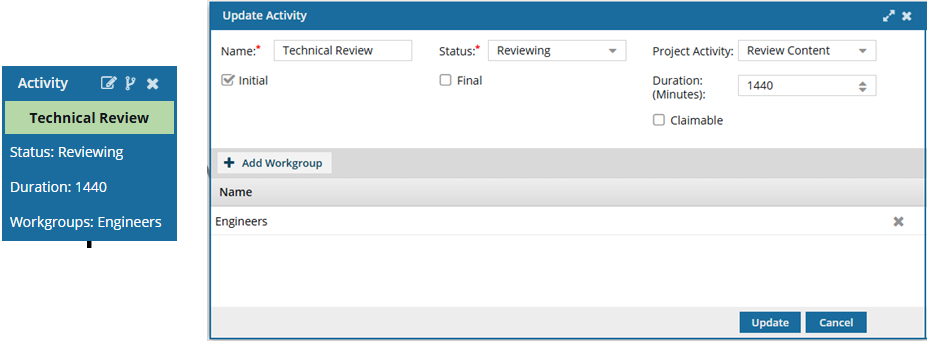
 Each Activity has rules you can define, including:
 - Status. Identifies the progress of the task (for example, Writing, Reviewing, Publishing).
- Workgroups. A list of users who can possibly do the work.
- Project Activity. Identifies the larger goal in a project (for example, Write Content, Review Content, Approve Content, Edit Content). Project Activity is a required field and cannot be left blank. Although this field is not marked with a red asterisks, and you can create a new Activity without selecting a Project Activity, if you leave it blank, the Save and Submit options are not available until you correct the errors in the workflow template.
- If there is an error in the configuration of the Activity, you see the Activity name in red.
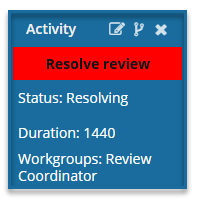
You must correct any errors before you can Save or Submit the workflow template.
- If there is an error in the configuration of the Activity, you see the Activity name in red.
- Duration. Sets a deadline for the activity to be completed (in minutes from 0 to 525600 which is 1 year).
- Claimable. Specifies that this activity can be set to a State of Ready to Claim. In this case, the activity is not assigned to one user but to a list of users who are notified that an activity can be claimed. The first user to claim the assignment completes the work.
- The template is also the place where you define the Transitions for moving the workflow to the next step, such as marking the technical review as complete.
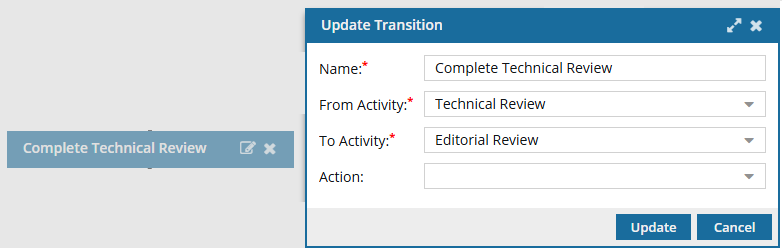
After you design the basic flow of tasks in a generic template, you need to start a new workflow based on the template and add the specific details for the work to be done.
- Specify the template that outlines the actions and conditions for the workflow.
- Add the specific files, set the appropriate due dates, and assign the initial task.