Start a workflow
In a project, you automate the hand-off process between tasks by using a workflow. Before you start a workflow, if you don't want to use the default workflows that Inspire provides, you re-design the activities and transitions or create a new template. To start a workflow, you must select the template that contains the process you want to use. Then you must add the due dates, assign the initial task, and optionally identify the topics in the project that will be used in the workflow.
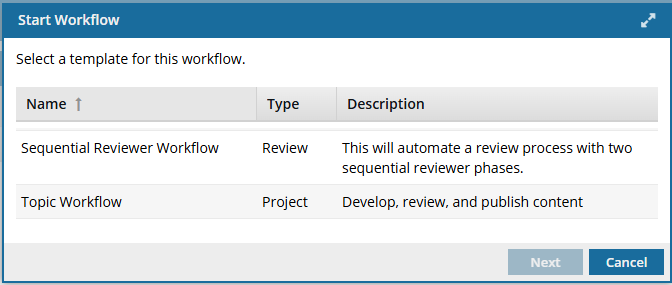
Inspire provides a topic and review workflow or you can customize a template to follow your organization's business processes.

Understanding required permissions
 Required permissions
To create, view, update, and delete workflows you must either be an Administrator, the project Owner, or have the following permissions:
- Create, read, update, and delete permissions to the
 Projects module.
 - For the Projects module, your user account must be listed under the following Property: can_initiate_assignment.
- If you are an administrator, refer to Allow users to create project assignments and workflows.
To work with Review workflows, you also need:
- Create, read, update, and delete permissions to the
 Reviews module.
 If you try to assign work to a participant who doesn't have access to the component, you see the following error.
This workflow has one or more permission problems. It is recommended to cancel the workflow, correct the permissions, and then restart it. The assigned user "Jane.Doe@MyCompany.com" does not have permission to access the following components: PrivateConcept.
- The error tells you the name of a user included in the workflow. It may not be user who needs the permissions, so you have to check each participant's permissions to the restricted component.
- The warning tells you the name of the restricted component.
- The Workflow is still started. You can change the permission, participant, or the component to resolve the conflict.
- For details on how to set permissions, refer to: Set permissions.
Starting a review workflow
Inspire provides a template that automates the review process when there are two reviewers who need to complete their work in a specific order.
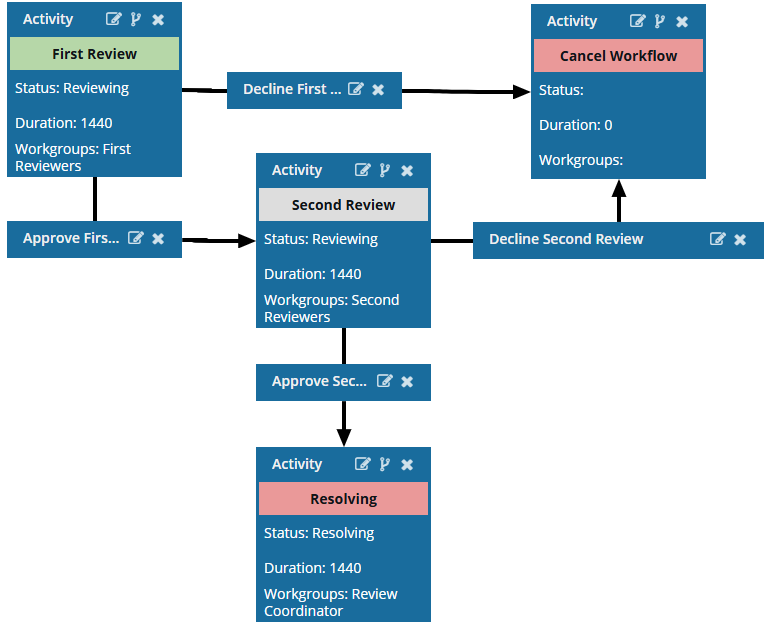
 To change the workflow, you customize this template or save a copy and edit it.
 Automate reviews with a workflow template
Understand the reviews workflow
The reviews in this template don't occur at the same time. Instead, one or more reviewers are assigned to the first phase, and when they complete their review, Inspire assigns a review to the second set of reviewers.
Starting a topic workflow
Inspire also provides a template to automate the process of developing, reviewing, approving, and publishing content.
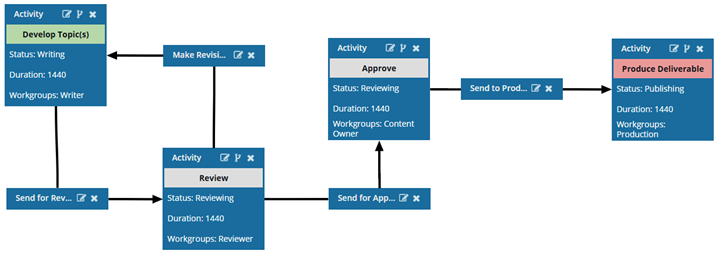
- The workflow starts with an initial Activity: Develop Topic(s).
Inspire sends a notification to the Workgroup (Writer) and checks out any attached components to users in the Workgroups: Writer and the coordinator. The Activity ends when users in the Workgroup Writer or the coordinator marks their task as Completed.
- The workflow progresses to a Transition of Send for Review.
Transitions connect activities and tell Inspire what to do next. They are shown in small rectangular boxes. Inspire checks in the changes to the components or adds the new components to the workflow. Inspire also notifies the coordinator about the workflow's progress.
By default, the Send for Review Transition from the Developing topics Activity to the Reviewing content Activity is completed manually by the user in the Writer Workgroup.- To automate the process, you can add an Action to have Inspire open a new Create Review screen automatically.
- To learn more about this automated workflow, read: Add a Create Review Action to a topic workflow template.
To change the workflow, you customize this template or save a copy and edit it.
Automate content development with a workflow template
The workflow moves through the rest of the activities and transitions until the process is complete. To learn more about what occurs at each stage, read Understand the topic workflow.
You start a topic workflow in the following ways:
From the project's Selected Components panel For Topic workflows ONLY