Understand the reviews workflow
Inspire provides you with a template for the process of getting reviews on content from two users. The reviews in this template don't occur at the same time. Instead, one or more reviewers are assigned to the first phase, and when they complete their review, Inspire assigns a review to the second set of reviewers.

 You can edit the default template or save a copy to update it so that it reflects your unique business workflows.
In this topic you can learn about:
Required permissions
 Required permissions
To create, view, update, and delete workflows you must either be an Administrator, the project Owner, or have the following permissions:
- Create, read, update, and delete permissions to the
 Projects module.
 - For the Projects module, your user account must be listed under the following Property: can_initiate_assignment.
- If you are an administrator, refer to Allow users to create project assignments and workflows.
To work with Review workflows, you also need:
- Create, read, update, and delete permissions to the
 Reviews module.
 If you try to assign work to a participant who doesn't have access to the component, you will see a warning.
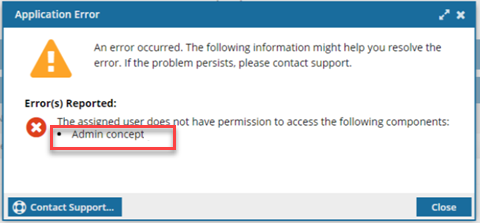
- The warning tells you the name of the restricted component.
- The Workflow is still started. You can change the permission, participant, or the component to resolve the conflict.
- For details on how to set permissions, refer to: Set permissions.
What you need to start a review workflow
 A template.
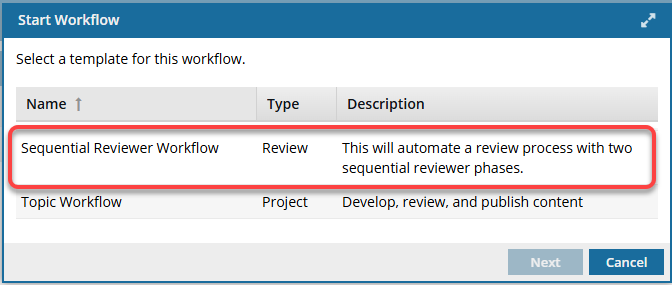
- Inspire provides you with a Sequential Reviewer Workflow template.
- You can also create your own review template.
 Review Details.
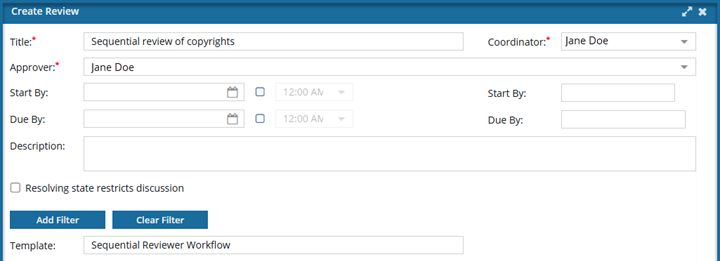
- Title. This is the name of the workflow and should be unique.
- Coordinator. By default, this is the user who creates the workflow, can update or cancel it, and who receives progress updates. You can assign only one workflow coordinator who has the required permission on the Create sequential review screen.
- Approver. By default your user account is listed as the user who must fill out the information on the Review Approval screen before a review can be completed. You can change the default to assign the approver role to any Inspire user that has permissions to work on reviews.
- Dates. If the template you selected includes Duration time for the selected Activity (Task), that times is used as the default value in Due By. You can add more time by extending the due date out, add a new due date if there is no default, or leave this value blank. Duration values are not used in Review workflows, only in topic workflows.
- Description. Optionally, you can add more details or guidelines using 3000 characters or less.
- Restrictions. By default, Resolving state restricts discussion is not selected. If you want you can restrict work in the Collaboration panel when a review has a State of Resolving, you can select this option
- Filters. Optionally you can specify what content should be shown to the reviewer by applying a filter of profiling attributes
- Template name. The workflow template you selected is listed here and cannot be changed.
 Components.
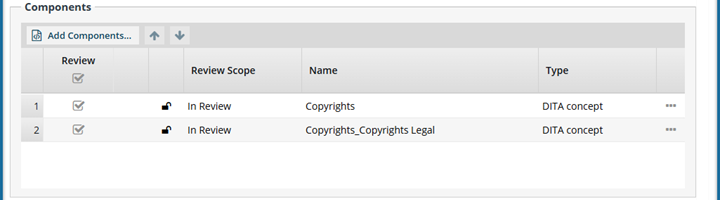
- Choose from the components included in the project. To learn more about how reviews work for different types of components, read: Learn about reviewing content.
- If a component is already in use, you see a warning and can remove it or keep it in the workflow.
 Reviewers
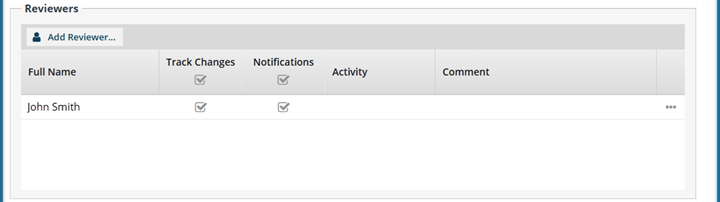
- Choose from the participants included in the project.
- You can decide to grant the ability to Track Changes and receive Notifications on a pre-user basis.
- At least one participant must have permissions to create a review
In the template, if f you leave it blank, Inspire will show you an error during workflow creation telling you that you have to set a Project Activity in the workflow editor.
How the review workflow runs
After you click Start, Inspire uses the process that you configured in the selected template.
The default Sequential Reviewer Workflow template provided by Inspire uses the following process:
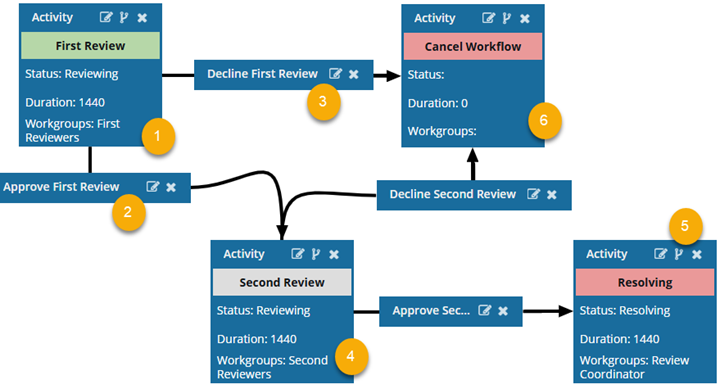
 Inspire sends a notification to the Workgroup (First Reviewers).
- The workflow starts with an initial Activity: First Review
- The workflow has a Status of Reviewing.
- By default, the user is given a Duration of 0 minutes to complete the activity, so you will need to set your own duration. After the Duration passes, if the activity is not complete, it is marked as Overdue and notifications may be sent depending on a user's notification preferences. You set the time in minutes from 0 to 525600 which is 1 year.
- Inspire checks out the attached components to users in the Workgroups: First Reviewers and the coordinator.
- The notification contains a link to edit the components.
- You can see the notification on the Notification tab.
- You can also see the notification by going to your email Inbox.
- The Activity ends when users in the Workgroup First Reviewers or the coordinator does one of the following:
- Accept First Review
- Decline First Review
 Inspire evaluates the first transition.
- Transitions connect activities and tell Inspire what to do next. They are shown in small rectangular boxes.
- If users in the Workgroup First Reviewers or the coordinator chooses to Accept First Review, then Inspire moves the workflow to the next Activity: Second Review.
- Inspire checks in the changes to the components.
- Inspire notifies the coordinator about the workflow's progress.
 Inspire evaluates the second transition.
- If users in the Workgroup First Reviewers or the coordinator chooses to Decline First Review, then Inspire moves the workflow to the linked Activity: Cancel Review.
- Inspire notifies the workflow coordinator of the cancellation and unlocks the components attached to the workflow.
- No changes to the components are saved.
- Inspire ends the workflow.
 If the first review is accepted, then Inspire sends a notification to the Workgroups (Second Reviewers).
- The workflow moves to the next Activity: Second Review.
- The workflow has a Status of Reviewing.
- By default, the user is given a Duration of 0 minutes to complete the activity, so you will need to set your own duration. After the Duration passes, if the activity is not complete, it is marked as Overdue and notifications may be sent depending on a user's notification preferences. You set the time in minutes from 0 to 525600 which is 1 year.
- Inspire checks out the files to users in the Workgroups: Second Reviewers and the coordinator.
- All second reviewers can edit the components at the same time.
- All second reviewers can see each other's comments.
- All second reviewers can see comments and changes from the first review. Second reviewers can't edit the first reviewers comments but they can reply to them.
- The Activity ends when users in the Workgroup Second Reviewers or the coordinator does one of the following:
- Accept Second Review
- Decline Second Review
 Inspire evaluates the first transition.
- If users in the Workgroup Second Reviewers or the coordinator chooses to Accept Second Review, then Inspire moves the workflow to the next Activity: Resolving.
- Inspire checks in the changes to the components from the second review.
- Inspire sends a notification to the Workgroups: Review Coordinators to resolve the review changes.
- By default, the Review Coordinator is given a Duration of 0 minutes to resolve the review, so you will need to set your own duration. After the Duration passes, if the activity is not complete, it is marked as Overdue and notifications may be sent depending on a user's notification preferences.
 Inspire evaluates the second transition.
- If users in the Workgroups: Second Reviewers or the coordinator chooses to Decline Second Review, then Inspire moves the workflow to the linked Activity: Cancel Review.
- Inspire notifies the workflow coordinator of the cancellation and unlocks the components attached to the workflow.
- No changes to the components are saved.
- Inspire ends the workflow.
If the second review is resolved, choose how to complete the workflow.
- You can add an extra Activity called Complete Workflow.
- You can edit this Activity if you need another step after the last linked Activity: Resolving.
- You can add a Status and Workgroup to complete the last step.
- You can create a Transition from the last linked Activity: Resolving to this last Activity: Complete Workflow.
- You can add as many new activities to this workflow as you need.
- You can remove the Activity: Complete Workflow if you don't need any more steps