Create your own workflow template
You use a template to design the tasks you need completed in a workflow. When you want to start a workflow, you select the template where the tasks you need to complete are already defined. You can update these existing workflow templates in a workflow editor to create the workflow that your organization requires.
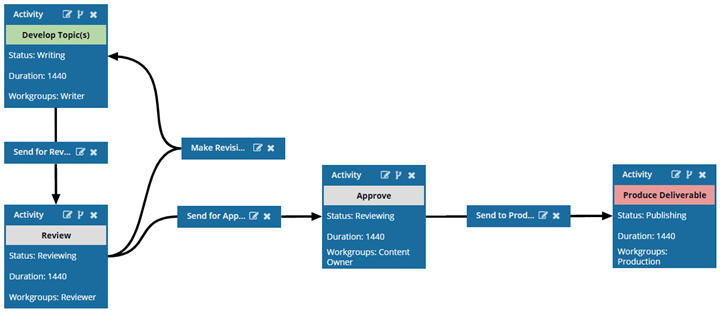
The workflow editor uses visual elements to help you create the workflow.
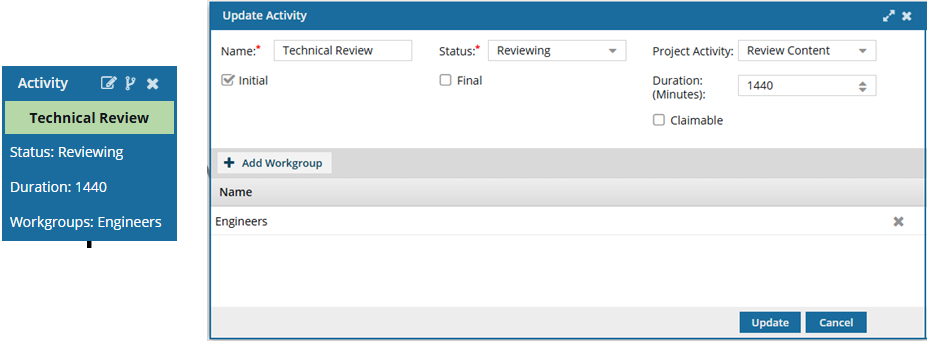
- A square represents an Activity.
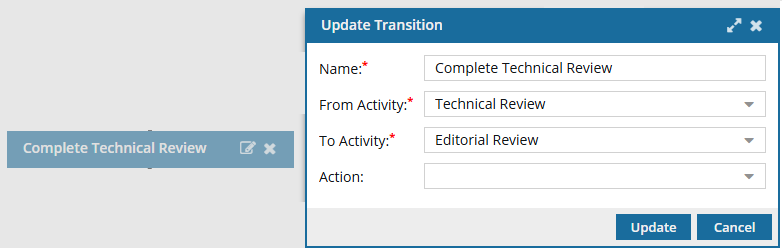
- A rectangle represents a Transition.
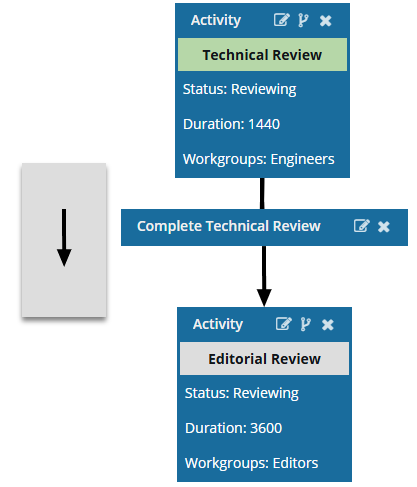
- A black arrow connects a Transition from the first Activity to the second Activity.
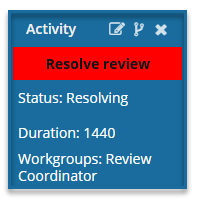
- A red title indicates that there is an error in the configuration.
For example, in an Activity, the Project Activity field is required and cannot be left blank.
- The Project Activity field is not marked with a red asterisks, and you can create a new Activity without selecting a Project Activity.
- If you leave it blank, after you Create or Update the Activity, the Name is highlighted in red.
- The Save and Submit options are not available until you correct the errors in the workflow template.
- You must correct any errors before you can Save or Submit the workflow template.