Add a Create Review Action to a topic workflow template
Inspire provides you with a template for the process of developing content. The Topic Workflow template Inspire provides includes an Activity for Reviewing content. By default, the Transition from the Developing topics Activity to the Reviewing content Activity is completed manually by the user in the Writer Workgroup. To automate the process, you can add an Action to have Inspire open a new Create Review screen automatically and populate any known details so the workflow user can quickly create the review and advance the workflow to the next stage (Reviewing).
 You must have permission to work with workflow templates.
- By default, only users with the following permissions can create project workflows and assignments:
- Administrator permissions
- Access to the Project Module with the Create permission
- Even if you don't have these permissions, you can be granted a special permission to create workflows and project assignments after a project is created.
- If you are an administrator, refer to Allow users to create project assignments and workflows.
- Users must be project Participants to start a project workflow.
- The Create Review activity must be assigned to a workgroup of users that are review coordinators.
- The Reviewing activity must be assigned to a workgroup of users that have reviewing permissions.

 Tips and tricks
- This automated Action is helpful because the writer who is developing content can easily create the review without having to leave the Project's Workflow panel (or the Dashboard).
- When a user advances a project workflow task and the Transition has an Action of InspireCreateReview, Inspire opens the Create Review screen for the current user.
- Inspire uses the Activity workflow details to populate the following information: Title, Coordinator, Approver, Due Date, Components, and Reviewers.
- The user can add, edit, or simply verify these details and click Create.
- Inspire then creates a review and advances the workflow to the next task (usually this is called Reviewing).
- When the user marks the review as Completed, Inspire changes the project assignment to Completed.
 Important notes:
 - Currently there is nothing to prevent a user from advancing a workflow before a review is completed or cancelled.
- Currently completing or cancelling a review does not automatically advance workflow.
 These behaviors are under investigation and may change in future releases.
- After you add this new Action to the provided template or a custom template you've created, you can use it in a workflow transition.

- If you don't want to use this automated Action then the user must manually open the
 Reviews module, click Create on the Reviews Management tab, and add all review details.
The Topic workflow template that Inspire provides includes the following Activities and Transitions by default:
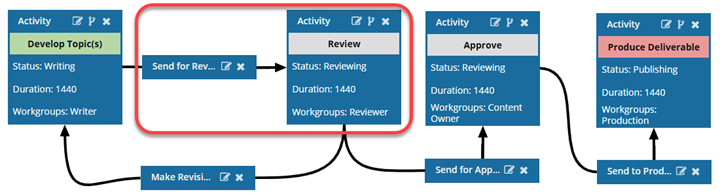
- This workflow uses the manual process for creating a review (The Send for Review Transition has no Action).
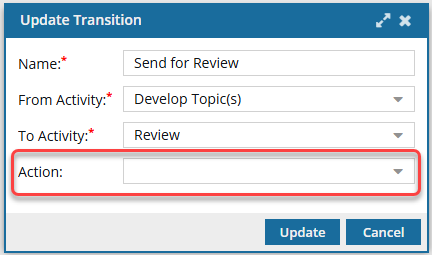
- After the Develop Topic(s) Activity is complete, the user in the Writer Workgroup must manually create a review and assign it so that the workflow advances to the Review Activity.
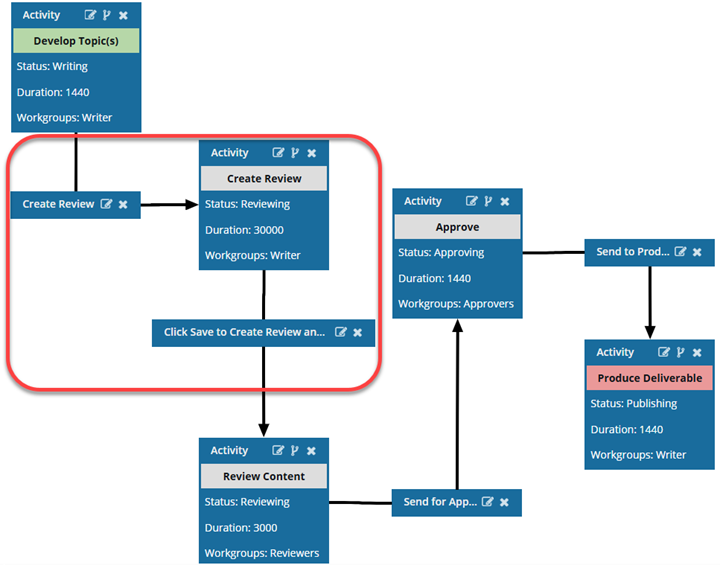
If you want to automate the process of creating a review, you need to add one Activity and two Transitions:
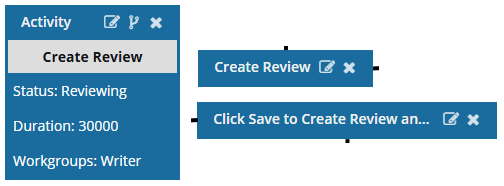
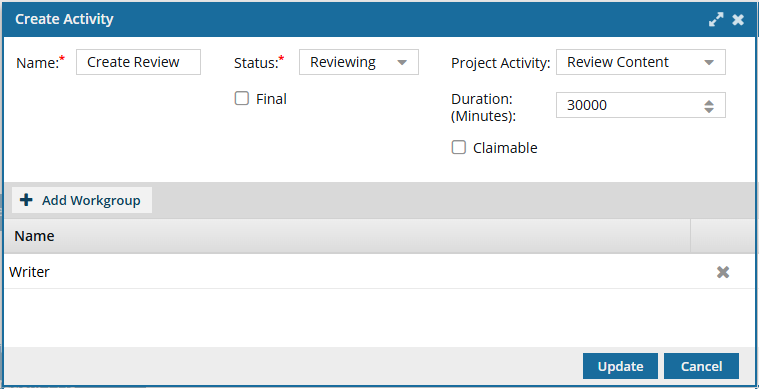
- Create Review Activity: Add an Activity called Create Review that includes the details you want to populate when creating a review automatically.
- Create Review Transition: Rename the Send for Review Transition to Create Review. You will also need to connect it to the new Create Review Activity.
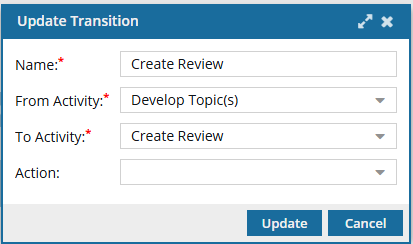
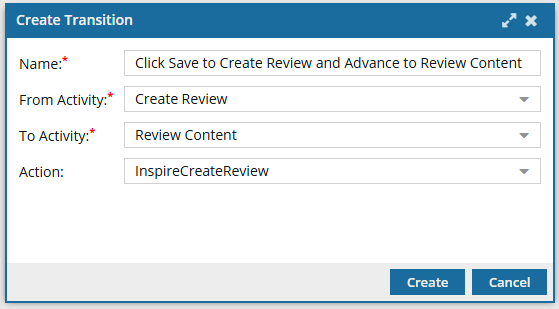
- Click Save to Create Review Transition: Create this Transition to use the new Action of InspireCreateReview. This Action tells Inspire to open the Create Review screen for the current user and populate any known details. You will also need to connect it to go From the new Create Review Activity To the Review Content Activity.
You will end up with a topic workflow that uses the automated process of creating a review.
To add a create review Action to a topic workflow template:
- Add a new Action to the workflow template called InspireCreateReview.
- Create a new Activity called Create Review.
- Update or add the Create Review Transition.
- Add the Transition to automatically open the Create Review screen.

Add the InspireCreateReview Action
To automate the process of creating a review in a Topic workflow, you can add an Action that tells Inspire to open a new Create Review screen automatically and populate any known details so the workflow user can quickly create the review and advance the workflow to the next stage (Reviewing). After you add this Action, you must select it in a Transition so that the functionality is triggered in a workflow that uses this template.
To add the InspireCreateReview Action:
-
Click
 Components.
-
In the workflow editor toolbar, click
 Actions.
-
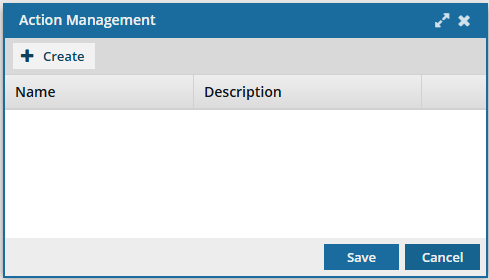
On the Action Management screen, click
 Create.
-
On the Create Action screen, in Name, enter the following string of characters exactly: InspireCreateReview.
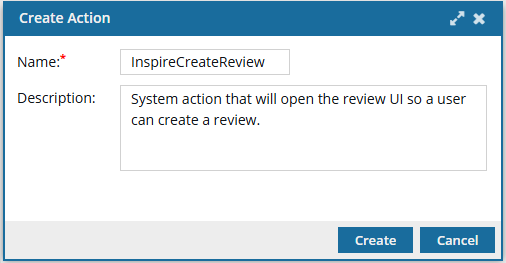 Important notes:
- Do not use any spaces
- Make sure to use capital letters for Inspire, Create, and Review
- If the string is not entered exactly as shown, Inspire will not be called to open the Create Review screen
-
To save your changes on the Create Action screen, click Create.
 Results:
- You can see your new action on the Action Management screen.
-
To save the list of actions, on the Action Management screen, click Save.
Add a Create Review Activity
You must add an Activity called Create Review to the workflow template for the following reasons:
- When a user is creating a workflow and uses this template, Inspire uses the details they include in this Activity to populate the Create Review screen.
- This Activity serves as a connection between the Create Review and Click Save to create a review Transitions.
To add a Create Review Activity:
-
Click Components.
-
In the workflow editor, click
 Create Activity.
-
Optionally, on the Create Activity screen, to set a default value, you can select a Project Activity such as Review Content.
If you don't select a default, the user who starts the workflow will be required to select a Project Activity.
-
Optionally, you can set a Duration for this activity in minutes.
Important notes:
- In the templates Inspire provides, by default the user is given a Duration of 0 minutes to complete the activity, so you will need to set your own duration.
- You set the time in minutes from 0 to 525600 which is 1 year.
- After the Duration passes, if the activity is not complete, it is marked as Overdue and notifications may be sent depending on a user's notification preferences.
-
In Workgroup, select Add Workgroup.
- Select an option such as Writer.
- Click Update.
-
To save your changes, click Create.
Results:
- You can see your new activity as the first box in the workflow editor.
- Your new activity may be covering up the First Activity. To move it, click the Activity title bar, and when you see the move cursor, drag it to where you want it to occur in the workflow.
Include a Create Review Transition
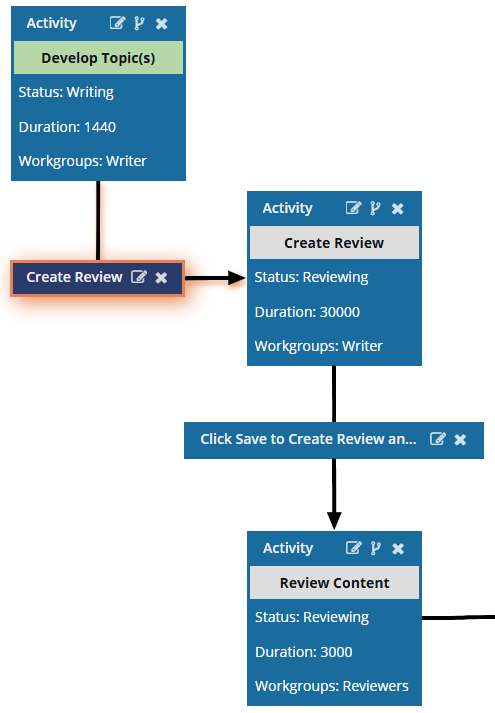
You can either rename the Send for Review Transition to Create Review, or add a new Transition with this name. Then you will need to connect it From the Develop topic(s) Activity To the new Create Review Activity.
To include a Create Review Transition:
-
Click Components.
-
To update an existing Transition:
- In the workflow editor, find the Transition called Send for Review.
- Click
 Edit.
Edit.
-
To create a new Transition:
-
In the Activity's toolbar, select
 Create transition
-
In the Activity's toolbar, select
-
On the Create or Update Transition screen, In Name, enter Create Review or another similar title.
-
To save your changes, click Create or Update.
Results:
- You can see your new transition with two lines: one line connecting it from the start activity; one line connecting it to the end activity.
- To move your transition in the editor but not change the start and ending activities, click the transition's title bar, and when you see the move cursor, drag it inside the editor.

The lines connecting the transition to the start end activities are re-drawn as you move the box.
Add a Transition that uses the InspireCreateReview Action
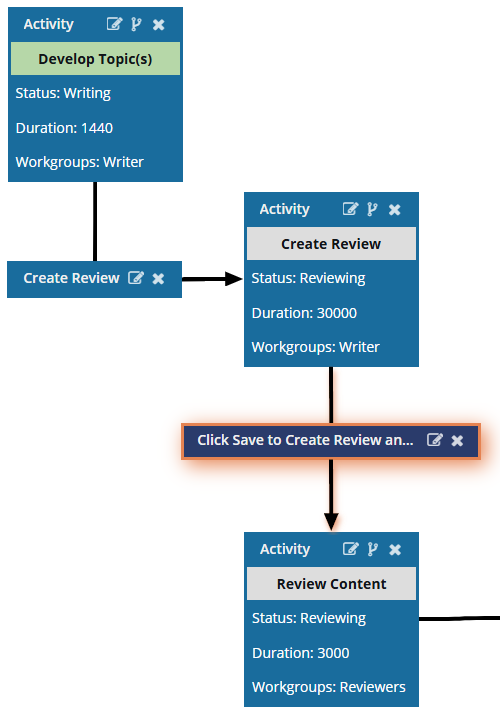
You must create this Transition to use the new Action of InspireCreateReview. This Action tells Inspire to open the Create Review screen for the current user and populate any known details. You will also need to connect it to go From the new Create Review Activity To the Review Content Activity.
To add a Transition that uses the InspireCreateReview Action:
-
Click Components.
-
To create a new Transition, in the Create Review Activity's toolbar, select Create transition.
-
On the Create Transition screen, In Name, enter Click Save to Create Review and Advance to Review Content or another similar title.
-
To save your changes, click Create.
Results:
- You can see your new transition with two lines: one line connecting it from the start activity; one line connecting it to the end activity.
- To move your transition in the editor but not change the start and ending activities, click the transition's title bar, and when you see the move cursor, drag it inside the editor.
The lines connecting the transition to the start end activities are re-drawn as you move the box