Manage actions in a template
You use transitions to identify what should happen when a workflow Activity is completed. For example, after the technical review, you can create a transition that specifies the files should go to an editor for review. If there is also an Action that needs to be done during the transition, such as Take a snapshot, you can create the Action and add it to the Transition.
 For a complete list of permissions, read: Workflow permissions.

 Inspire workflow templates are designed around an Activity.
- Activities are connected by transitions.
- A Transition can contain an Action.
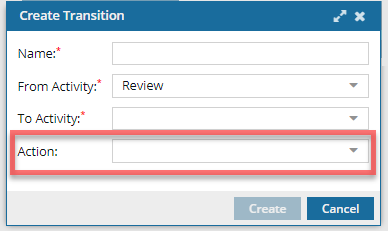
You can use Actions to:
Note a process that is completed outside Inspire, such as Hire a copy editor.
Specify something a user should do after an Activity is completed, such as Take a snapshot.
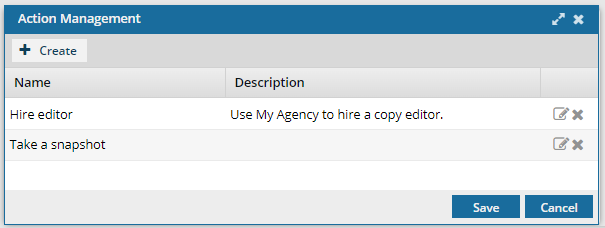
- Tell Inspire to perform an automated task.
 Currently, there is a limited list of automated Actions that can be performed by Inspire:
 InspireCreateReview (Add a Create Review Action to a topic workflow template)
InspireCreateApproval (Add a Create Approval Action to a topic workflow template)
- InspireApprove (Add an Inspire Approve Action to a topic workflow template)
- InspireUnapprove (Automate unapprovals in a workflow)
- InspireCreateTranslation (Automate translation in a workflow template)
- InspirePublish (Automate publication in a workflow template)
- InspireCompletenessReport (Automate completeness reporting in a workflow template)
 Before you begin
- Inspire does not provide any default Actions that are manually completed by a user. If you haven't created any yet, follow the steps in: Create an action in a template.
- You can create an Action first and then select it when creating a Transition.
- You can create a Transition without an Action and add it later.
- A Transition can only include one Action.