Remove an action from a transition
You use transitions to tell Inspire what to do when an Activity in a workflow is completed. For example, after the first review, you can create a transition to have Inspire send the files for approval. If there is also an Action to be done, such as taking a snapshot, you can create it and add it to the Transition. If you don't need an action to be completed during a transition, you can remove it from the transition.
 Tips and tricks
- An Action is unique to the template it's included in.
- If you want to use the new or updated Action in a different template, you have to re-create it in that specific template.
- Removing an Action from a Transition does not remove the Action itself. The Action still exists and can be added to a different Transition if needed.
- If you want to permanently remove an action from the list so that it cannot be used in any Transition, follow the steps in: Delete a template action.
- If you only want to manage the available Actions, follow the steps in: Manage actions in a template.

 Before you begin
- The changes to a Transition will be applied to all new workflows that are started using this template.
- For workflows that use this template and are in progress:
- If the Transition you are updating has not occurred yet, the changes will be applied when the workflow moves to the updated Transition.
- If the Transition you are updating has already been completed, the changes will not be applied.
To add an action to a transition:
-
Click
 Components.
-
In the Folders pane, select Workflows.
 If you have moved the template to another folder, go to that location instead.
 -
In the Components pane, select a workflow.
To open the template, do one of the following:
- Double-click the file
- Right-click the file, and then select Edit...
- Click
 the Options menu, and then select Edit...
 Results: You see the workflow activities and transitions in the editor.
 -
In the workflow editor, select the Transition with the Action that you want to remove.
Result: The box you select has an orange highlight.

-
In the Transition's title bar, click
 Update Transition.
Result: The Update Transition screen opens.
Update Transition.
Result: The Update Transition screen opens.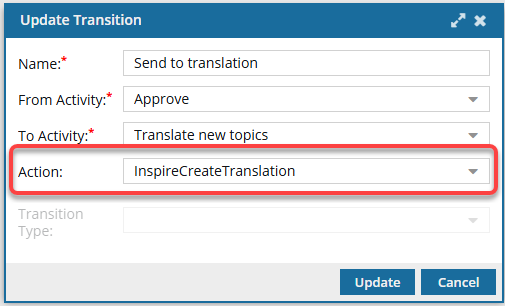
-
To save your changes to the Transition, click Update.
Results:
- The transition no longer includes the Action information.
- When Inspire sends a notification about the transition, no Action information is included.
-
To save your changes to the template, do one of the following:
- If you are done updating the workflow, to close the workflow editor, click
 Save and Submit.
 - If you want to keep working but save your changes locally, click
 Save Progress.
Results: - The changes to a Transition will be applied to all new workflows that are started using this template.
- For workflows that use this template and are in progress:
- If the Transition you are updating has not occurred yet, the changes will be applied when the workflow moves to the updated Transition.
- If the Transition you are updating has already been completed, the changes will not be applied.
- If you are done updating the workflow, to close the workflow editor, click