View recent activity on the Dashboard
The Dashboard module gives you quick access to projects and components that you've recently opened. You can also see a high-level view of your assignments and reviews.
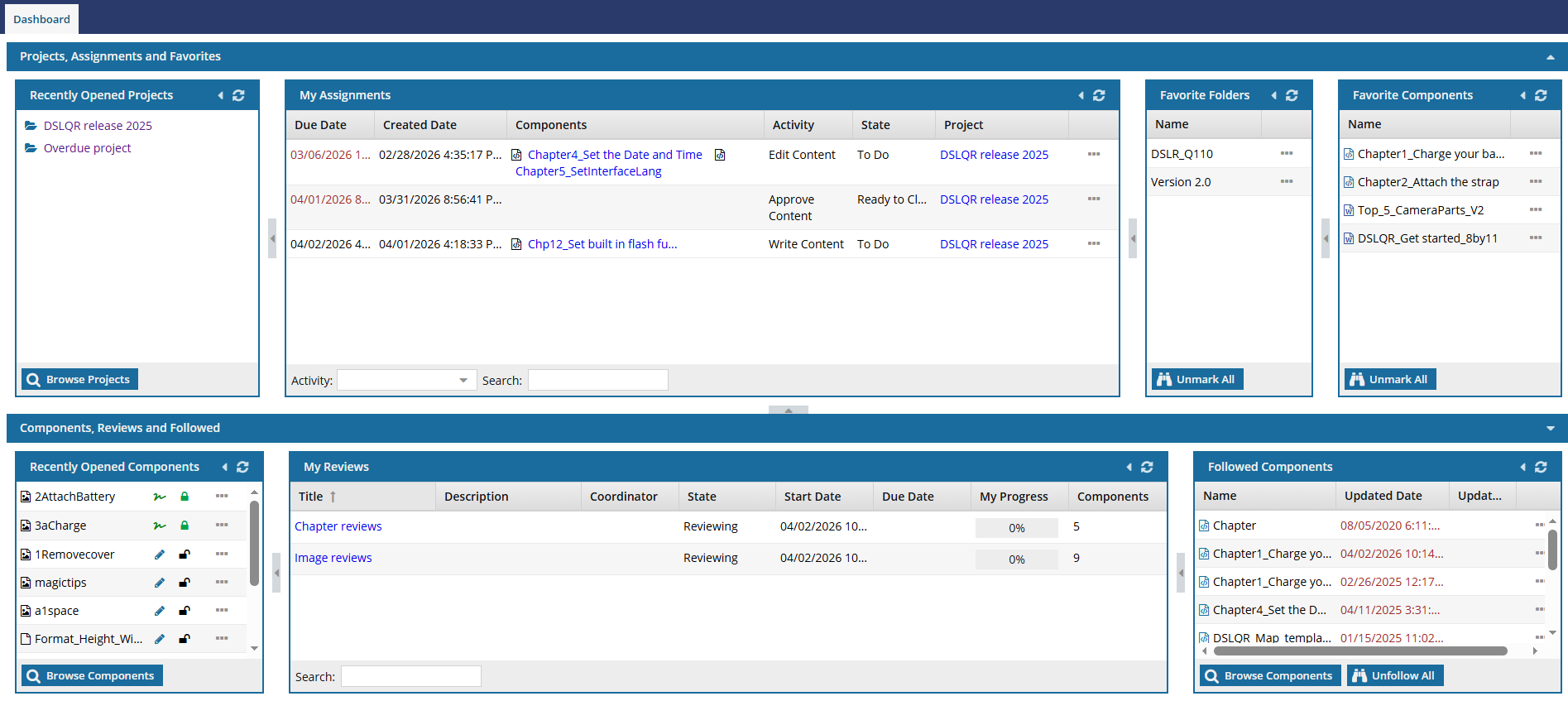
When you log into Inspire, the Dashboard module always opens first so that you can access your recent work quickly.
 You can't close the Dashboard tab.

What do you want to do on the dashboard?
See the basic layout
The Dashboard is divided into two sections:
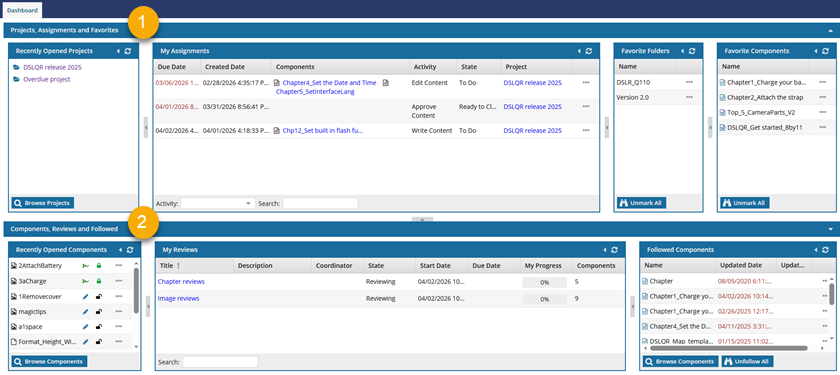
 Projects assignments and Favorites

It includes the following panes:
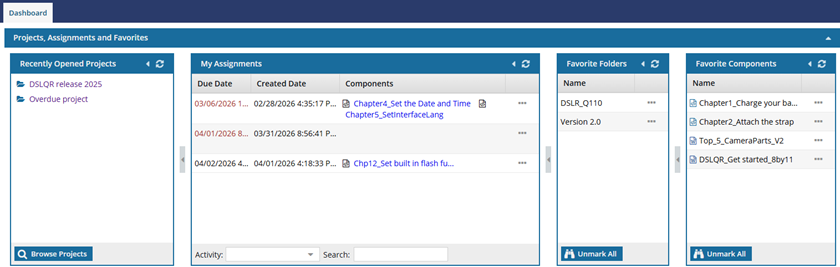
- Recently Opened Projects
- My Assignments
- Favorite Folders
- Favorite Components
 You can collapse this set of panes by going to the title bar and using
  the collapse button. You can also customize the layout of the panes within the section.
 Components, Reviews, and Followed

It includes the following panes:
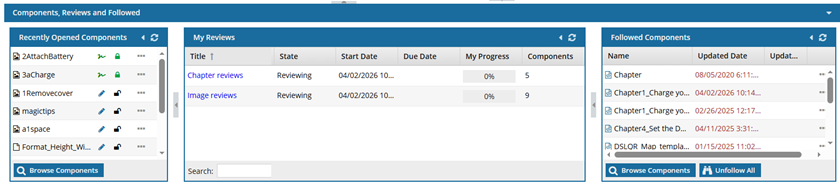
- Recently Opened Components
- My Reviews
- Followed Components
You can collapse this set of panes by going to the title bar and using its collapse buttons:


You can also customize the layout of the panes within the section.
Learn about the different panels
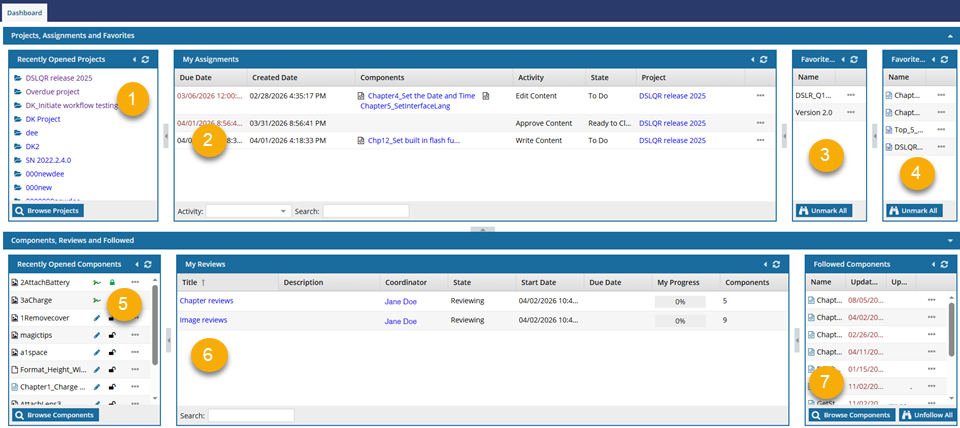
You can use the following sections that are always on the Dashboard:
Recently Opened Projects gives you a link to the projects you've worked in.
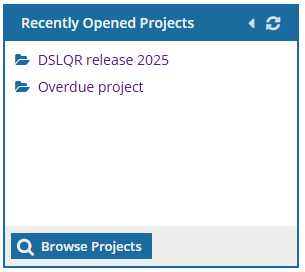
 Go to recently opened projects
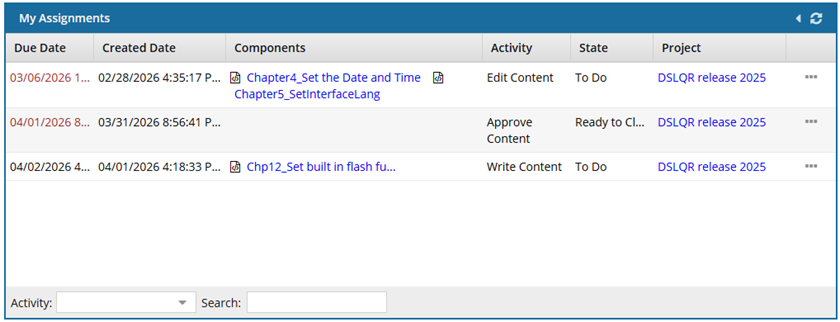
My Assignments gives you quick access to the components in projects where work has been assigned to you. It also provides actions for you to take.
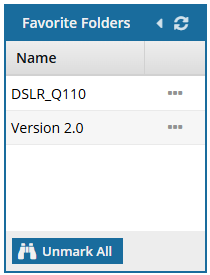
 Favorite Folders gives you quick access the folders you often use and have marked as a favorite.
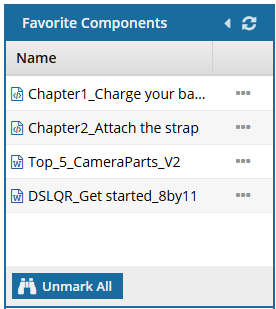
 Favorite Components gives you quick access to the files you often use and have marked as a favorite.
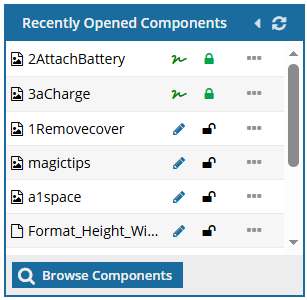
 Recently Opened Components gives you quick access to edit a component you've recently opened or referenced.
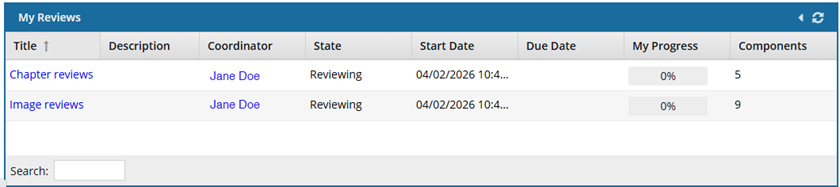
 My Reviews gives you quick access to the reviews where you are a coordinator or work has been assigned to you.
 Followed Components lists the files you want to get notifications for when another user deletes or updates it.
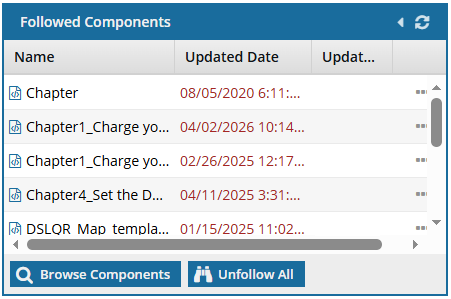
See a list of components you follow
Customize the display
You can personalize your main dashboard to show the panes you use the most. Dashboard layout changes are automatically saved and restored on refresh, making it easier to tailor the dashboard to you individual workflows.
Panels. You can change the layout of the panels in the following ways:
- Collapse. Temporarily reduce the panel (and all its panes) to a title bar so that it takes up less space on the screen, while still being available to expand it again later. Use the collapse button in the panel's title bar for this action.
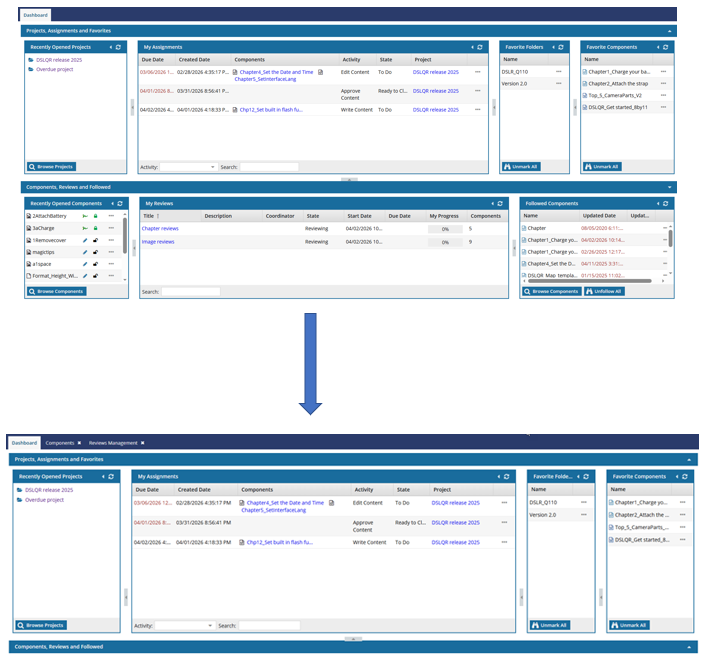
- Expand. Return a collapsed panel (and all its panes) to its original size so that you can see the panel's content. Use the expand button to the right of the pane for this action.
Individual panes. You change the layout of the panes in the following ways:
- Collapse. Temporarily reduce the pane to a title bar so that it takes up less space on the screen, while still being available to expand it again later. Use
 the collapse slider button to the right of the pane for this action.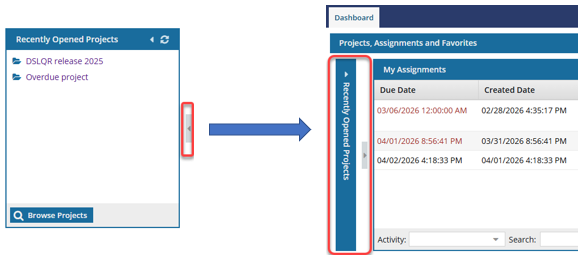
- Expand. Return a collapsed pane to its original size so that you can see the pane's content. Use
 the expand slider button to the right of the pane for this action.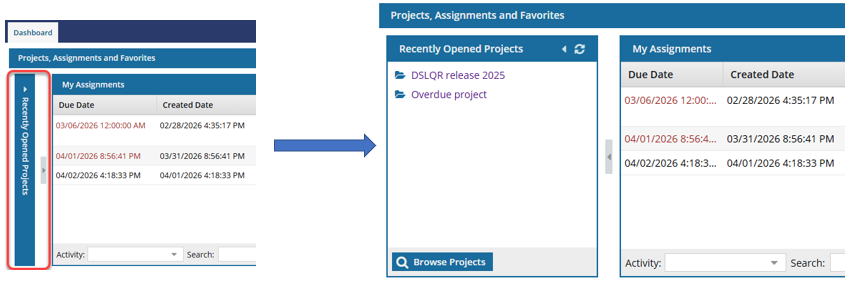
- Resize. Change the dimensions of a panel. You can adjust width, height, or both—while keeping the panel visible and usable.
- To change the width, place your cursor to the right of the pane until you see
 the Resize cursor. Click and drag to change the width of the pane.
 - To change the height, place your cursor below the pane until you see
 the Resize cursor. Click and drag to change the width of the pane.
- To change the width, place your cursor to the right of the pane until you see
You can only change the size of the existing dashboard panes:
- Recently Opened Projects
- My Assignments
- Favorite Folders
- Favorite Components
- Recently Opened Components
- My Reviews
- Followed Components
You cannot completely remove an existing pane or add new panes at this time.