See my reviews
The Dashboard tab gives you quick access to projects and components that you've recently opened. The My Reviews pane gives you quick access to the reviews where you are a coordinator or work has been assigned to you.
When you log into Inspire, the Dashboard tab always opens first so that you can access your recent work quickly.
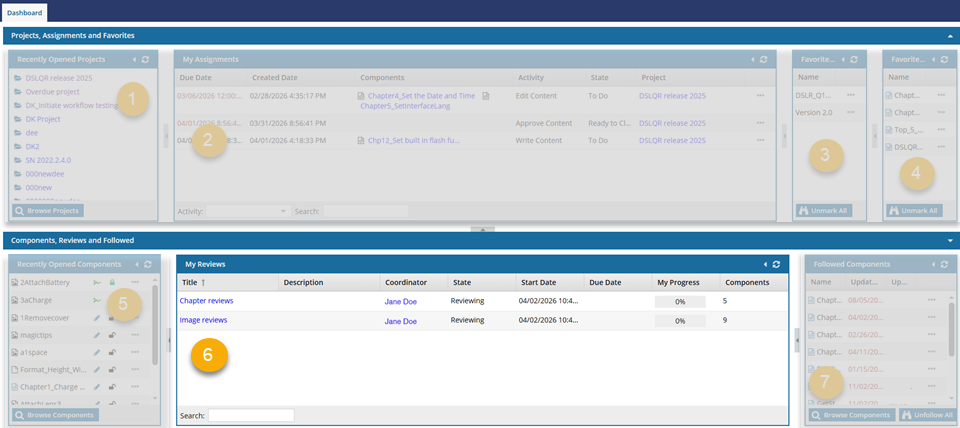
 You can use the My Reviews pane for quick access to reviews you are involved in.
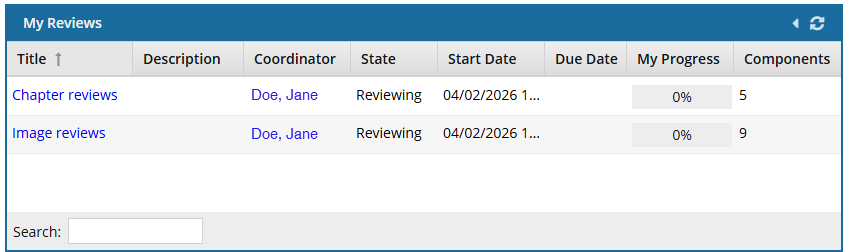
On this panel you can:
- Know at-a-glance if the review is overdue. The date is displayed in red when:
- Due Date is older than the current date and time, and the review has a state of Reviewing.
- If you hover your cursor over a red Due Date, a pop-up message tells you how many days it's overdue.
- Know at-a-glance if the review is due today. The date is displayed in red when:
- If Due Date is today, and the review has a state of Reviewing.
- Open a review. In the list of reviews, click the Title.
- Understand the context of the review and read additional instructions. The review coordinator can include instructions and context for reviewers in the Description field when they create the review.
- You can see the Description on the Dashboard screen in the My Reviews section.
- You can also see the Description while working on the review in the review editor.
 The text will truncate with an ellipse if it doesn't fit, but you can hover over Description to see the complete text.
 - Contact the review coordinator by email. Inspire opens your email application automatically.
- You see a new email, and in the To: field is the email address of the coordinator.
- To start this process, click the name in the Coordinator column.
- See the review dates. You can see any dates that the Coordinator specified when creating the review. If a date column is empty then there is no date assigned.
- See the review's progress. The My Progress number shows how much work has been done on the review, but only by you. This number is calculated differently than the progress number on the Reviews Management tab.
- Progress on the Reviews Management tab is calculated by adding up the components that are NOT context-only and multiplying it by the sum of reviewers plus the coordinator and/or approver. For more information, read: See details on the Reviews pane.
On the Dashboard screen in My Reviews:
- Inspire also does NOT consider context-only components in the calculation.
- However, progress is calculated differently, by dividing the number of components you have reviewed by the total number of components in the review.
For example:
- A review has 2 review components and 1 context-only component.
- To calculate your progress:
- If you have completed the review of 1 component out of the 2, the percentage shows 50% complete.
% = 1/2*100 - When you complete your review of both components, then your review has 2 completed components out of the 2, and the percentage is 100% complete.
% = 2/2*100
- If you have completed the review of 1 component out of the 2, the percentage shows 50% complete.
- If the review has other reviewers, then the progress number won't be 100% on the Reviews Management tab after you complete your review.
- Know how large the review is. The number of components is shown in the Components column so that you can quickly assess review size and prioritize work.
- Find a review:
- Show or hide the columns displaying the details.
- Sort the list by a column. Use
 the dropdown arrow in the column heading to select Sort Ascending or Sort Descending.
 - Enter a keyword in Search.
- Hide review details. When you open the Dashboard, all columns are displayed by default.
- Coordinator
- State
- Start Date
- Due Date
- Progress
If you want to see less details in the grid, you can hide the columns.
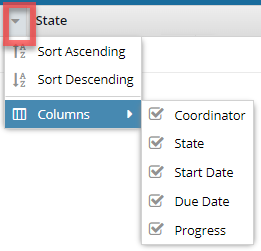
- Use the dropdown arrow in the column heading to access the Columns menu.
- To hide a column, clear the checkbox.
- To show a column, select the checkbox.