Work with component usage reports
You can select a component and create a report that shows the complete hierarchy of references. This report provides more details than when you select a component and choose Details to open the Where Used tab. On the Where Used tab, you can see the list of components that directly reference the selected component. If you want to trace those parent components all the way back to their first reference, you can create a component usage report.

 Tips and tricks
- For example, I want to understand how the image called Open_battery_cover is used to see if it's better to remove or replace it. I want to see all the references leading up to this image.
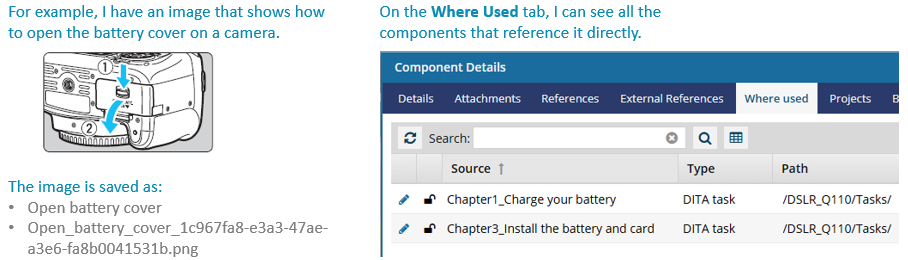
- A hierarchy shows how references are organized into levels, with some references containing others.
- A top-level component (often called the root) may not reference the selected component directly, but it contains other components that in turn reference it.
If I run a Component Usage report for the Open_battery_cover image, I can see the reference hierarchy.
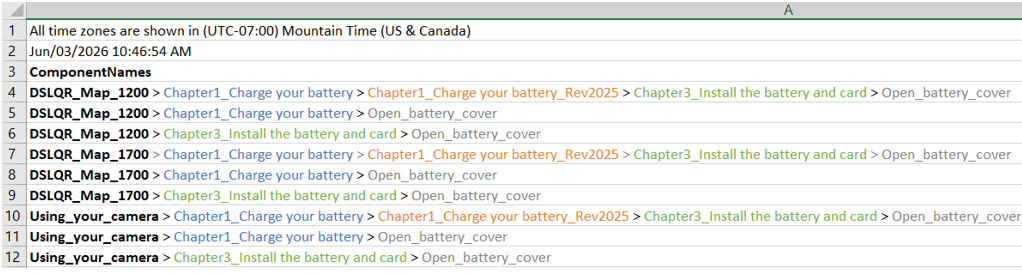
- The root-level reference is shown in Bold.
- In rows 4-9, the root is a map that contains three components that reference
 . These components are shown in colored text.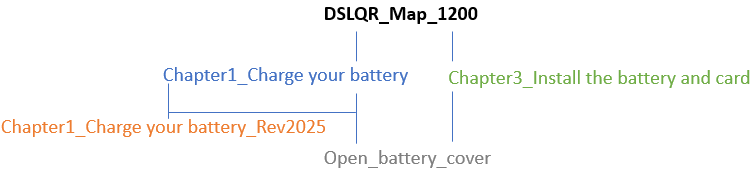
The report can be visualized in the following hierarchical relationships.
On the left side:
- is directly referenced by
 .
. - has a relationship with
 because it is a branched copy of .
 - is not directly referenced by the map.
- is directly referenced by the map.
On the right side:
- is directly referenced by
 .
. - is directly referenced by the map.
- In rows 10-12, the root level component doesn’t directly reference , but it does reference the components (, ) that in turn reference .
 Note that the root component, Using_your_Camera, was never listed on the Where Used tab, because it was a parent reference to the Chapter 1 and 3 components.
- You can see the Report Date before the table of data. Knowing the date and time that the report was requested is important if you are forwarding the report notification or the report itself.
- The report contains the following information:
- The hierarchy of the components that reference the selected component
- The same reference hierarchy, but showing the full filenames
You can run a report on just one component.
You can use the right-click menu on the component.
You can use
 the Options menu in the component's row
- You can add one component to the Selected Components panel and select
 the Reports menu.
When you run a report on a single component, Inspire adds the component name to the report's CSV file name.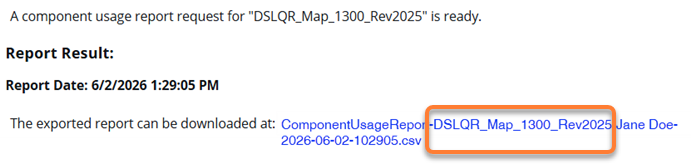
- You can run a report on multiple components.
- Use the Components browser to select the checkbox for each component you want a report on.
- In the Selected Components panel, use the Reports menu.
You see a separate notification for each component you select.
You see a notification when you send the request and when the reports are complete.
You get a separate report for each component you select.
When you run a report on multiple components, Inspire always creates a separate report for each component.
