Prepare to create a workflow
You can design and implement a workflow to automate the hand-off process between tasks that you need to complete for a project.
 Required Permissions
To create, view, update, and delete workflows you must either be an Administrator, the project Owner, or have the following permissions:
- Create, read, update, and delete permissions to the
 Projects module.
 - Users must be project Participants to start a project workflow.
- For the Projects module, your user account must be listed under the following Property: can_initiate_assignment.
- If you are an administrator, refer to Allow users to create project assignments and workflows.

Before you create a workflow, make sure you have the project materials you need (files if necessary and people), and have defined the rules and triggers (templates) that guide your process from start to finish.
Learn more about:
Projects
- Content. If you want to assign work to be done on a component, make sure it's listed in your project's Content pane.
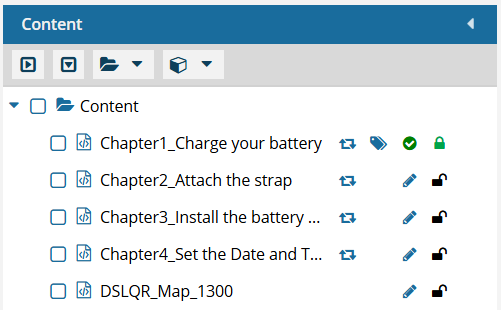
 For steps on how to add content, read Add existing components to a project.
 - Participants. Make sure the users who you want to work on the tasks in a workflow are added to your project.
 For steps on how to add users, read Add participants to a project.
 If you try to assign work to a participant who doesn't have access to the component, you will see the following error.
 This workflow has one or more permission problems. It is recommended to cancel the workflow, correct the permissions, and then restart it. The assigned user "Jane.Doe@MyCompany.com" does not have permission to access the following components: PrivateConcept.
- The error tells you the name of a user included in the workflow. It may not be user who needs the permissions, so you have to check each participant's permissions to the restricted component.
- The Workflow is still created. You can change the participant or the component to resolve the conflict.
- For details on how to set permissions, refer to: Set permissions.
Templates
Workflow templates let you specify the order of tasks you need completed in a workflow. You can use the template Inspire provides or create your own. By default, Inspire provides the following templates:
- Sequential reviewer workflow. Use this template to automate the review process with two sequential reviewer phases.
- Topic workflow. Use this template to develop, review, and publish content.
 Important notes:
- You can update these existing workflow templates to create the workflow that your organization requires.
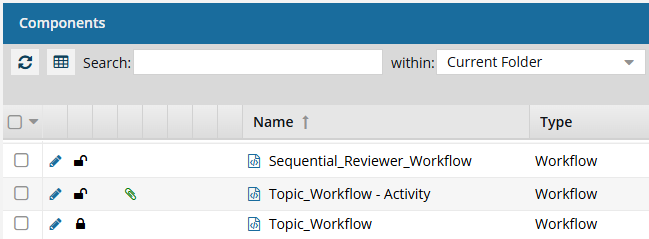
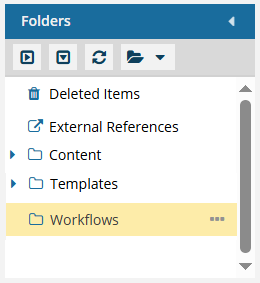
- Workflow templates are stored in a system folder called Workflows.
If you know which template you need to use and don't need to update it, you can skip the section on how to Manage workflow templates and go directly to Start a workflow.