Customize the details for a topic workflow template
Inspire provides you with a template for the process of developing content. If you want to change the name of the template or its type, you can edit the template details.
 Required permissions
You do not need special permissions to create, edit, or delete workflow templates.
 However, keep in mind that administrators and other users can set permissions on components and folders.
- You must have permission to edit the workflow template component.
- You must have folder permissions where the template is stored.
- For details on how to check and set permissions, refer to: Set permissions
 For a complete list of permissions, including starting a workflow from a template, read: Workflow permissions.

 Tips and tricks
- You can create an entirely new workflow template component that has no default details, Activities, and Transitions.
- Use the Topic workflow template explained in this topic as an example of what you can create.
- To create a new template, follow the steps in: Create a workflow template component.
- If you want to change the location of a template from its default location in the Workflows folder, you can move a workflow to another folder:
- It retains its file type of Workflow
- When you're working in a project, you can still click Create workflow and then select it
- To move a component, refer to the steps in Move components
To update the details for a topic workflow template:
-
Click
 Components.
-
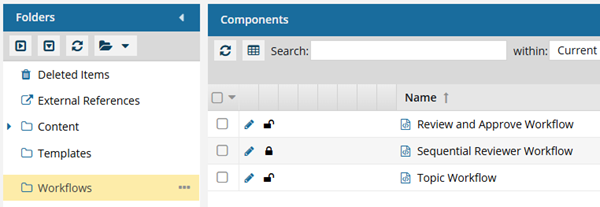
In the Folders pane, select Workflows.
 You can save a workflow template to another folder. If you did this, open that folder instead of the Workflows folder.
 -
In the workflow editor, to change the template details:
-
In the toolbar at the top of the screen, select
 Edit.
Edit.

-
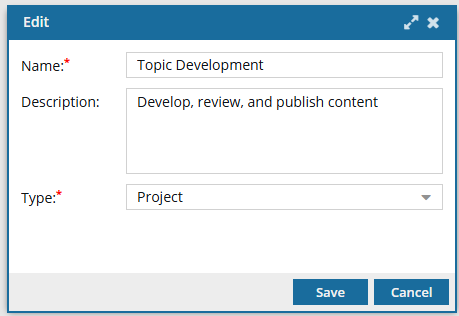
On the Edit screen, to change the title that users see when they create a new workflow, change the word or phrase in Name.
-
In the toolbar at the top of the screen, select
-
To save your changes, do one of the following:
- To keep the workflow editor open and save your work locally, click
 Save Progress.
 - To close the workflow editor and save your work to the database, click
 Save and Submit.
- To keep the workflow editor open and save your work locally, click