Automate publication in a workflow template
In an Inspire workflow template, you can design the process you use to develop content and provide deliverables to your customers. This process can include publishing your content. In a workflow template, you can include an action that tells Inspire to open the Publish Component screen and include associated components in the job. This allows a Workgroup user to quickly send workflow content to publication and advance the workflow to the translation stage.
 Required permissions
You must have permission to the Projects Module to work with projects and workflows.
 However, keep in mind that administrators and other users can set permissions on components and folders.
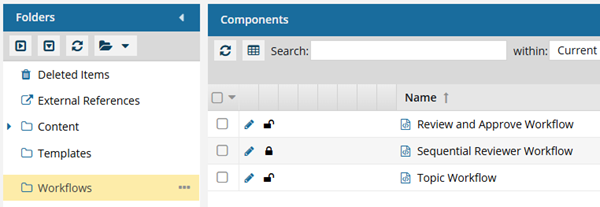
- You must have permission to edit the workflow template component.
- You must have folder permissions where the template is stored.
- For details on how to check and set permissions, refer to: Set permissions
 For a complete list of permissions, including starting a workflow from a template, read: Workflow permissions.

 Tips and tricks
- Learn more about Inspire's topic workflow template in: Understand the topic workflow.
- You can create an entirely new workflow template component that has no default Activities and Transitions.
- Use the Topic workflow template explained in this topic as an example of what you can create.
- To create a new template, follow the steps in: Create a workflow template component.
- An Action is unique to the template it's included in. If you want to use the new or updated Action in a different template, you have to re-create it in that specific template.
- You can select a Publish Configuration to use when a workflow advances to an Activity. This is useful for Activities where the Project Activity is related to publishing, but it can be configured for any type of workflow Activity.
- In an active workflow, the InspirePublish action tells Inspire to check how many components are included in the previous Activity (such as Approve components) and take one of the following actions:
- If there is one XML component, Inspire opens the Publish Component screen. The publishing job Name is prepopulated with the name of the component. If a Publish configuration was set for this Activity in the Workflow editor, that data is used to populate the fields. If not, the user must manually enter data for the required fields and click Publish. You see a notification that the publishing job has been created.
 If the user clicks Cancel on the Publish Component screen, it closes and the user is returned to the Next Workflow Task screen. The workflow cannot be advanced until:
 The user clicks Save on the Next Workflow Task screen
The user clicks Publish on the Publish Component screen
- If there is more than one XML component, Inspire opens the Select Project Components pane. The user can select the checkbox for each component they want to publish. When they click OK, Inspire opens the Publish Component screen. The user must fill out the required fields and click Publish. You see a notification that the publishing job has been created.
- If there are no XML components, Inspire gives you an error message. The publishing job is not created, and the workflow does not advance to the next step.
- If there is one XML component, Inspire opens the Publish Component screen. The publishing job Name is prepopulated with the name of the component. If a Publish configuration was set for this Activity in the Workflow editor, that data is used to populate the fields. If not, the user must manually enter data for the required fields and click Publish. You see a notification that the publishing job has been created.
- After you add this new Inspire Publish Action (InspirePublish) to a template, you can use it in a workflow transition.

 Before you begin
This automated Action is only available in a Topic workflow template (not a sequential reviewer template), or a completely new workflow template component.
- At least one component must be included in the active workflow for this automated action to complete successfully.
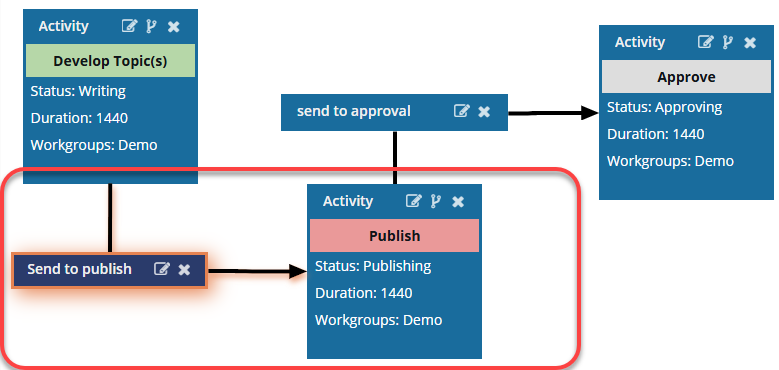
To add an InspirePublish action to a topic workflow template:
- Create a new Action for InspirePublish.
- Add the Action to the Transition.
