Automate reviews in a template
The Topic Workflow template Inspire provides includes an Activity for Reviewing content. In this template, the Transition from the Developing topics Activity to the Reviewing content Activity is completed manually by the user in the Writer Workgroup. To automate part of the process, you can add an Action to open a new Create Review screen. Inspire also populates any known details so that the workflow user can quickly create the review and advance the workflow to the next stage (Reviewing).
 For a complete list of permissions, including starting a workflow from a template, read: Workflow permissions.

 Before you begin
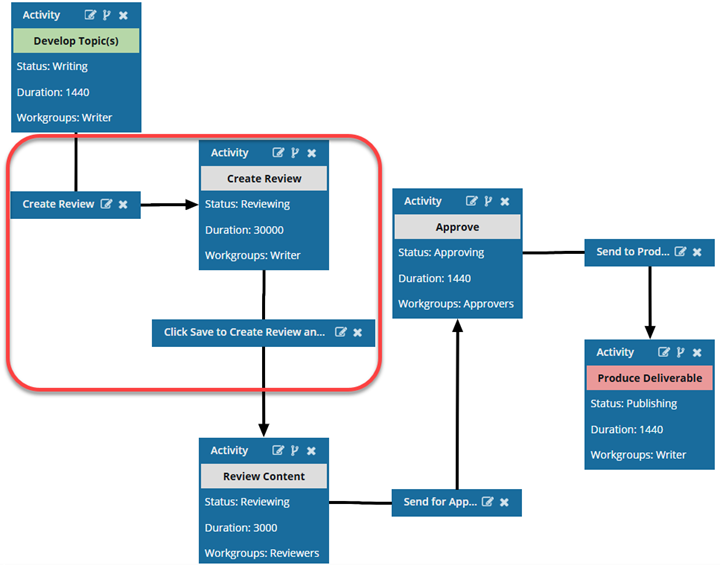
To add a Create Review Action to a topic workflow template:
- Add a new Action called InspireCreateReview to a topic workflow template.
- Create a new Activity called Create Review.
- Update or add the Create Review Transition.
- Add the Transition to automatically open the Create Review screen.

Tips and tricks
- Automated Actions are only available in a topic workflow template (not a sequential reviewer template), or a completely new workflow template component.
- You can create an entirely new workflow template component that has no default Activities and Transitions.
- Use the Topic workflow template explained in this topic as an example of what you can create.
- To create a new template, follow the steps in: Create a workflow template component.
- This automated sequence is helpful because the writer who is developing content can easily create the review without having to leave the Project's Workflow panel (or the Dashboard).
- When a user advances a project workflow task and the Transition has an Action of InspireCreateReview, Inspire opens the Create Review screen for the current user.
- Inspire uses the Activity workflow details to populate the following information: Title, Coordinator, Approver, Due Date, Components, and Reviewers.
- The user can add, edit, or simply verify these details and click Create.
- Inspire then creates a review and advances the workflow to the next task (usually this is called Reviewing).
- When creating a review assignment for a project workflow, Inspire automatically includes the component attachments in the review.
- When the user marks the review as Completed, Inspire changes the project assignment to Completed.
 Currently, completing or canceling a review does not automatically advance workflow.
- You can automate the process of assigning work to a user in an active workflow. Follow the steps in: Automate the assignment of a workflow activity.
- If you don't want to use this automated sequence, then the user must manually open the
 Reviews module, click Create, and add all review details.
Understand the pieces in the automated sequence
The Topic workflow template that Inspire provides includes the following Activities and Transitions by default:
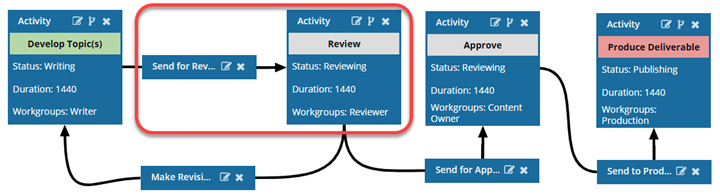
- This workflow uses the manual process for creating a review (The Send for Review Transition has no Action).
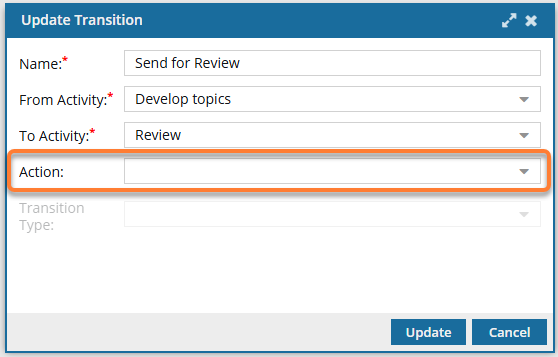
- After the Develop Topic(s) Activity is complete, the user in the Writer Workgroup must manually create a review and assign it so that the workflow advances to the Review Activity.
If you want to automate the process of creating a review, you need to add one Activity and two Transitions:
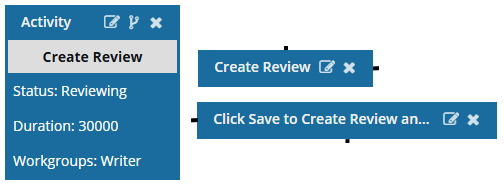
- Add a Create Review Activity
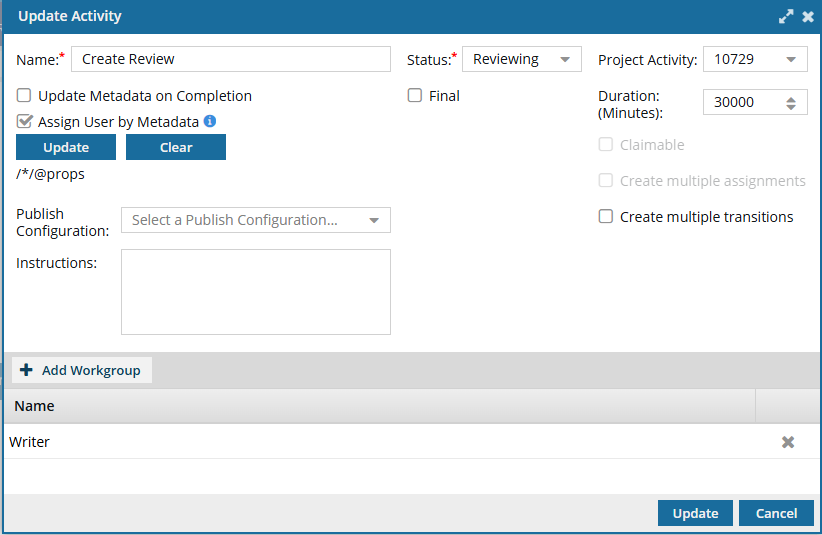
- This Activity is called Create Review.
- It is connected From the Create Review Transition and To the Click Save the Create Review and Advance to Review content Transition.
- It lets you assign a Workgroup that is responsible for creating the review.
- Add a Create Review Transition
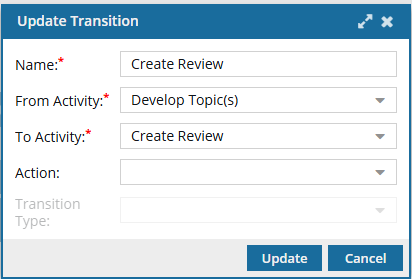
- This transition only serves to connect the previous Activity (such as Develop Topics) to the Create Review Activity.
- If you are working in an existing template, and you already have a Transition for Send for Review, you can rename it to Create Review. Otherwise, you can create a new Transition.
- This transition has no Action.
- Create the Save and Advance Transition
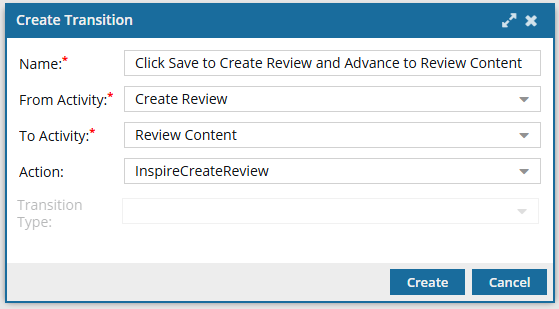
- Create this Transition to use the new Action of InspireCreateReview.
- This Action tells Inspire to open the Create Review screen for the current user and populate any known details.
- You will also need to connect it to go From the Create Review Activity To the Review Content Activity.
You will end up with a topic workflow that uses the automated process of creating a review.