View maintenance windows
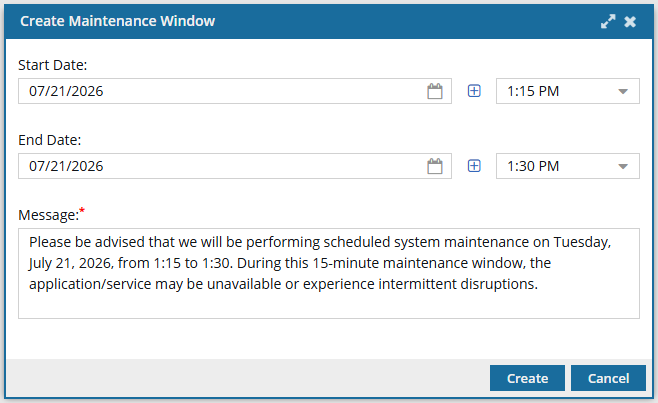
As an administrator, you can see the maintenance windows scheduled by Vasont. You can see the start time, end time, and user message for a scheduled maintenance window so you know when users are notified and blocked from working during the outage.
 Required permissions
- You must be an Inspire administrator for your organization's instance to view a maintenance window.
- Only Vasont Support users can create or cancel a maintenance window.

 Tips and tricks
- A new maintenance window cannot be scheduled by Vasont if one is already active or pending.
- A Vasont support user can cancel a scheduled window before or during the outage, which immediately clears all banners, lockout screen overlays, and restrictions on signing in.
- Before the maintenance window:
- All active Inspire users see a persistent warning banner 60 minutes before the outage starts.
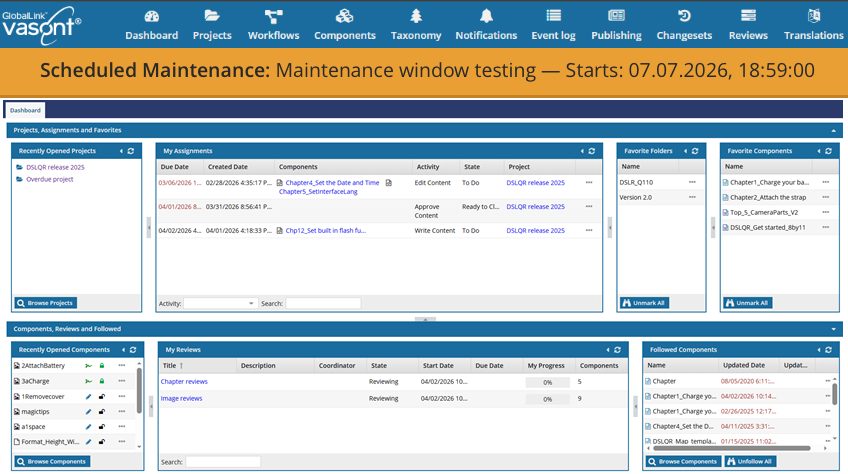
- This banner is shown on every screen below the module ribbon and above any Inspire screen.
- After the date, a clock is shown to remind you when the outage starts.
- All active Inspire users see a persistent warning banner 60 minutes before the outage starts.
- During the maintenance window:
- All connected users see a lockout message.
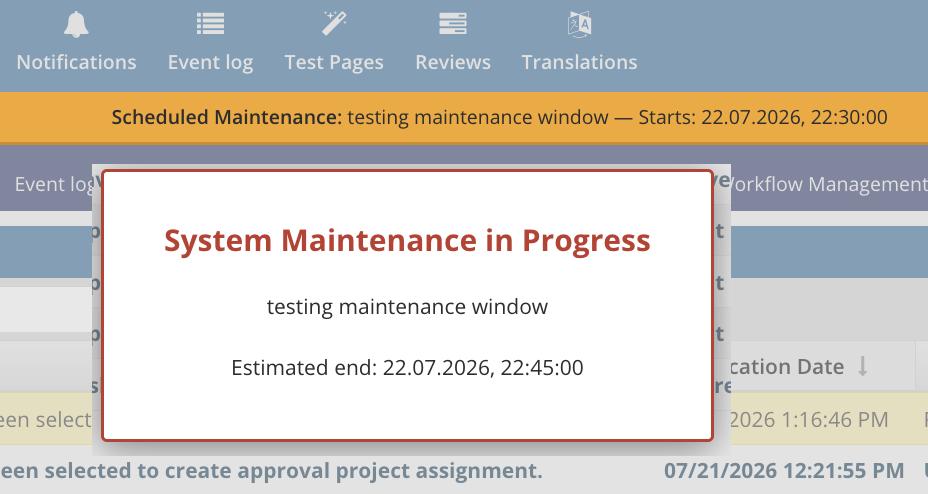
- When this message appears, it blocks a user's ability to make changes in Inspire during the maintenance window.
 A user who is already signed in when the outage begins:
Their session is preserved
During the maintenance window, non-support users are signed out after the page is reloaded
- During the maintenance outage, non-Vasont support users cannot sign in.
- Only a Vasont support user can sign in and use the Inspire application during the maintenance outage.
- All connected users see a lockout message.
- After the maintenance window:
- The warning banner and lockout message are automatically removed for all connected users.
- Any Inspire user can sign in.
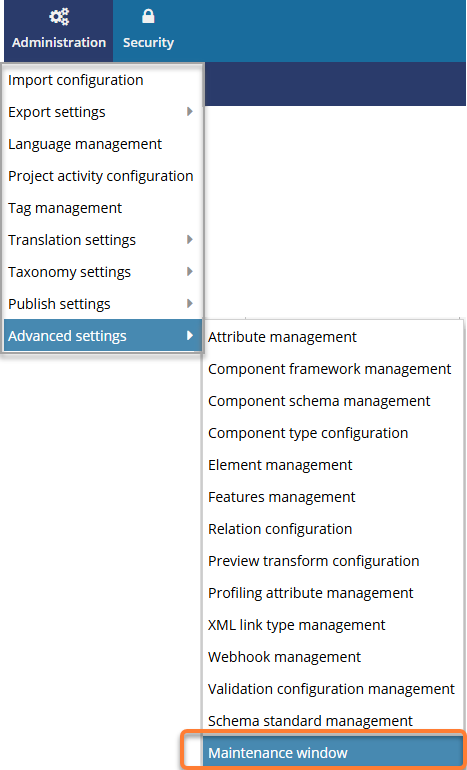
To view a maintenance window:
-
From the top menu, select
 Administration, Advanced settings, then Maintenance window.
-
You can see if any scheduled maintenance outages are scheduled.
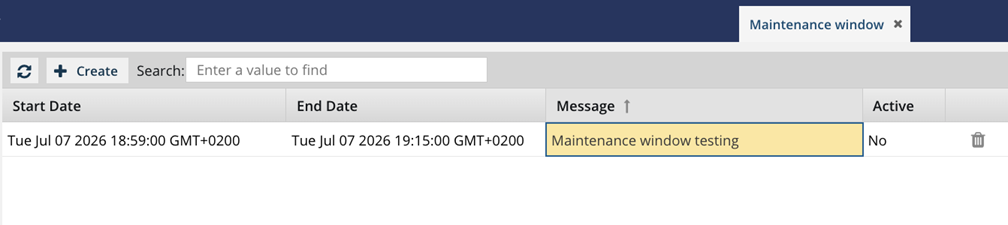 Important notes:
- Although the Create button is available and will open a screen, you cannot click Create unless you are signed in as a Vasont support user.
- Although the
 Delete icon is shown, you will get an error if you try to delete a maintenance outage unless you are signed in as a Vasont support user.