Understand the To Do state
After an assignment is created, assigned users can begin completing the work. In the To Do State, the assignment exists as a placeholder.
 In this state:
- You do not have to assign a user to the assignment.
- No components are required.
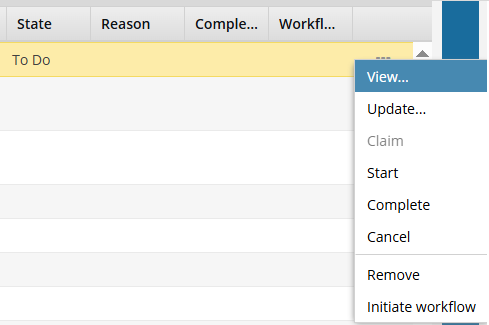
A project owner or user with permissions can take the following actions on an assignment in this state:
- View: Open the View Assignment screen to see any of the settings. This screen is read-only, and you cannot make any changes to the assignment.
 Project Coordinator can perform this actionAssignee can perform this action
 - Update. Open the Update Assignment screen to update settings, such as assigning a user to the work or adding components.Project Coordinator can perform this action
 Assignee can't perform this action
 - Start. Accept the work as described in the assignment. Inspire automatically updates the State to In Progress. Project Coordinator can perform this actionAssignee can perform this action
- Complete. The assignment is considered finished, and no further changes can be made to its details. The Response screen opens to select a Status and enter an optional Reason.Project Coordinator can perform this actionAssignee can perform this action
- Cancel. In this State, the assignment is considered done with the work unfinished, and no other changes can be made to the assignment details. This action is only available for assignments not connected to a workflow.Project Coordinator can perform this actionAssignee can't perform this action
- Remove. Asks for a confirmation.
If you select Yes: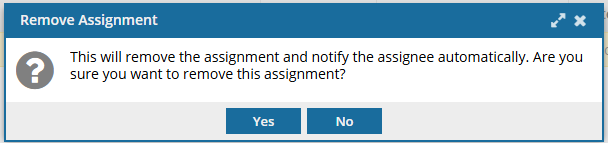
- Inspire deletes the assignment.
- Inspire sends a cancellation notice to any users assigned to complete the work.
- The record is deleted from the Assignments panel.
- This change of State can only be undone by a project owner.
Project Coordinator can perform this actionAssignee can't perform this action - Initiate Workflow: Asks for a confirmation that you want to mark this assignment as Completed and use the assignment's details to start a new workflow. This is useful if you need to expand the one assignment into multiple sub-steps.
If you select Yes: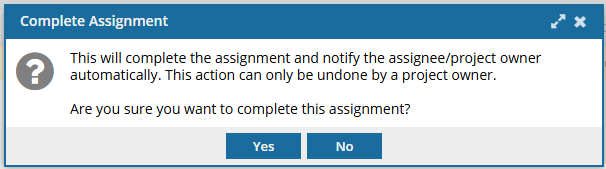
- Inspire copies the assignment details and opens the Start Workflow screen. You can choose a template and design a workflow around the assignment.
- After you save the workflow steps, a record is added to the Workflows panel.
- In the Assignments panel, Inspire updates the assignment's State to Completed-Accepted.
- Inspire sends a notification to any users included in the assignment that the work has been Completed.
- This change of State can only be undone by a project owner.
Project Coordinator can perform this actionAssignee can't perform this action unless for the Projects module, the user account is listed under the following Property: can_initiate_assignment