Understand the Ready to Claim state
In this State, no specific user has been assigned to complete the work. Instead, a list of possible users was identified, and they were all notified that the assignment could be claimed.
- This state is set when the assignment is created.
- When the State is Ready to Claim, the Claim Assignment tab becomes available.
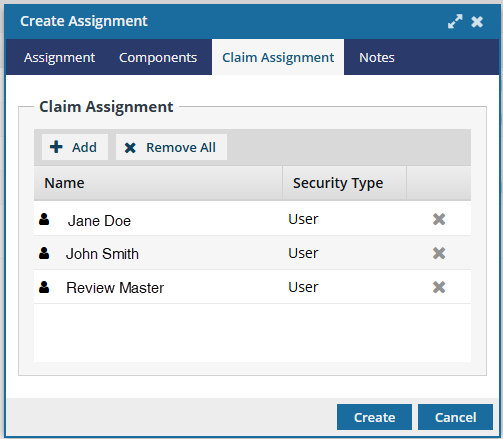
The first user to claim the assignment by selecting Claim can complete the work.
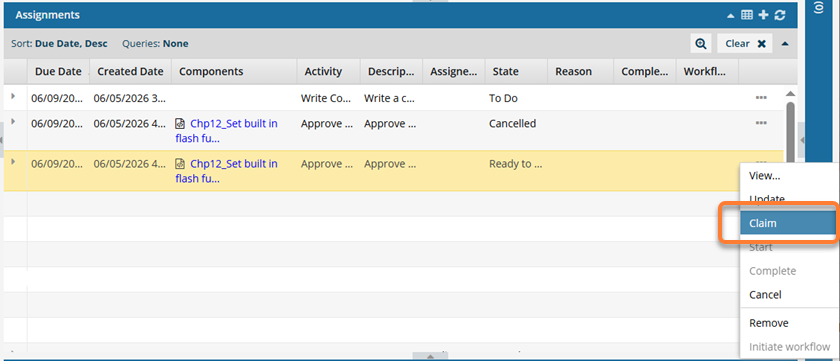
A project owner or user with permissions can take the following actions on an assignment in this state:
- View: Open the View Assignment screen to see any of the settings. This screen is read-only, and you cannot make any changes to the assignment.
 Project Coordinator can perform this actionAssignee can perform this action
 - Update: Open the Update Assignment screen to update any of the settings, such as assigning a user to do the work or adding components.Project Coordinator can perform this action
 Assignee can't perform this action
 - Cancel. In this State, the assignment is considered done with the work unfinished, and no other changes can be made to the assignment details. This action is only available for assignments not connected to a workflow.Project Coordinator can perform this actionAssignee can't perform this action
- Remove: Asks for a confirmation.
If you select Yes: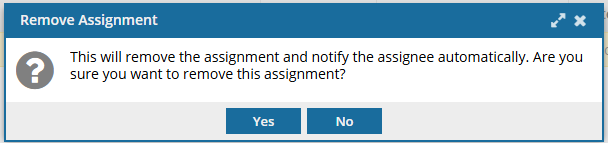
- Inspire deletes the assignment.
- Inspire sends a cancellation notice to any users assigned to complete the work.
- The record is deleted from the Assignments panel.
- This change of State can only be undone by a project owner.
Project Coordinator can perform this actionAssignee can't perform this action
