Understand the Completed state
In this State, the assignment is considered finished, and no other changes can be made to the assignment details.
 Tips and tricks
- Inspire asks you for a Status and, optionally, a Reason.
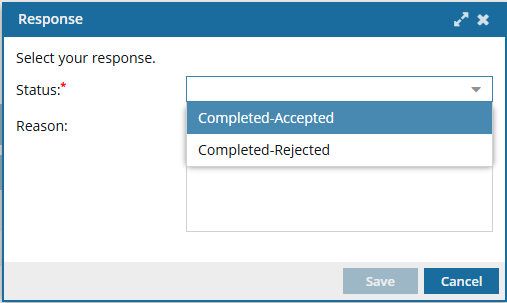
 The Assignments grid contains a column to display the Reason. You can use an advanced search to find an assignment by this data. Follow the steps in: Find an assignment by Reason.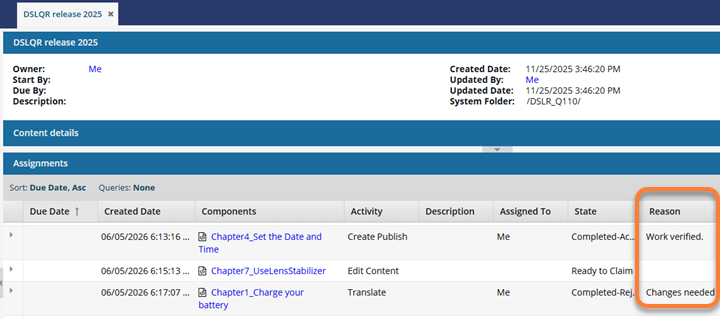
- If you select Completed-Accepted or Completed-Rejected, Inspire now automatically creates a snapshot of all components included in an assignment when it's marked as Completed.
- Inspire assigns the snapshot a Process of CompleteAssignment.
- Inspire also gives the snapshot a comment that contains the project name, the workflow name, and the assignment name.
- You search for the snapshot on the Changesets tab using a Process option of CompleteAssignment.
- This change of State can only be undone by a project owner.
A project owner or user with permissions can take the following actions on an assignment in this state:
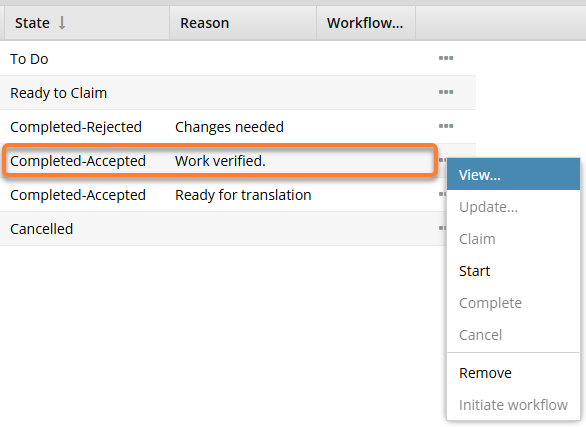
The same options are available if you select Completed-Rejected.
- View: Open the View Assignment screen to see any of the settings. This screen is read-only, and you cannot make any changes to the assignment.
 Project Coordinator can perform this actionAssignee can perform this action
 - Start. Restart the work as described in the assignment. Inspire automatically updates the State to In Progress. Project Coordinator can perform this action
 Assignee can't perform this action
 - Remove: Asks for a confirmation.
If you select Yes: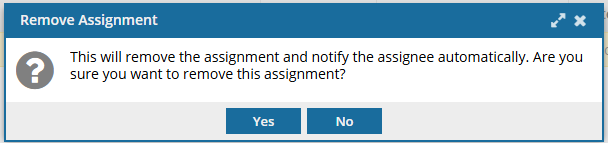
- Inspire deletes the assignment.
- Inspire sends a cancellation notice to any users assigned to complete the work.
- The record is deleted from the Assignments panel.
Project Coordinator can perform this actionAssignee can't perform this action