Use the Projects module to change the current activity
Sometimes it is necessary to change the activity workflow task to a different one. For example, if a user advances the workflow and then realizes there was something else they needed to do, or changes were made and previous editors need to review them.
 Required permissions
To create, view, update, and delete workflows you must either be an Administrator, the project Owner, or have the following permissions:
- Create, read, update, and delete permissions to the
 Projects module.
 - For the Projects module, your user account must be listed under the following Property: can_initiate_assignment.
- If you are an administrator, refer to Allow users to create project assignments and workflows.

 Tips and tricks
- You can also access the Change active assignment in the
 Workflows module on the Projects tab. Follow the steps in: Use the Workflows module to change the current activity.
 - The Change active assignment option is only available for workflows that have a State of Executing.
To use the Projects module to change the current activity:
-
Click Projects.
-
On the Project Management tab, all projects in your organization are listed. To find a specific project, you can:
- Filter the list of available projects by words in the project name. In the Search text box, enter a keyword, and then click the magnifying glass
 .
. - Filter the list of available projects to include only those you own or are participating in. In Type, select an option to filter the list by that criteria.
- To include completed projects in the list, select Include Completed and then click the magnifying glass .
- Filter the list of available projects by words in the project name. In the Search text box, enter a keyword, and then click the magnifying glass
-
To open one project, select the project and double-click it.
Note: You can also open a project by:
- Right-clicking the project and then selecting Open.
- Clicking
 the Options menu and then selecting Open.
-
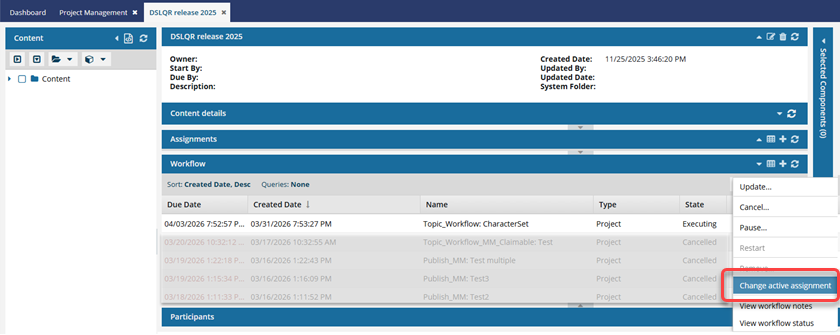
In the Workflow pane, select the workflow you want to change.
 The workflow must have a State of Executing.
 -
In the workflow's row, click the Options menu and select Change active assignment.
-
On the Transitions screen,
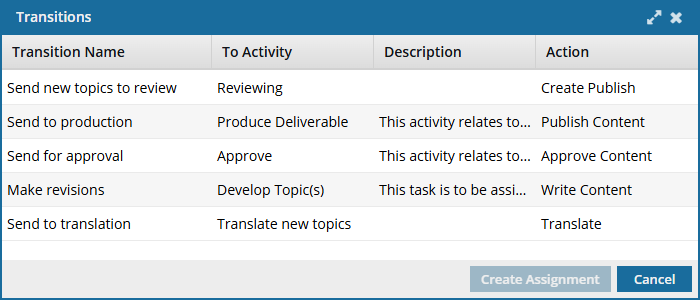
- Select the transition that moves the workflow to the activity you want to be current.
- Click Create assignment.
-
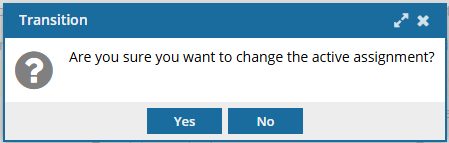
Confirm your change on the Transitions screen by clicking Yes.
 Results:
 - The State of the current assignment is set to Completed.
- The workflow moves to the selected transition. For example, you might see a notification that a new assignment is created.
