Manage XML validation
You can use XML validation to check a document written in XML (eXtensible Markup Language) to confirm that it is both well-formed and follows a defined structure. A well-formed document follows the basic syntactic rules of XML, which are the same for all XML documents. All schemas marked as Active can be used for validation at the same time.
 As an admin, you can manage frameworks and schemas in the following ways:
- Frameworks. You can configure a set of rules, called frameworks, that Oxygen uses when validating content in the Oxygen editor.
 Manage XML validation frameworks in Oxygen
 - Schemas. To validate a component without opening it in the editor, you can provide a subset of rules belonging to a framework, also known as a schema.
- Use the default schemas that Inspire provides (DITA 1.2, DITA 1.3, DocBook 5.0). Manage component schemas
- Upload a custom schema. Use custom schemas
- Use Schematron. Add a Schematron validation configuration
- Create validation configurations so that users can choose which set of standards they want to use to validate their content. Create a validation configuration
- Use the default schemas that Inspire provides (DITA 1.2, DITA 1.3, DocBook 5.0).

 As an author, when you work in Inspire, there are three places where you can validate an XML document:
Components Browser validation
Authors can check content structure and review validation errors in the Components browser without opening the component in Oxygen. Using the right-click or context menu  option, you can select Validate XML.
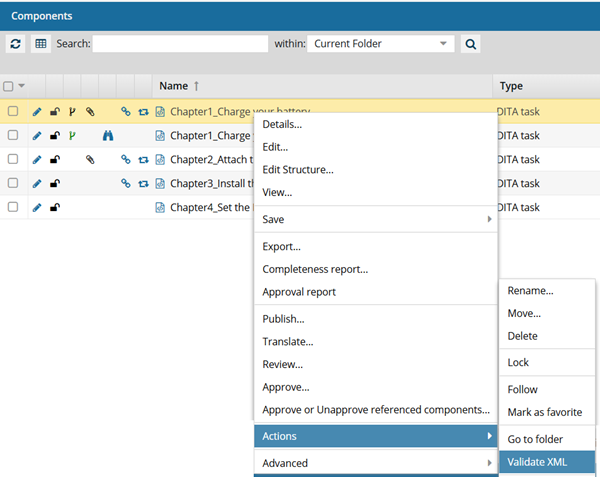
 If at least one Validation Configuration exists, selecting the Validate XML option prompts the user to choose a configuration.
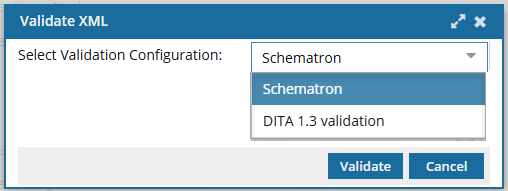
 If there are no Validation Configurations: Inspire should use the Active schemas that are listed on the Component schema management screen. Refer to: Manage XML validation schemas in Inspire. (You may encounter an issue where the page never completely loads if there are no Validation Configurations.)
- This lets users validate components with Schematron files you have loaded into Inspire. Users can follow the steps in: Validate XML from the Components tab.
- Users can also select from other validation configurations you have created. Admins can follow the steps in: Manage validation configurations.
Inspire also provides validation when users:
- Export...
- Publish...
Important notes
- Users cannot select a Validation Configuration when they validate XML from the Export and Publish screens.
- If a Validation Configuration is set to Default, Inspire uses that automatically.
- If there are no Validation Configurations, Inspire should use the Active schemas that are listed on the Component schema management screen. (You may encounter an issue where the page never completely loads if there are no Validation Configurations.)
- To configure which schema, or set of rules, Inspire uses when a component is validated in the Components browser options, refer to:
If you are using components that are not DITA or DocBook, you must provide a way for Inspire to find the Schema Name.
In Advanced settings, on the Component Type Configuration screen, you can create or update component types. When you do, Inspire provides an option called XML Schema Name - XSD.
In this option, you add the name of the schema to be used for components that are not DITA or DocBook.
Inspire can then use the Schema name when a user selects the Validate XML option in the Component browser.
- Follow the steps in:
Project content validation
Validation of project components works the same as it does in the Components browser.
Authors can check project content structure and review validation errors in the Components browser without opening the component in Oxygen. Using the right-click or context menu option, you can select Validate XML.
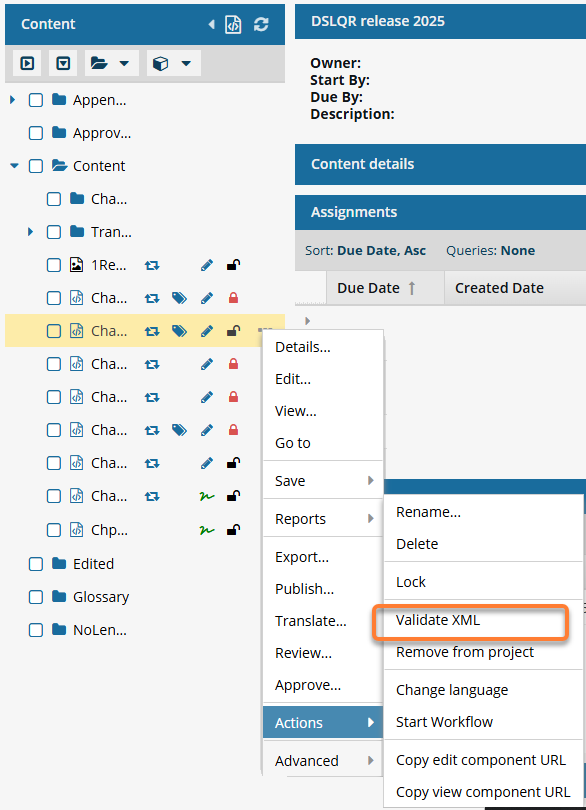
If at least one Validation Configuration exists, selecting the Validate XML option prompts the user to choose a configuration.
If there are no Validation Configurations, Inspire uses the Active schemas that are listed on the Component schema management screen. Refer to: Manage XML validation schemas in Inspire.
- This lets users validate components with Schematron files you have loaded into Inspire. Users can follow the steps in: Validate XML components from a project.
- Users can also select from other validation configurations you have created. Admins can follow the steps in: Manage validation configurations.
Oxygen Editor validation
When working with documents in the Oxygen-based editor, you need to make sure they are well-formed and valid so that any XML application that uses your XML document won't run into errors and quit. As you create content in the editor, Oxygen checks for XML errors and shows you the results in the Validation pane.
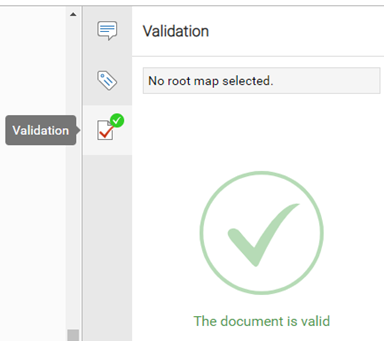
To configure which framework, or set of rules, that Inspire uses when a component is validated in the Oxygen editor, you must Manage XML validation frameworks in Oxygen.