Complete an assignment from a project
You can mark your work as complete by opening the project and selecting your assignment.

 Tips and tricks
- You can also complete an assignment on the dashboard. Follow the steps in: Complete an assignment from the dashboard.
- If an assignment is part of a workflow:
- When the assignment is completed, the workflow can be configured to ask the user to select how the workflow should advance.
- For example, if the user selects Accept, you can configure the workflow to advance to the next step that should occur if the content is ready to move forward to the next stage, such as approval, publishing, or translation.
- For example, if the user selects Reject, you can configure the workflow to return to a step where the content can be revised, republished, or retranslated.
- For more information, workflow coordinators can read: Customize an activity to have multiple transitions.
- When the assignment is completed, the workflow can be configured to ask the user to select how the workflow should advance.
To complete an assignment from a project:
-
Click
 Projects.
-
On the Project Management tab, double-click to open the project that contains the assignment you want to complete.
 You can also open a project by:
- Right-clicking the project and then selecting Open.
- Clicking
 the Options menu and then selecting Open.
-
In the Assignments panel, right-click the assignment and select Complete.
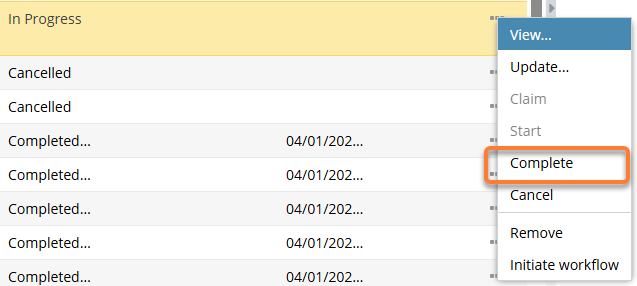 You can also complete an assignment by:
- Selecting the assignment, clicking the Options menu, and selecting Complete.
- Selecting the assignment, clicking
-
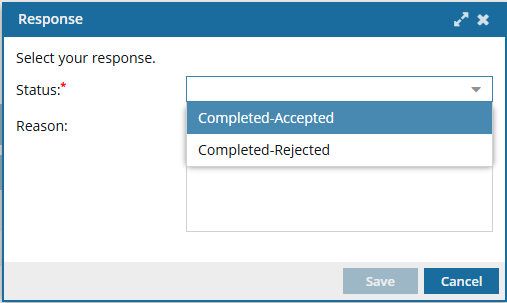
On the Response screen:
 Results:
- The assignment is listed in the Assignments panel with the selected Status.
- You won't receive an email notification because you're the assignee of the assignment.
- An email that the assignment is completed is sent to any email addresses specified for additional notifications.
Inspire now automatically creates a snapshot of all components included in an assignment when you mark the assignment as Completed-Accepted or Completed-Rejected. - Inspire assigns the snapshot a Process of CompleteAssignment.
- Inspire also gives the snapshot a comment that contains the project name, the workflow name, and the assignment name.
- You search for the snapshot on the Changesets tab using a Process option of CompleteAssignment.
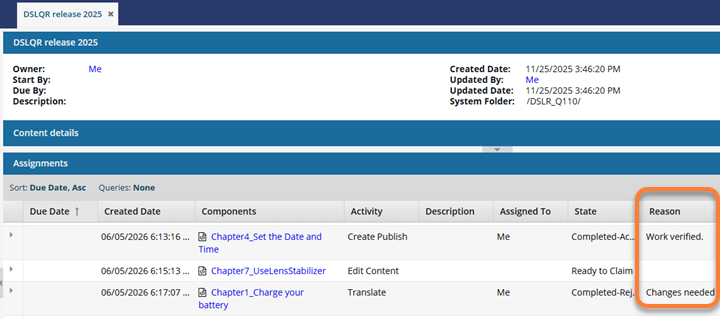
The Assignments grid contains a column to display the Reason. You can use an advanced search to find an assignment by this data. Follow the steps in: Find an assignment by Reason.