Work with Topic workflows
After you create a workflow to manage content development in a workflow, you can update the Due Date, track the workflow's progress, review notes left by users when completing a task, and see a graphical representation of the workflow's progress.
 The options available to you when managing a Topic workflow are different from the options you have when managing a Sequential Reviewer workflow.
- Reviewing notes and seeing a graphical representation of the workflow's progress is only available for Topic workflows.
- You can only add a reviewer to a Sequential Reviewer workflow.

 Tips and tricks
- Snapshots. After you start the workflow, Inspire captures a snapshot of all components included in an assignment each time a workflow activity is completed.
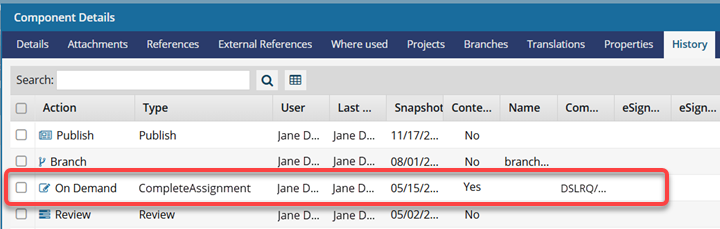
This snapshot is labeled with the following information:
- Action = On Demand
- (Process) Type = CompleteAssignment
- Comment = Project Name/Workflow Name/Assignment Name
- Update the workflow name after starting it. You can now edit and save a workflow's name on the Update Workflow screen, making it easier to correct naming errors and keep workflow records accurate without recreating workflows. Follow the steps in: Update a topic workflow.
 Important notes:
- Renaming a workflow does not cancel, restart, or otherwise interrupt the workflow.
- Existing task progress, task history, and workflow state remain unchanged when the workflow name is updated