View a topic workflow's status
After you create a project workflow, you see more tracking details by looking at a graphical representation of the workflow's progress.
 Required permissions
To create, view, update, and delete workflows you must either be an Administrator, the project Owner, or have the following permissions:
- Create, read, update, and delete permissions to the
 Projects module.
 - For the Projects module, your user account must be listed under the following Property: can_initiate_assignment.
- If you are an administrator, refer to Allow users to create project assignments and workflows.

 Tips and tricks
- The option to view statuses is not available for a review workflow. You can use the reporting options to get more details for a review workflow.
 Generate project reports
To view statuses for a topic workflow:
-
Select
 the Options menu, and then select View workflow status.
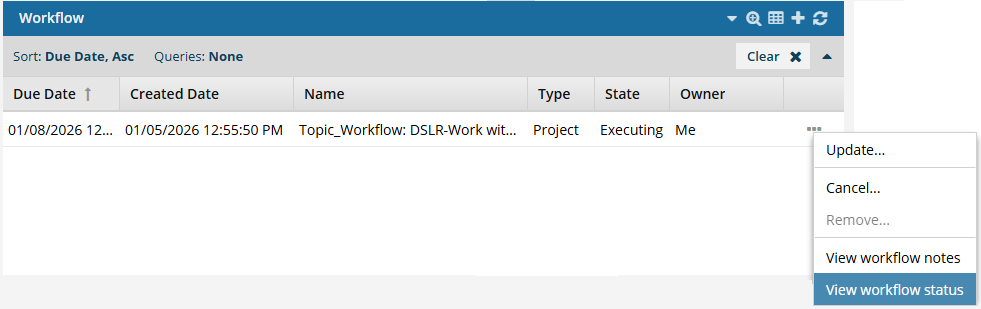
-
On the Read-Only workflow status screen:
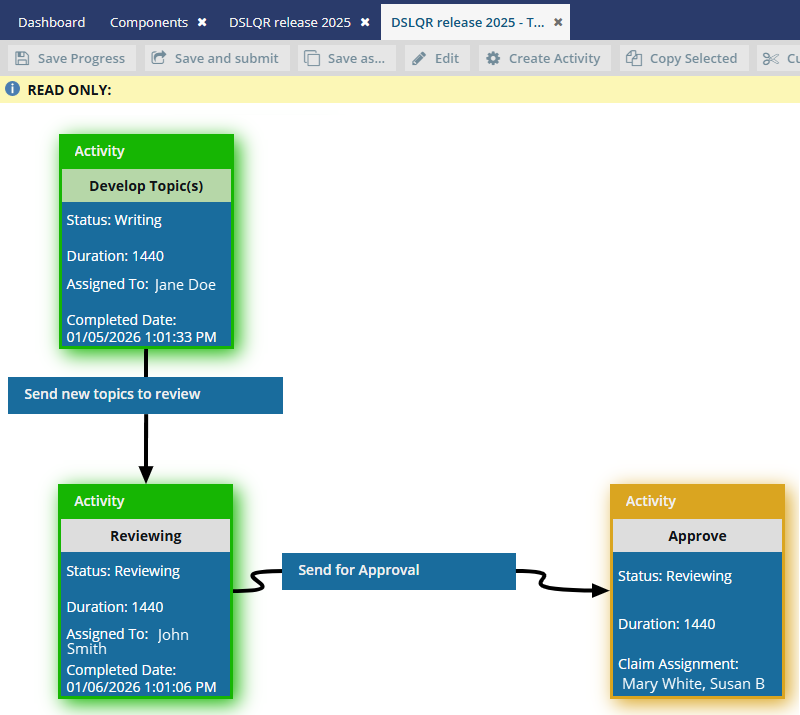
Each activity has a highlight color to show you its State:
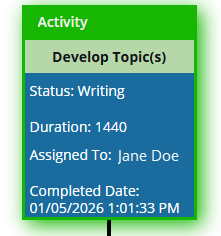 Completed activities are shown with a green highlight.
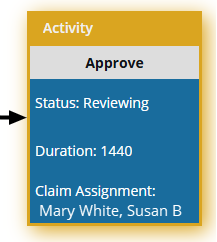 The current activity is shown with a yellow highlight.
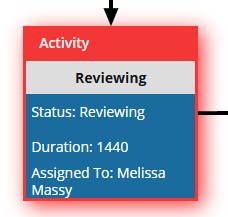 An overdue activity is shown with a red highlight.
-
To close the screen, in the tab's title bar, select
 Close.