Start a workflow
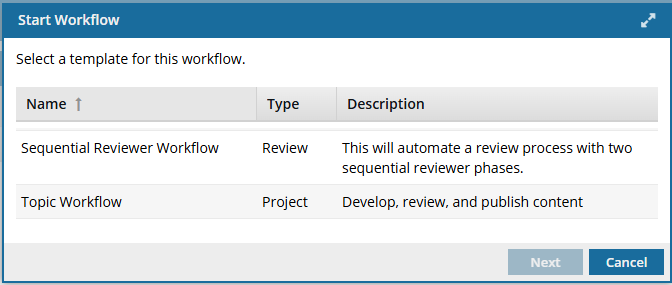
In a project, you can automate the handoff between tasks using a workflow. You design the activities and transitions in a workflow by configuring a template. Inspire provides a topic and review workflow, or you can customize a template to follow your organization's business processes. To start a workflow, you must select the template that contains the process you want to use. Then you must add the due dates, assign the initial task, and identify the project topics that will be used in the workflow.

Understanding required permissions
 Required permissions
To create, view, update, and delete workflows you must either be an Administrator, the project Owner, or have the following permissions:
- Create, read, update, and delete permissions to the
 Projects module.
 - For the Projects module, your user account must be listed under the following Property: can_initiate_assignment.
- If you are an administrator, refer to Allow users to create project assignments and workflows.
To work with Review workflows, you also need:
- Create, read, update, and delete permissions to the
 Reviews module.
 If you try to assign work to a participant who doesn't have access to the component, you will see a warning.
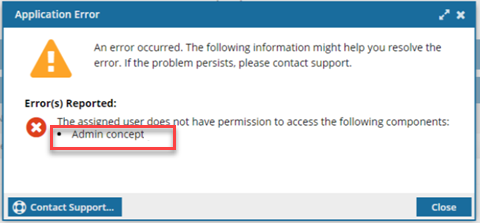
- The warning tells you the name of the restricted component.
- The Workflow is still created. You can change the permission, participant, or component to resolve the conflict.
- For details on how to set permissions, refer to: Set permissions.
Starting a review workflow
Inspire provides a template that automates the review process when there are two reviewers who need to complete their work in a specific order.
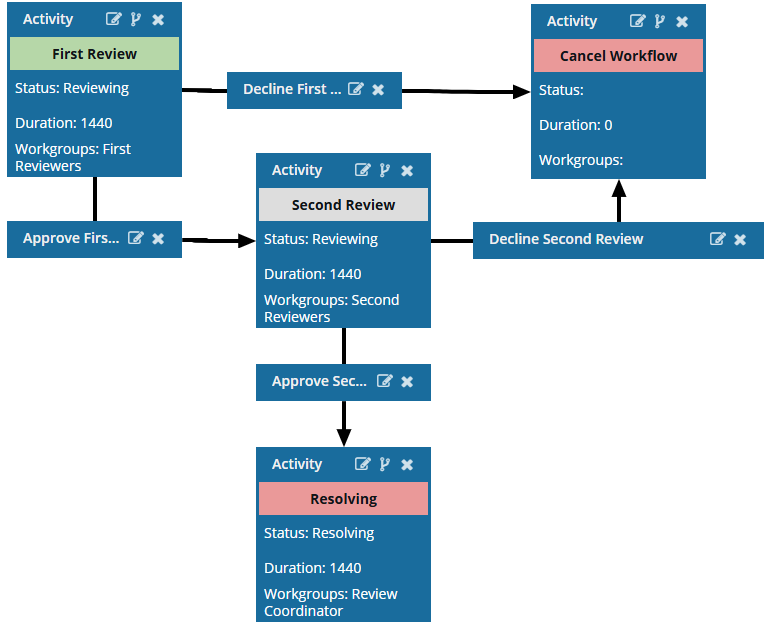
 You can customize this template or save a copy and edit it.
 Automate reviews with a workflow template
Understand the reviews workflow
The reviews in this template don't occur at the same time. Instead, one or more reviewers are assigned to the first phase, and when they complete their review, Inspire assigns a review to the second set of reviewers.
You can start a review workflow in the following ways:
From an existing project on the Workflow panel
The option to start a workflow from the Selected Components panel can only be used to create a Topic workflow. It cannot be used to create a Sequential Reviewer workflow.
How the topic workflow runs
After you click Start, Inspire uses the process that you configured in the selected template.
A sample topic workflow template uses the following process:
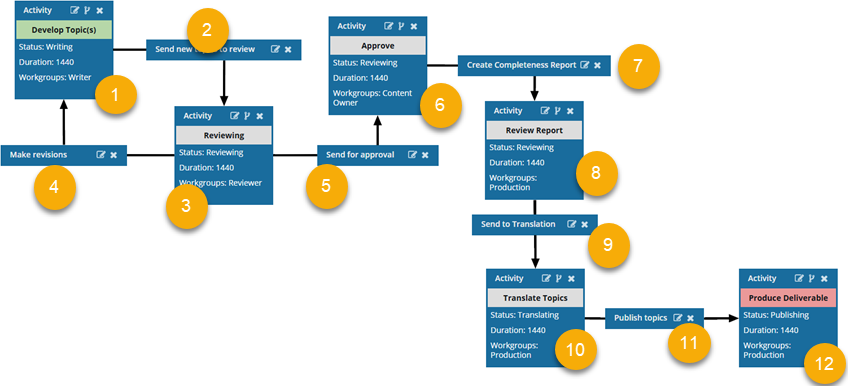
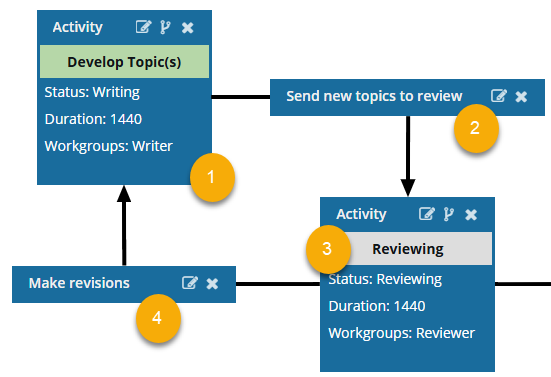
 Inspire sends a notification to the Workgroup (Writer).
- The workflow starts with an initial Activity: Develop Topic(s)
- The workflow has a Status of Writing.
- By default, the user is given a Duration of 0 minutes to complete the activity, so you will need to set your own duration. After the Duration passes, if the activity is not complete, it is marked as Overdue and notifications may be sent depending on a user's notification preferences. You set the time in minutes from 0 to 525600 which is 1 year.
- Inspire checks if the Claimable option was selected in the template in use. If it is:
- Inspire assigns the activity not to one user but to a list of users in the Activity's workgroup.
- The first user to claim the assignment completes the work.
Claimable is not available if you selected Create Multiple Assignments in the template. - Inspire checks if the Create Multiple Assignments option was selected in the template in use. If it is:
- Inspire creates an assignment for each user in the Workgroup instead of a single assignment for the selected user.
- All users MUST complete the assignment (or all assignments must be cancelled) before the Activity can be marked complete, and the workflow can be advanced.
Important notes: - Create Multiple Assignments is not available if you selected Claimable in the template in use.
- All users MUST complete the assignment (or all assignments must be cancelled) before the Activity can be marked complete, and the workflow can be advanced.
- If you selected Create Multiple Assignments in the template in use, after you start a workflow based on this template, you will not be able to Change the current activity in a workflow.
- If neither the Claimable nor the Create Multiple Assignments options are selected for the template in use, Inspire checks out any attached components to users in the Workgroups: Writer and the coordinator.
- The notification contains a link to edit the components.
- You can see the notification on the Notification tab.
- You can also see the notification by going to your email Inbox.
- The Activity ends when users in the Workgroup Writer or the coordinator completes their task.
- Inspire checks if the option to Update Metadata on Completion was selected in the template in use. If so, Inspire populates or clears an XML element or attribute value in the components participating in the workflow.
 Inspire moves the workflow to the Transition: Send new topics for Review.
- Transitions connect activities and tell Inspire what to do next. They are shown in small rectangular boxes.
- When users in the Workgroup Writer or the coordinator mark their task as Complete, then Inspire moves the workflow to the next Activity: Send for Review.
- Inspire checks in the changes to the components or adds the new components to the workflow.
- Inspire notifies the coordinator about the workflow's progress.
- Inspire checks to see if there is an Action assigned to the Transition. By default, no actions are defined. By default, the user in the Writer Workgroup must manually create the review.
- To automate the process, you can add an Action to have Inspire open a new Create Review screen automatically.
- The Create Review activity must be assigned to a workgroup of users who are review coordinators.
- If you want to automate the process of creating a review, you need to add one Activity and two Transitions to your topic workflow.
- To learn more about this automated workflow, read: Add a Create Review Action to a topic workflow template.
 Users work on the Review Activity.
- The workflow moves to the next Activity: Review.
- The workflow has a Status of Reviewing.
- The Reviewing activity must be assigned to a workgroup of users who have reviewing permissions.
- By default, the user is given a Duration of 0 minutes to complete the activity, so you will need to set your own duration. After the Duration passes, if the activity is incomplete, it is marked as Overdue, and notifications may be sent based on a user's notification preferences. You set the time in minutes from 0 to 525600, which is 1 year.
- Inspire checks if the Claimable option was selected in the template in use. If it is:
- Inspire assigns the activity not to one user but to a list of users in the Activity's workgroup.
- The first user to claim the assignment completes the work.
Claimable is not available if you selected Create Multiple Assignments in the template. - Inspire checks if the Create Multiple Assignments option was selected in the template in use. If it is:
- Inspire creates an assignment for each user in the Workgroup instead of a single assignment for the selected user.
- All users MUST complete the assignment (or all assignments must be cancelled) before the Activity can be marked complete, and the workflow can be advanced.
- If you selected Create Multiple Assignments in the template in use, after you start a workflow based on this template, you will not be able to Change the current activity in a workflow.
Create Multiple Assignments is not available if you selected Claimable in the template. - If neither the Claimable nor the Create Multiple Assignments options are selected for the template in use, Inspire checks out the files to users in the Workgroups: Reviewer and the coordinator.
- All reviewers can edit the components at the same time.
- All reviewers can see each other's comments.
- The Activity ends when users in the Workgroup Reviewers or the coordinator completes their task.
- Inspire checks if the option to Update Metadata on Completion was selected in the template in use. If so, Inspire populates or clears an XML element or attribute value in the components participating in the workflow.
 After the Review activity is completed, Inspire evaluates the first transition.
- If the users in the Workgroups: Reviewer or the coordinator select the next step to be Make revisions, Inspire moves the workflow back to the initial Activity: Develop Topic(s). The workflow starts again at step .
- Inspire checks to see if there is an Action assigned to the Transition. By default, there are no actions defined.
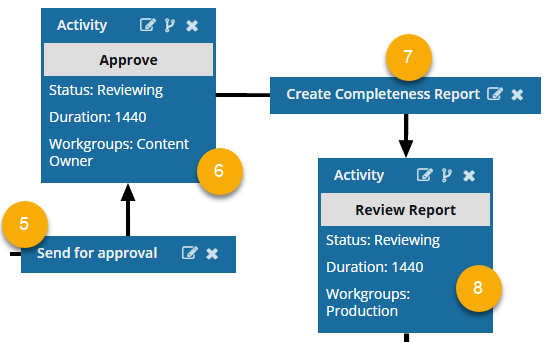
 Inspire evaluates the second transition.
- If the users in the Workgroups: Reviewer or the coordinator select the next step to be Send for approval, Inspire moves the workflow to the next Activity: Approve.
- Inspire checks to see if there is an Action assigned to the Transition. By default, no actions are defined. If no Actions are defined, the user approving the review must manually open the Review Approval screen and specify the components to include in the approval.
- To automate the process, you can add an Action to have Inspire perform part or all of the approval process.
- Use the approval notification action (InspireCreateApproval). Inspire sends an email notification to each user in the Review workgroup (or the workgroup assigned to the previous user activity). The Review workgroup users can confirm if they want to include component references in the approval process.
- Use the automatic approval action (InspireApprove). When the workflow advances to the Send for Approve Transition, Inspire automatically approves the components in the review. No referenced components are included in the approval, and no user confirmation is required.
 Inspire sends a notification to the Workgroup (Content Owner).
- The workflow moves to the next Activity: Approve.
- The workflow has a Status of Approving.
- Inspire notifies the coordinator about the workflow's progress.
- By default, the user is given a Duration of 0 minutes to complete the activity, so you will need to set your own duration. After the Duration passes, if the activity is not complete, it is marked as Overdue and notifications may be sent depending on a user's notification preferences. You set the time in minutes from 0 to 525600 which is 1 year.
- Inspire checks if the Claimable option was selected in the template in use. If it is:
- Inspire assigns the activity not to one user but to a list of users in the Activity's workgroup.
- The first user to claim the assignment completes the work.
Claimable is not available if you selected Create Multiple Assignments in the template. - Inspire checks if the Create Multiple Assignments option was selected in the template in use. If it is:
- Inspire creates an assignment for each user in the Workgroup instead of a single assignment for the selected user.
- All users MUST complete the assignment (or all assignments must be cancelled) before the Activity can be marked complete, and the workflow can be advanced.
- If you selected Create Multiple Assignments in the template in use, after you start a workflow based on this template, you will not be able to Change the current activity in a workflow.
Create Multiple Assignments is not available if you selected Claimable in the template. - If neither the Claimable nor the Create Multiple Assignments options are selected for the template in use, Inspire checks out the files to users in the Workgroups: Content Owner and the coordinator.
- The Activity ends when users in the Workgroups: Content Owner or the coordinator marks their task as Complete.
- Inspire checks if the option to Update Metadata on Completion was selected in the template in use. If so, Inspire populates or clears an XML element or attribute value in the components participating in the workflow.
 Inspire processes the next transition: Create a Completeness Report
- The users in the Workgroups: Content Owner or the coordinator completes the Approval activity and advances the workflow to the Transition, Create a Completeness Report.
- Inspire checks to see if there is an Action assigned to the Transition. By default, no actions are defined. If no Actions are defined, the user approving the review must manually create the Completeness Report. Follow the steps in: Check component completeness.
- To automate the process, you can add an Action to have Inspire check how many components are included in the previous Activity (such as Approve components) and take one of the following actions:
- If there is one XML component, Inspire opens the Check component completeness screen so that you can select the items you want to see in the report.
- If there is more than one XML component, you can choose which components to run the report on first, and then select the items you want to see in the report.
- If there are no XML components, Inspire gives you an error message. The report is not created, and the workflow does not advance to the next step.
To add this action, follow the steps in: Automate completeness reporting in a workflow template.
- To automate the process, you can add an Action to have Inspire check how many components are included in the previous Activity (such as Approve components) and take one of the following actions:
 Inspire sends a notification to the Workgroup (Production).
- The workflow moves to the next Activity: Review Report.
- The workflow has a Status of Reviewing.
- Inspire notifies the coordinator about the workflow's progress.
- By default, the user is given a Duration of 0 minutes to complete the activity, so you will need to set your own duration. After the Duration passes, if the activity is not complete, it is marked as Overdue and notifications may be sent depending on a user's notification preferences. You set the time in minutes from 0 to 525600 which is 1 year.
- Inspire checks if the Claimable option was selected in the template in use. If it is:
- Inspire assigns the activity not to one user but to a list of users in the Activity's workgroup.
- The first user to claim the assignment completes the work.
Claimable is not available if you selected Create Multiple Assignments in the template. - Inspire checks if the Create Multiple Assignments option was selected in the template in use. If it is:
- Inspire creates an assignment for each user in the Workgroup instead of a single assignment for the selected user.
- All users MUST complete the assignment (or all assignments must be cancelled) before the Activity can be marked complete, and the workflow can be advanced.
- If you selected Create Multiple Assignments in the template in use, after you start a workflow based on this template, you will not be able to Change the current activity in a workflow.
Create Multiple Assignments is not available if you selected Claimable in the template. - If neither the Claimable nor the Create Multiple Assignments options are selected for the template in use, Inspire checks out the files to users in the Workgroups: Content Owner and the coordinator.
- The Activity ends when users in the Workgroups: Production or the coordinator marks their task as Complete.
- Inspire checks if the option to Update Metadata on Completion was selected in the template in use. If so, Inspire populates or clears an XML element or attribute value in the components participating in the workflow.
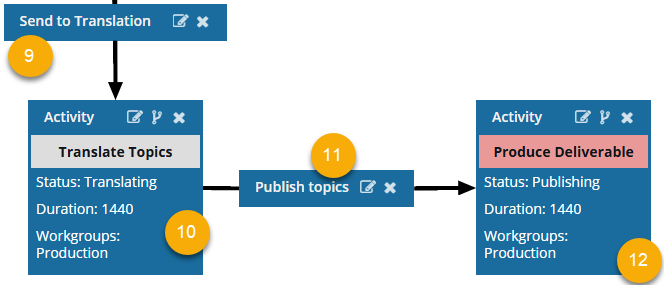
 Inspire processes the next transition: Send to Translation.
- When users in the Workgroups: Content Owner or the coordinator complete their task, Inspire moves the workflow to the linked Activity: Translate new topics.
- Inspire checks to see if there is an Action assigned to the Transition. If no Actions are defined, the user sending the new topics for translation must manually open the Translate component screen and add the required information.
- To automate the process, you can add an Action to a Transition.
- Use the translation action (InspireCreateTranslation). Inspire automatically opens the Translate component screen and pre-populates any known information. The Workgroup user must add the required information. After clicking Create on the Translate component screen, Inspire advances the workflow to the next Activity.
- Follow the steps in: Automate translation in a workflow template.
 Inspire sends a notification to the Workgroup (Production).
- The workflow moves to the next Activity: Translate.
- The workflow has a Status of Translating.
- Inspire notifies the coordinator about the workflow's progress.
- By default, the user is given a Duration of 0 minutes to complete the activity, so you will need to set your own duration. After the Duration passes, if the activity is incomplete, it is marked as Overdue, and notifications may be sent based on a user's notification preferences. You set the time in minutes from 0 to 525600, which is 1 year.
- Inspire checks if the Claimable option was selected in the template in use. If it is:
- Inspire assigns the activity not to one user but to a list of users in the Activity's workgroup.
- The first user to claim the assignment completes the work.
Claimable is not available if you selected Create Multiple Assignments in the template. - If a workflow has more than one component, the user can select what to translate. For example, the workflow might contain maps, topics, images, and PDFs, and the user wants to translate only the map.
- Inspire checks if the Create Multiple Assignments option was selected in the template in use. If it is:
- Inspire creates an assignment for each user in the Workgroup instead of a single assignment for the selected user.
- All users MUST complete the assignment (or all assignments must be cancelled) before the Activity can be marked complete, and the workflow can be advanced.
- If you selected Create Multiple Assignments in the template in use, after you start a workflow based on this template, you will not be able to Change the current activity in a workflow.
Create Multiple Assignments is not available if you selected Claimable in the template. - If neither the Claimable nor the Create Multiple Assignments options are selected for the template in use, Inspire checks out the files to users in the Workgroups: Production and the coordinator
- The Activity ends when users in the Workgroups: Production or the coordinator select their task as Complete.
- Inspire checks if the option to Update Metadata on Completion was selected in the template in use. If so, Inspire populates or clears an XML element or attribute value in the components participating in the workflow.
 Inspire processes the next transition: Send to Production.
- When users in the Workgroups: Content Owner or the coordinator complete their task, Inspire moves the workflow to the linked Activity: Produce Deliverable.
- Inspire checks to see if there is an Action assigned to the Transition. If no Actions are defined, the user sending the topics for publication must manually open the Publish Component screen and add the required information.
- To automate the process, you can add an Action to the Transition.
- Use the translation action (InspirePublish). In an active workflow, this action tells Inspire to check how many components are included in the previous Activity (such as Approve components) and take one of the following actions:
- If there is one XML component, Inspire opens the Publish Component screen. The publishing job Name is prepopulated with the component name. The user must fill out the required fields and click Publish. You see a notification that the publishing job has been created.
- If there are more than one XML component, Inspire opens the Select Project Components pane. The user can select the checkbox for each component they want to publish. When they click OK, Inspire opens the Publish Component screen. The user must fill out the required fields and click Publish. You see a notification that the publishing job has been created.
- If there are no XML components, Inspire gives you an error message. The publishing job is not created, and the workflow does not advance to the next step.
- Follow the steps in: Automate publication in a workflow template.
 Inspire sends a notification to the Workgroup (Production).
- The workflow moves to the next Activity: Produce Deliverable.
- The workflow has a Status of Publishing.
- Inspire notifies the coordinator about the workflow's progress.
- By default, the user is given a Duration of 0 minutes to complete the activity, so you will need to set your own duration. After the Duration passes, if the activity remains incomplete, it is marked as Overdue, and notifications may be sent according to a user's notification preferences. You set the time in minutes from 0 to 525600, which is 1 year.
- Inspire checks if the Claimable option was selected in the template in use. If it is:
- Inspire assigns the activity not to one user but to a list of users in the Activity's workgroup.
- The first user to claim the assignment completes the work.
Claimable is not available if you selected Create Multiple Assignments in the template. - Inspire checks if the Create Multiple Assignments option was selected in the template in use. If it is:
- Inspire creates an assignment for each user in the Workgroup instead of a single assignment for the selected user.
- All users MUST complete the assignment (or all assignments must be canceled) before the Activity can be marked complete, and the workflow can be advanced.
- If you selected Create Multiple Assignments in the template in use, after you start a workflow based on this template, you will not be able to change the current activity in a workflow.
Create Multiple Assignments is not available if you selected Claimable in the template. - If neither the Claimable nor the Create Multiple Assignments options are selected for the template in use, Inspire checks out the files to users in the Workgroups: Production and the coordinator.
- The Activity ends when users in the Workgroups: Production or the coordinator mark their task as Complete.
- Inspire checks if the option to Update Metadata on Completion was selected in the template in use. If so, Inspire populates or clears an XML element or attribute value in the components participating in the workflow
You can customize this template or save a copy and edit it.
Automate content development with a workflow template
You can start a topic workflow in the following ways:
From the Selected Components panel
The option to start a workflow from the Selected Components panel can only be used to create a Topic workflow. It cannot be used to create a Sequential Reviewer workflow.