Add a new activity to a workflow template
Inspire workflow templates are designed around an Activity. An activity is a task that must be performed to complete a step in the workflow. If you want a workflow that contains new or reconfigured activities, you can update the template.
 Required permissions
You must have permission to the Projects Module to work with projects and workflows. Other than that, you do not need special permissions to create, edit, or delete workflow templates.
 However, keep in mind that administrators and other users can set permissions on components and folders.
- You must have permission to edit the workflow template component.
- You must have folder permissions where the template is stored.
- For details on how to check and set permissions, refer to: Set permissions.
 For a complete list of permissions, including starting a workflow from a template, read: Workflow permissions.

 Tips and tricks
- Activities are exclusive to the template they are in. If you want to add a new activity to multiple workflow templates, you must open each template and add the activity separately.
- You can create an entirely new workflow template component that has no default Activities and Transitions.
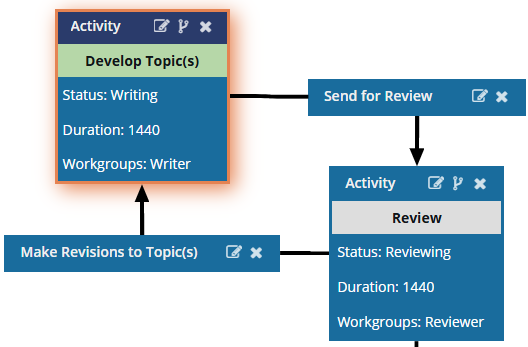
- Use the Topic workflow template explained in this topic as an example of what you can create.
- To create a new template, follow the steps in: Create a workflow template component.
- If you want to create a copy of an existing activity, you can also Copy and paste an activity.
- You can also manage activities in the following ways:
- If you want to automate the next step after an Activity is completed, you can add an Action to apply to a Transition. These actions must be preconfigured before you can select them on the Update Transition screen.
- InspireCreateReview. When a user advances a project workflow Activity, and the next Transition has an Action of InspireCreateReview, Inspire opens the Create Review screen for the current user. Any known information is pre-populated for the user. To create this action, follow the steps in: Add a Create Review Action to a topic workflow template.
- InspireCreateApproval. When a user advances a project workflow Activity, and the next Transition has an Action of InspireCreateApproval, Inspire sends an email notification to each workgroup user assigned to the workflow activity that triggered the Transition. To create this action, follow the steps in: Add a Create Approval Action to a topic workflow template.
- InspireApprove. When a user advances a project workflow Activity, and the next Transition has an Action of InspireApprove, Inspire automatically approves the source components associated with the workflow activity that triggered the Transition. This approval does not include component references and takes place without any user intervention. To create this action, follow the steps in: Add an Inspire Approve Action to a topic workflow template.
- InspireUnapprove. To automate the unapproval process, you can add an Action to have Inspire send notifications to confirm components to be included in the unapproval screen.
- When the workflow task is advanced, this action automatically unapproves components and returns them to the Draft state.
- You must configure it exactly as described in: Automate unapprovals in a workflow. Otherwise, Inspire won't understand the Action as an automated process.
- InspireCreateTranslation. When a user advances a project workflow Activity, and the next Transition has an Action of InspireCreateTranslation, Inspire does the following:
If a workflow has more than one component, the user can select what to translate. For example, the workflow might contain maps, topics, images, and PDFs, and the user wants to translate only the map.
- If a workflow has more than one component, the user can choose whether they want to create a single job or multiple jobs.
The user is shown the Translate component screen.
Inspire uses the Activity workflow details to populate the following information: Name (uses the Component name) and Components. To create this action, follow the steps in: Automate translation in a workflow template.
- Publication actions. The Action is called InspirePublish.
- In an active workflow, this action tells Inspire to check how many components are included in the previous Activity (such as Approve components) and take one of the following actions:
- If there is one XML component, Inspire opens the Publish Component screen. The publishing job Name is prepopulated with the component name. The user must fill out the required fields and click Publish. You see a notification that the publishing job has been created.
- If there is more than one XML component, Inspire opens the Select Project Components pane. The user can select the checkbox for each component they want to publish. When they click OK, Inspire opens the Publish Component screen. The user must fill out the required fields and click Publish. You see a notification that the publishing job has been created.
- If there are no XML components, Inspire gives you an error message. The publishing job is not created, and the workflow does not advance to the next step.
- You must configure it exactly as described in: Automate publication in a workflow template. Otherwise, Inspire won't understand the Action as an automated process.
- In an active workflow, this action tells Inspire to check how many components are included in the previous Activity (such as Approve components) and take one of the following actions:
- Report actions. The Action is called InspireCompletenessReport.
- In an active workflow, the InspireCompletenessReport action tells Inspire to check how many components are included in the previous Activity (such as Approve components) and take one of the following actions:
- If there is one XML component, Inspire opens the Check component completeness screen so that you can select the items you want to see in the report.
- If there is more than one XML component, you can choose which components to run the report on first, and then select the items you want to see in the report.
- If there are no XML components, Inspire gives you an error message. The report is not created, and the workflow does not advance to the next step.
- You must configure it exactly as described in: Automate completeness reporting in a workflow template. Otherwise, Inspire won't understand the Action as an automated process.
- In an active workflow, the InspireCompletenessReport action tells Inspire to check how many components are included in the previous Activity (such as Approve components) and take one of the following actions:
 Before you begin
- The changes to an Activity will be applied to all new workflows that are started using this template.
- For workflows that use this template and are in progress:
- If the Activity you are updating has not occurred yet, the changes will be applied when the workflow moves to the updated Activity.
- If the Activity you are updating has already been completed, the changes will not be applied.
To add a new activity:
-
Click
 Components.
-
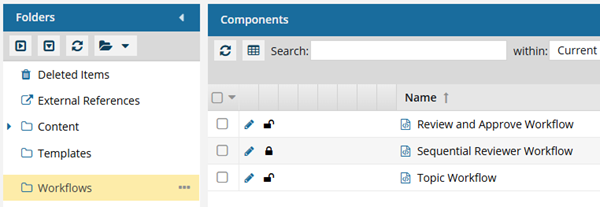
In the Folders pane, select Workflows.
 You can save a workflow template to another folder. If you did this, open that folder instead of the Workflows folder.
 -
To open the template, do one of the following:
- Double-click the file
- Right-click the file, and then select Edit...
- Click
 the Options menu, and then select Edit...
 Results: You see the workflow activities and transitions in the editor
 -
In the toolbar at the top of the editor, click
 Create Activity.
Results: You see the Create Activity screen.
Create Activity.
Results: You see the Create Activity screen.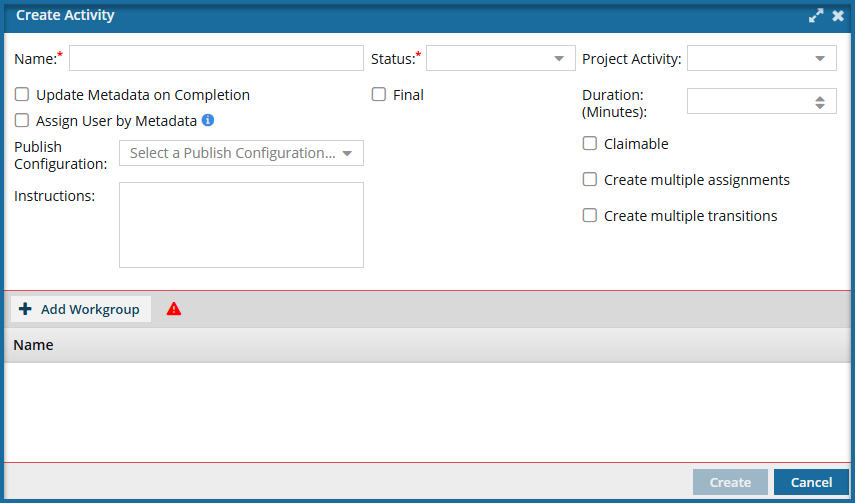
-
In Status, select an option such as Reviewing or Resolving.
 These options are configurable. Follow the steps in: Manage statuses in a template.
 -
In Project Activity, select the goal of this step, such as Write, Edit, Review, Approve, or Publish.
Project Activity is a required field and cannot be left blank. Although this field is not marked with a red asterisk, and you can create a new Activity without selecting a Project Activity, if you leave it blank, the Save and Submit options are not available until you correct the errors in the workflow template.
- If there is an error in the configuration of the Activity, you see the Activity name in red.
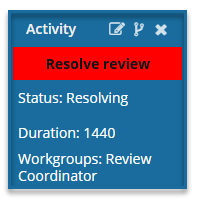
You must correct any errors before you can Save or Submit the workflow template.
Project Activity options are configurable. If you are an administrator, follow the steps in: Manage project activity configurations.
- If there is an error in the configuration of the Activity, you see the Activity name in red.
-
Optionally, if you want this to be the first activity and no activities come before it in the workflow, select Initial.
If there is an Activity that already has the Initial checkbox selected, you will not see this option.
- There can only be one Activity with the Initial checkbox selected.
- To change the Initial Activity, edit the first Activity box in the workflow and clear the Initial checkbox.
- Open the Activity you want to start with, select the Initial checkbox, and save your changes.
- If you do not select an Activity as Initial, Inspire uses the first Activity box in the visual flow.
-
Optionally, if you want this to be the final activity and no activities will follow in the workflow, select Final.
If an Activity already has the Final checkbox selected, you will not see this option.
-
Optionally, you can set a Duration for this activity in minutes.
Important notes:
- In the templates Inspire provides, by default, the user is given a Duration of 0 minutes to complete the activity, so you will need to set your own duration.
- You set the time in minutes from 0 to 525600, which is 1 year.
- After the Duration passes, if the activity is not complete, it is marked as Overdue, and notifications may be sent depending on a user's notification preferences.
-
If you want Inspire to populate or clear an XML element or attribute value across components participating in the workflow, select the Update Metadata on Completion option.
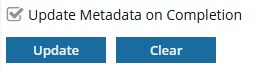
-
On the Update Metadata screen, click
 Add.
Add.
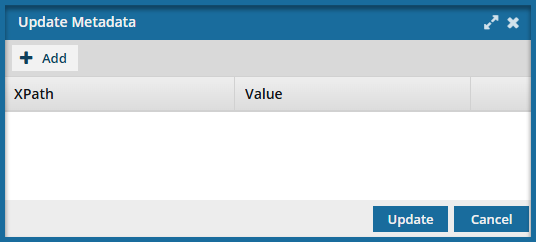
-
In the XPath and Value fields, enter the expression you need to update your metadata.
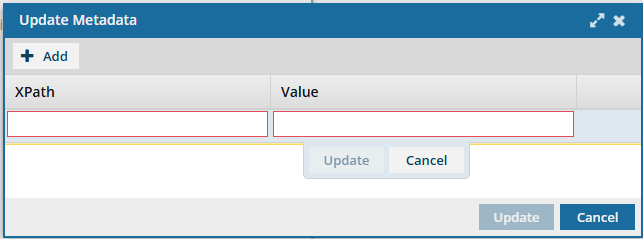
For example, if you are using the XML element "otherprops" and you want it to be set to the date when this Activity is completed, you would use the following values:
- XPath =
/*/@props - Value =
{$Date}
- XPath =
-
On the Update Metadata screen, click Update.
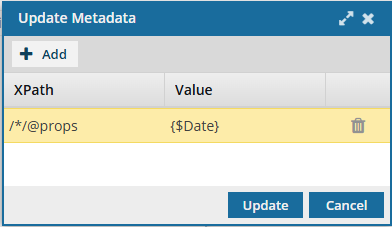 Results: You see your XPath statement under the Update Metadata on Completion option.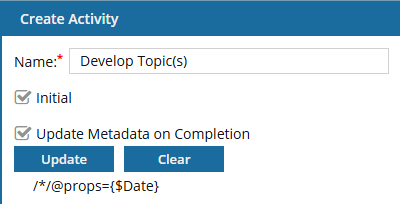
-
On the Update Metadata screen, click
-
Optionally, in Claimable, you can identify this activity as a project assignment that isn't assigned to one person initially. Instead, the user creating the workflow provides a list of users who can accept the assignment.
If you set an Activity to Claimable, when a user creates a workflow using this template:
- The user who creates a project assignment selects the Claimable options, then Inspire sets the activity to a State of Ready To Claim.
- The user who creates a workflow can select from the list of participants who can accept the work. This user list is taken from the workflow's workgroup assigned to this activity type.
- After the assignment is created, all participants are sent a notification that there is an assignment to claim.
- The first user who changes the State to In Progress claims the assignment and can complete the work.
Claimable is not available if you select any of the following options:- Assign User by Metadata
- Create Multiple Assignments
-
Optionally, to pull in a component's element or attribute that contains an email address to automatically assign the activity to a user, select Assign User by Metadata.
Important notes:
- If it does not already exist, you must Add metadata to a component that contains the email address of an Inspire user who is a member of the Activity's Workgroup.
- If you use this option, you cannot select either the Claimable or Create Multiple Assignments options.
- You can only use one XPath statement.
- Inspire inspects the first component in the assignment and evaluates the XPath statement. If it encounters any errors, the Activity is assigned to the user in the Fallback User field that appears on the Next Activity screen instead of the Assign To field. For more information about errors, read: Automate the assignment of a workflow activity.
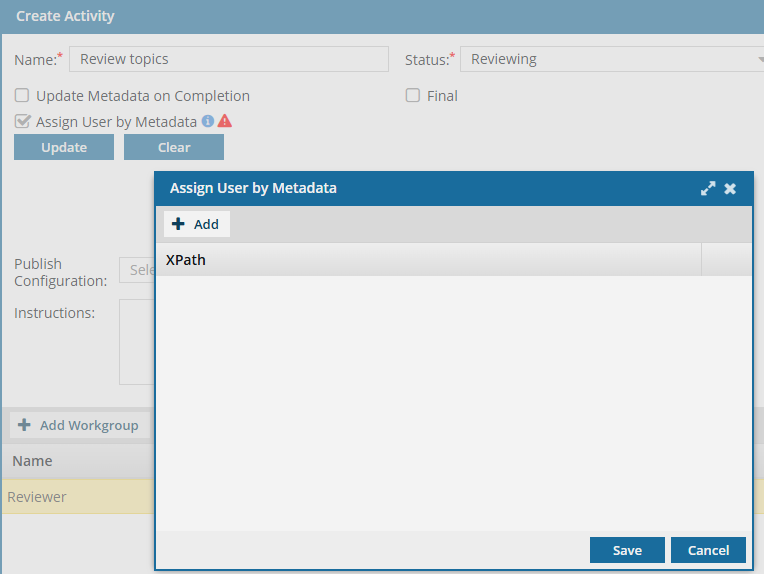
-
In the new field that appears, enter your XPath statement. For example:
/*/@props.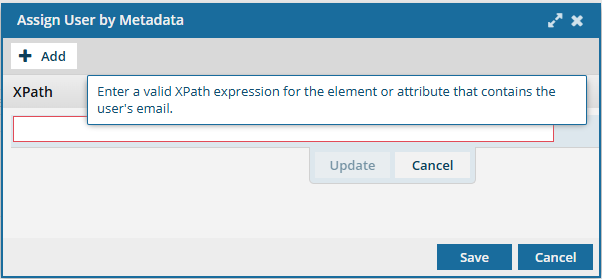
-
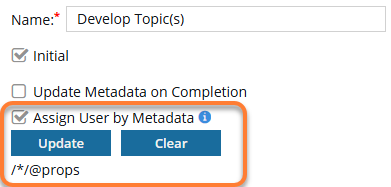
On the Assign User by Metadata screen, click Save.
Results: You see the XPath statement that Inspire will use to assign the Activity.
-
If you want Inspire to create an assignment for each user in the Workgroup instead of a single assignment for the selected user, select the Create multiple assignments option.
Important notes:
- All users MUST complete the assignment (or all assignments must be canceled) before the Activity can be marked complete, and the workflow can be advanced.
- This option is not available if you selected any of the following options:
- Claimable
- Assign User by Metadata
- If you select Create Multiple Assignments, when you start a workflow based on this template, you will not be able to Change the current activity in a workflow.
-
To refine the options on the Next Workflow Task screen based on how the previous assignment was completed, select Create Multiple Transitions.
Results: When you add a transition From this Activity, the Create Transition screen includes an option to select a Transition Type. You can create one or more transitions for each type listed. Currently, this is limited to Accept and Reject.
- This functionality lets you create different paths for the workflow to follow.
- For example, you can configure a review activity that lets the user select Accept or Reject when completing the activity. If they select Accept, the workflow can advance to an approval or translation task. If they select Reject, the workflow can return to the develop content task.
- For help creating multiple transitions, follow the steps in: Using multiple transitions with one activity.
-
Optionally, if the Activity is related to publishing, in Publish Configuration, select the option that contains the publishing settings you want to use.
A Publish Configuration is created by an administrator and may include settings such as a default Publish Name, whether to skip or validate XML in the components, and profiling filters.
-
Optionally, you can add guidelines for the user who creates the workflow and for the next user when this activity is marked as Completed. In Instructions, explain to the next user what to do in 2000 or fewer characters.
Notes:
- Instructions are saved with the workflow template and added to the project assignment as they are created for an active workflow.
- When an active workflow advances, Inspire displays these instructions in a read-only area at the bottom of the Next Workflow Task screen.
-
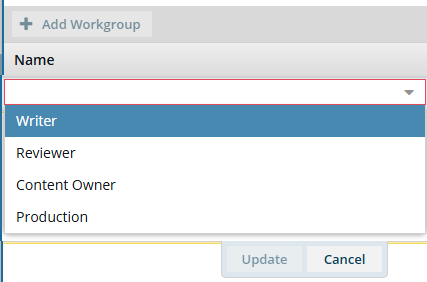
In Workgroup, select
 Add Workgroup.
-
Select an option such as Writer, Reviewer, Content Owner, or Production.
These options are configurable. Follow the steps in: Manage template workgroups.
-
Click Update.
Results: You see the workflow listed under Name.
-
Select an option such as Writer, Reviewer, Content Owner, or Production.
-
To save changes to the Activity, click Create.
Results:
- You can see your new activity as the first box in the workflow editor.
- Your new activity may be covering up the First Activity. To move it, click the Activity title bar, and when you see the move cursor, drag it to where you want it to occur in the workflow.
- You may need to create a transition between other activities and your new one. Follow the steps in Manage workflow transitions in a template.
-
To save changes to the template, do one of the following:
- If you are done updating the workflow, to close the workflow editor, click
 Save and Submit.
 - If you want to keep working but save your changes locally, click
 Save Progress.
Results:- The changes to an Activity will be applied to all new workflows that are started using this template.
- For workflows that use this template and are in progress:
- If the Activity you are updating has not occurred yet, the changes will be applied when the workflow moves to the updated Activity.
- If the Activity you are updating has already been completed, the changes will not be applied.
To create a transition between Activities, follow the steps in: Create transitions in a template. - If you are done updating the workflow, to close the workflow editor, click