Create an element
As an Inspire administrator, you can add elements to configure component relationships. When creating elements, you can set properties to specify whether an element needs an ID, whether it is a root or document element, and the schema standard that must be used when validating the element.
When you specify if an element needs an ID, you need to determine if it also needs a root ID.
| Root ID | Elements that are not roots |
|---|---|
| Each XML document has exactly one root element. Use this option when creating an element that is a topic type. | This option is used for an element that contains text, an attribute, other elements, an entity reference, or a processing instruction. |
| By default, Inspire provides the following root elements: | By default, Inspire provides the following elements that are not roots: |
| Needs Id = Yes, and Root Id = Yes | Needs Id = Yes, and Root Id = No |
|
|

To add an element:
-
On the Element Management tab, click Create.
 Results: The Create Element screen opens.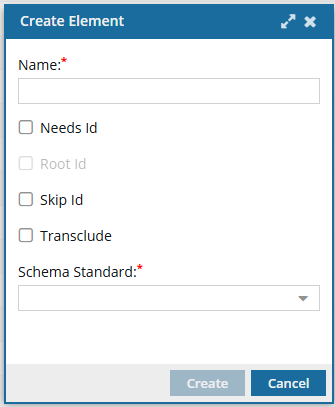
-
On the Create Element screen, enter a Name using 100 characters.
 An element name must follow these rules:
- Names are case-sensitive.
- Must start with a letter or underscore.
- Cannot start with the letters xml, XML, Xml, or any variation of these letters.
- Contains any of the following: letters, digits, hyphens, underscores, and periods.
- Cannot contain spaces.
-
If you want to force the Oxygen editor to create an ID for this element, select Needs Id.
 When the user clicks Save and Submit or Generate IDs, an ID is assigned to all instances of the element. Inspire now puts a valid ID on elements only if the NeedsId identifier is selected in their element configuration.
If you do not select NeedsId, when the user clicks Save and Submit or Generate IDs, an ID is NOT assigned to any instances of the element.
- The user can manually add an attribute type of ID if necessary.
-
In Skip ID, if an ID for this element is not supported in the DTD, select this option.
By default, this option is not selected. If you select Skip Id for this element:
- When content is imported, no ID is generated.
- In the Oxygen editor, no ID is generated when the Generate IDs or Save and Submit options are used.
- This behavior is enforced even if the AutomaticIds option is turned on.
-
To create the element, click Create.
Results:
- You are returned to the Element Management screen.
- The new element is listed.
- Users must log out and back in to see the changes in the Oxygen editor.