Work with elements in Oxygen
You can edit Inspire components in an XML editor that uses Oxygen functionality. When you're working on a document in the Oxygen-based editor, you can insert an element to create a new paragraph, section, list, or table. You can also insert link and reference elements to reuse other content or send your reader to auxiliary content.
Articles in this topic:

FAQs
Which elements can I use?
- Images
- Links and content references
- Sections (concepts, tasks, topics, reference topics)
- Paragraphs
- Lists (ordered and unordered)
- Tables
Why do I see a red line in an element?
If you've successfully added an element but now see a red underline, it's warning you that your content is invalid. This is usually because the element has been edited after being correctly inserted. Your document will be invalid until you fix those elements. To look up a specific element and fix errors, use Oxygen's DITA specifications.
Why can't I see the tags that define the elements?
By default, the Oxygen-based editor hides tags to provide a more user-friendly view that isn't cluttered with details. If you want to, you can set a preference to show varying levels of tag information.
How to insert any element:
-
To insert an element, select an option on the toolbar.
 Results:
Your element is added to the center pane, and you can manage attributes in the right panel on the Attributes tab.
 You may or may not see element IDs. An administrator can configure an element to never be assigned an ID.
 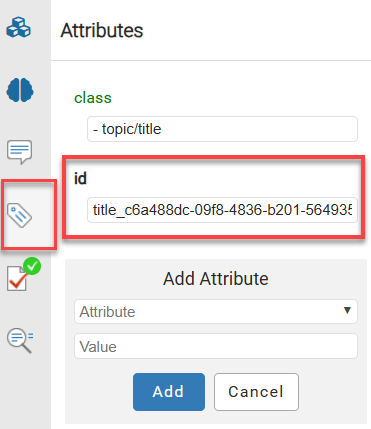 In the Oxygen editor, when you select
  Generate IDs, Inspire only puts a valid ID on elements if the NeedsId identifier is selected in their element configuration. Administrators can follow the steps in: Configure an element as NeedsID.
If an element is configured not to use IDs:
- When content is imported, no ID is generated
- In the Oxygen editor, no ID is generated when the Generate IDs or Save and Submit options are used
- This behavior is enforced even if the AutomaticIds option is turned on