Create a workflow from an assignment
When you're working on assignments for a project, you can convert an assignment into a workflow. Using a workflow lets you have multiple assignments, with handoffs automated by Inspire. After you initiate a workflow, Inspire marks the assignment as Complete and opens the Start a workflow screen.
When creating a workflow from a project assignment, you can choose from one of the following default templates provided by Inspire:
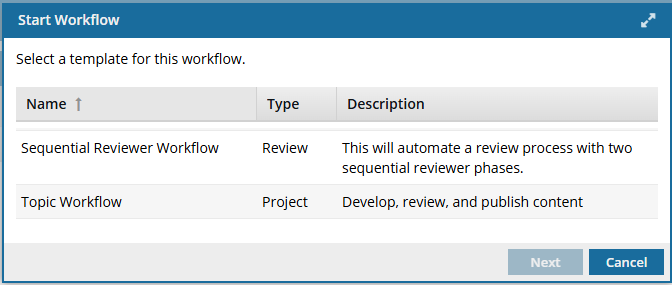
- Sequential reviewer workflow—This creates a review process with two sequential reviewer phases. You'll need at least one participant assigned to the project who has a Review Coordinator membership.
- Topic workflow—this lets you assign tasks and participants to the following activities: develop, review, and publish content. You'll need a participant for the following roles: writer, reviewer, content owner, production.

 You can also choose from one of your customized workflows.
Keep in mind that customized workflows may vary. This documentation explains how to create a workflow using the default templates provided by Inspire. If you're using a customized workflow the steps will be different.
 Before you begin:
Read required permissions
Depending on what tasks you need to complete, you need some permissions to the following features:
- Projects
- Workflows
- Reviews
Project permissions
To work with projects you must have permission to the Projects Module .
- By default, only users with the following permissions can create project workflows and assignments:
- Administrator permissions
- Access to the Project Module with the Create permission
- Even if you don't have these permissions, you can be granted a special permission to create workflows and project assignments after a project is created.
- If you are an administrator, refer to Allow users to create project assignments and workflows.
Workflow permissions
To create, view, update, and delete workflows you must either be an Administrator, the project Owner, or have the following permissions:
- Create, read, update, and delete permissions to the
 Projects module.
 - For the Projects module, your user account must be listed under the following Property: can_initiate_assignment.
- If you are an administrator, refer to Allow users to create project assignments and workflows.
Review workflow permissions.
To work with Review workflows, you also need:
- Create, read, update, and delete permissions to the
 Reviews module.
 If you try to assign work to a participant who doesn't have access to the component, you will see the following error.
This workflow has one or more permission problems. It is recommended to cancel the workflow, correct the permissions, and then restart it. The assigned user "Jane.Doe@MyCompany.com" does not have permission to access the following components: PrivateConcept.
- The error tells you the name of a user included in the workflow. It may not be user who needs the permissions, so you have to check each participant's permissions to the restricted component.
- The warning tells you the name of the restricted component.
- The Workflow is still started. You can change the permission, participant, or the component to resolve the conflict.
- For details on how to set permissions, refer to: Set permissions.
Be aware of template settings for Activities
When a workflow template is configured, an Activity can be set up to change a basic workflow task in the following ways:
- Initial / Final. These options, if selected, tell Inspire where the workflow starts and stops. When a user starts an active workflow:
- The Initial assignment will always be the Activity with the Initial option selected.
- The workflow cannot be marked as completed until the Activity with the Final option is completed.
- Duration. This option, if used, sets a deadline for the activity to be completed (in minutes from 0 to 525600 which is 1 year).
- Update Metadata on Completion. This option, if used, tells Inspire to populate or clear an XML element or attribute value across components participating in the workflow.
- Claimable. This option, if used, specifies that this activity can be set to a State of Ready to Claim. In this case, the activity is not assigned to one user but to a list of users who are notified that an activity can be claimed. The first user to claim the assignment completes the work. Claimable cannot be used in the same activity as Create Multiple Assignments.
- Create Multiple Assignments. When an active workflow advances to an activity where this option is used, Inspire creates an assignment for each user in the Workgroup instead of a single assignment for the selected user. All users MUST complete the assignment (or all assignments must be cancelled) before the Activity can be marked complete, and the workflow can be advanced. Create Multiple Assignments cannot be used in the same activity as Claimable.
Follow best practices
Before converting an assignment to a workflow:
You need to make sure that a project with content, a participant, and an assignment already exists.
You can only use a project assignment that is not already part of a workflow.
 Keep in mind that after you add a participant to a project and give them tasks to complete, you might not be able to easily remove them. You can't remove a participant from an active project if they are:
- A reviewer, approver, or coordinator of an active Review workflow in that project.
- A reviewer or coordinator of a Topic workflow in that project.
- Given an assignment in that project.
For more details, read Remove participants from a project.
Inspire checks to see if the component(s) you want to add are in another assignment, project workflow or review workflow. You see warnings if a component is already in use. If you want, you can close the warnings and create the assignment or workflow anyway.
When selecting an assignment to convert to a workflow:
 The assignment must be in one of the following States to use the Initiate workflow option:
- To Do
- In Progress
If the Initiate workflow option is not available, the assignment is already being used in a workflow.
 The assignment cannot be converted to a workflow if it's in any of the following States:
- Accepted
- Completed
- Rejected
- Cancelled