Delete a workflow template
If you aren't using a workflow template anymore, you can send it to the Deleted Items folder where it stays until you delete it permanently. You can send a workflow template to the Deleted Items folder from the Components browser.
 Required permissions
You must have permission to the Projects Module to work with projects and workflows. Other than that, you do not need special permissions to create, edit, or delete workflow templates.
 However, keep in mind that administrators and other users can set permissions on components and folders.
- You must have permission to edit the workflow template component.
- You must have folder permissions where the template is stored.
- For details on how to check and set permissions, refer to: Set permissions.
 For a complete list of permissions, including starting a workflow from a template, read: Workflow permissions.

 Tips and tricks
If you only want to remove all activities and transitions in a workflow, and retain any custom Status or Action you've created, follow these steps instead of deleting the workflow component:
- Delete an existing activity
- Delete a transition
 Before you begin
- Locked (by another user, by you, or by the system)
- Follow the steps in Unlock a component.
- Used in a Project
- Follow the steps in Remove a workflow from a project.
If a component is in one of these states, you must either resolve the issue or choose not to delete it.
To delete a workflow from the Components browser:
-
Click
 Components.
-
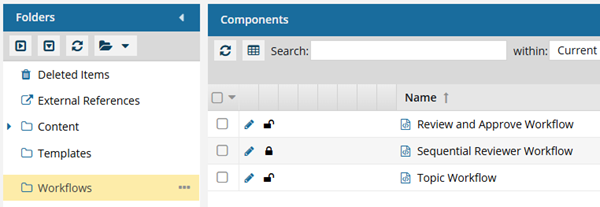
In the Folders pane, navigate to the Workflow folder.
 You can save a workflow template to another folder. If you did this, open that folder instead of the Workflows folder.
 -
Right-click the component, and select Delete. You can also click
 the Options menu and select Delete.
-
On the Delete Component screen, to confirm click Yes.
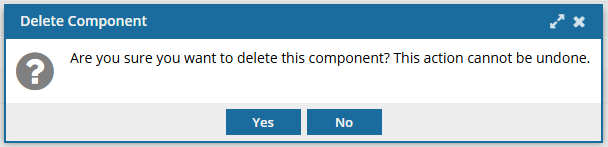 If you can't delete a component, read the message that appears telling you the reasons why. Correct the issue before trying to delete the component again.