Add the Inspire completeness report action
You can include an action to run a completeness report before you publish workflow components or send them for translation. This lets you identify any errors or issues before advancing the workflow.
 Required permissions
You must have permission to the Projects Module to work with projects and workflows. Other than that, you do not need special permissions to create, edit, or delete workflow templates.
 However, keep in mind that administrators and other users can set permissions on components and folders.
- You must have permission to edit the workflow template component.
- You must have folder permissions where the template is stored.
- For details on how to check and set permissions, refer to: Set permissions
 For a complete list of permissions, including starting a workflow from a template, read: Workflow permissions.

 Tips and tricks
- This automated Action is only available in a topic workflow template (not a sequential reviewer template), or a completely new workflow template component.
- You can create an entirely new workflow template component that has no default Activities and Transitions.
- Use the Topic workflow template explained in this topic as an example of what you can create.
- To create a new template, follow the steps in: Create a workflow template component.
- In an active workflow, the InspireCompletenessReport action tells Inspire to check how many components are included in the previous Activity (such as Approve components) and take one of the following actions:
- If there is one XML component, Inspire opens the Check component completeness screen so that you can select the items you want to see in the report.
- If there is more than one XML component, you can choose which components to run the report on first, and then select the items you want to see in the report.
- If there are no XML components, Inspire gives you an error message. The report is not created, and the workflow does not advance to the next step.
- If you don't want to use this automated action, you can manually run the report to Check component completeness.
- An Action is unique to the template it's included in. If you want to use the new or updated Action in a different template, you have to re-create it in that specific template.
- After you add this new Action to the provided template or a custom template you've created, you can use it in a workflow transition.

To add the Inspire completeness report action to a topic workflow template:
-
Click
 Components.
-
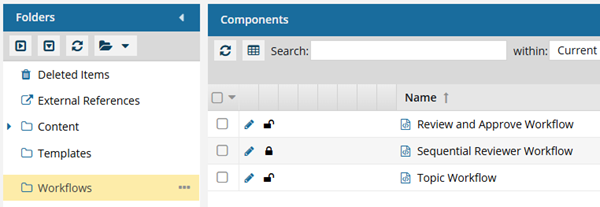
In the Folders pane, select Workflows.
 You can save a workflow template to another folder. If you did this, open that folder instead of the Workflows folder.
 -
In the Components pane, select a workflow.
The InspireCompletenessReport action is only available in Topic workflows or a completely new workflow template component.
-
In the workflow editor toolbar, click
 Actions.
-
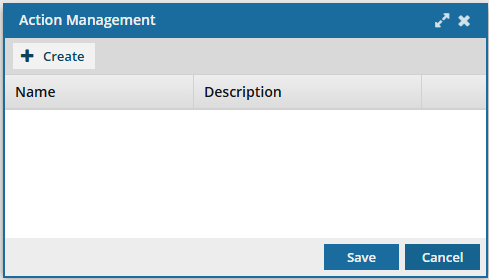
On the Action Management screen, click
 Create.
-
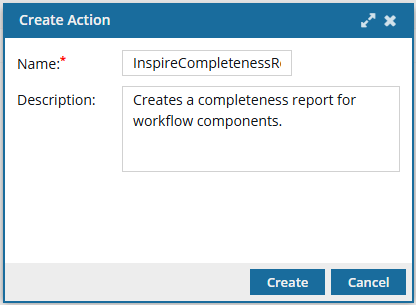
On the Create Action screen, in Name, enter the following string of characters exactly: InspireCompletenessReport.
 Important notes:
- Do not use any spaces
- Make sure to use capital letters for Inspire, Completeness, and Report
- If the string is not entered exactly as shown, Inspire will not be called to send notifications or open the Review Approval screen
-
To save your changes on the Create Action screen, click Create.
 Results:
- You can see your new action on the Action Management screen.
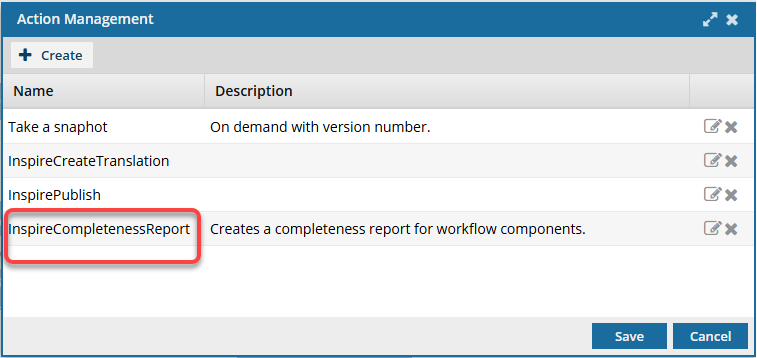
- You can see your new action on the Action Management screen.
-
To save the list of actions, on the Action Management screen, click Save.
Results:
- Your list of Actions is saved.
- The InspireCompletenessReport action is added to the template Actions options but is not in use until you add it to a Transition.
- When you create or update a Transition, you can select the InspireCompletenessReport action.